Installation and Login
Updated on 2026-10-20 · Estimated reading time: 3 minutes
This guide describes how to download and install the DeepWorks desktop client, complete first-run configuration, and sign in.
Requirements
| Operating system | Supported version | Architecture | Recommended configuration |
|---|---|---|---|
| macOS | macOS 11 Big Sur or later | Apple Silicon (arm64) / Intel (x64) | 8 GB RAM or more |
| Windows | Windows 10 or later | x64 (64-bit) | 16 GB RAM |
| Linux | Common desktop distributions | amd64 (64-bit) | 8 GB RAM or more |
System requirements: Systems that do not meet these requirements cannot start DeepWorks. Windows 7, 8, and 8.1 are not supported.
Download
Visit the DeepWorks website and choose the version that matches your operating system.

Installation
macOS
- Double-click the downloaded
.dmgfile to open the installation image. - Drag DeepWorks.app to the Applications folder.
Windows
- Double-click the downloaded
.exefile and follow the installation wizard. - Shortcuts are created on the desktop and in the Start menu after installation.
Linux (.deb)
- In a terminal, go to the directory containing the package and run:
sudo apt install ./DeepWorks-amd64-{version}.deb- After installation, start DeepWorks from the system application menu, or run:
/opt/DeepWorks/deepworksLinux (AppImage)
- Confirm that FUSE is installed. AppImage depends on FUSE, and some distributions require
libfuse2:
# Ubuntu / Debian
sudo apt install libfuse2- Make the AppImage executable, then double-click it or run it from a terminal:
chmod +x DeepWorks-{version}.AppImage
./DeepWorks-{version}.AppImage
AppImage note: For compatibility across Linux distributions, the DeepWorks AppImage starts with reduced Chromium sandbox protection. The main application works normally, but the built-in browser provides weaker isolation for external web pages than the .deb installation. Prefer the .deb package when possible.
Sign In
Personal Edition
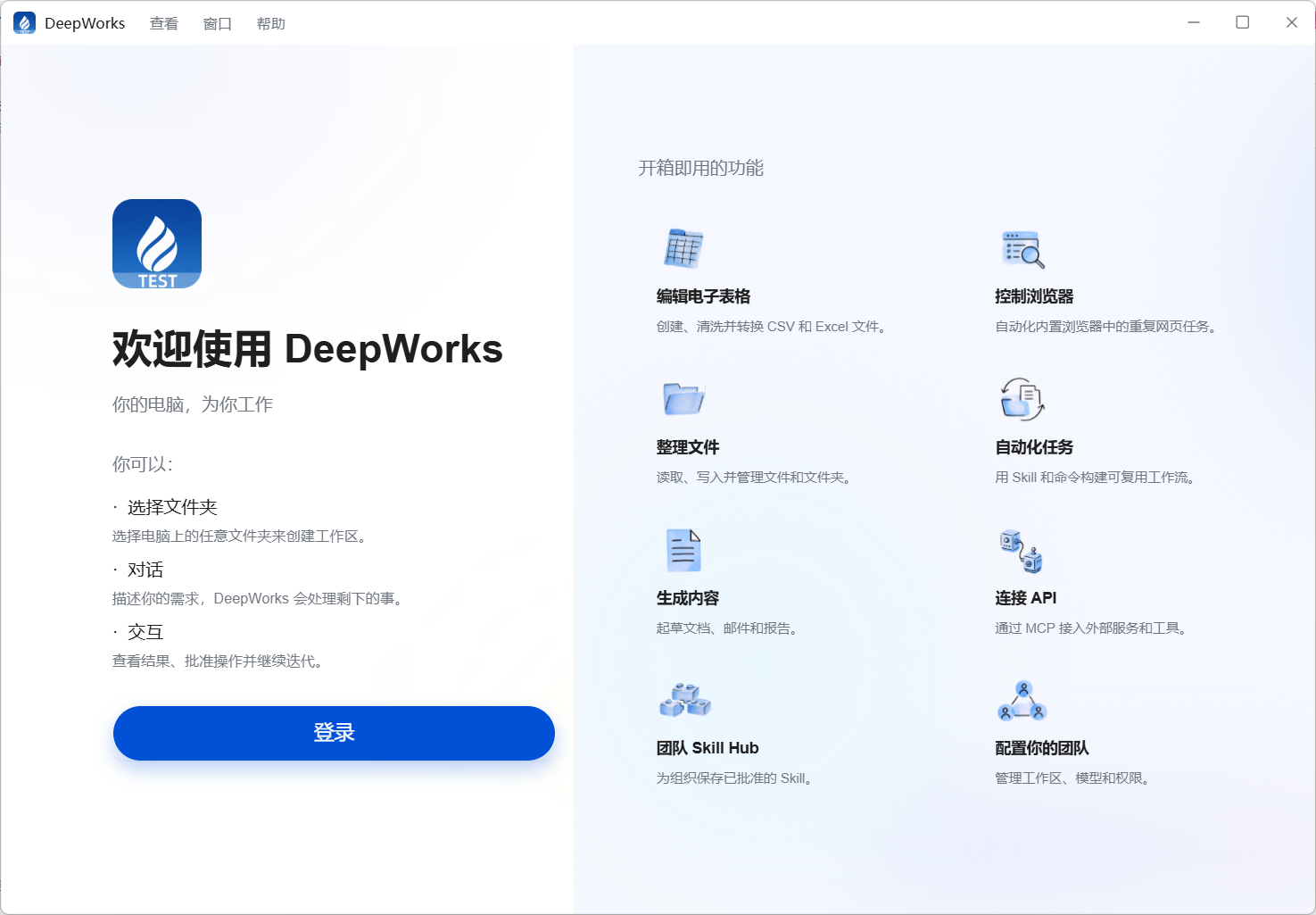
- Open DeepWorks and select Sign in.
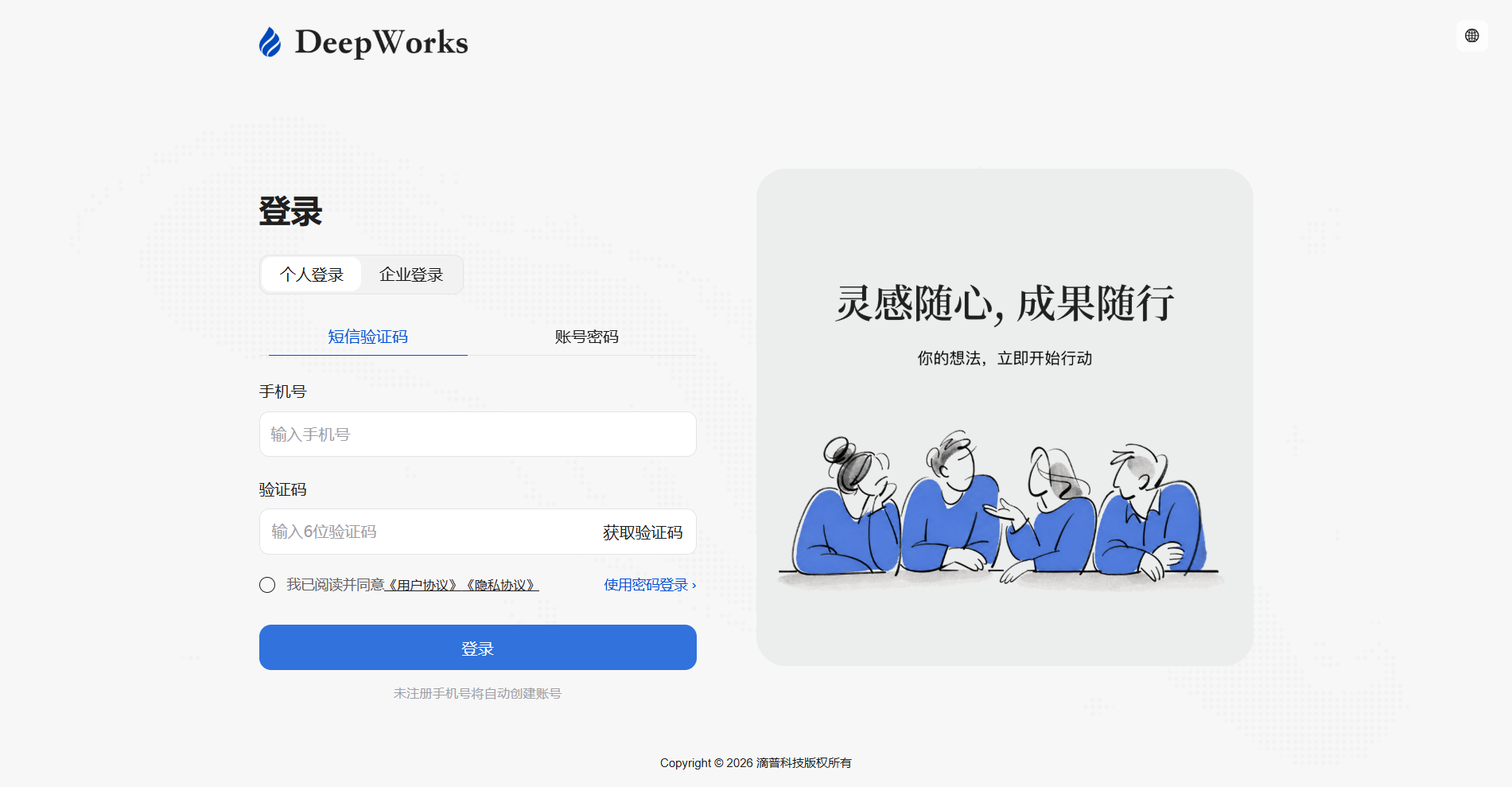
- The browser opens the sign-in page. Sign in with a phone number and verification code. Unregistered users are registered automatically on first sign-in.
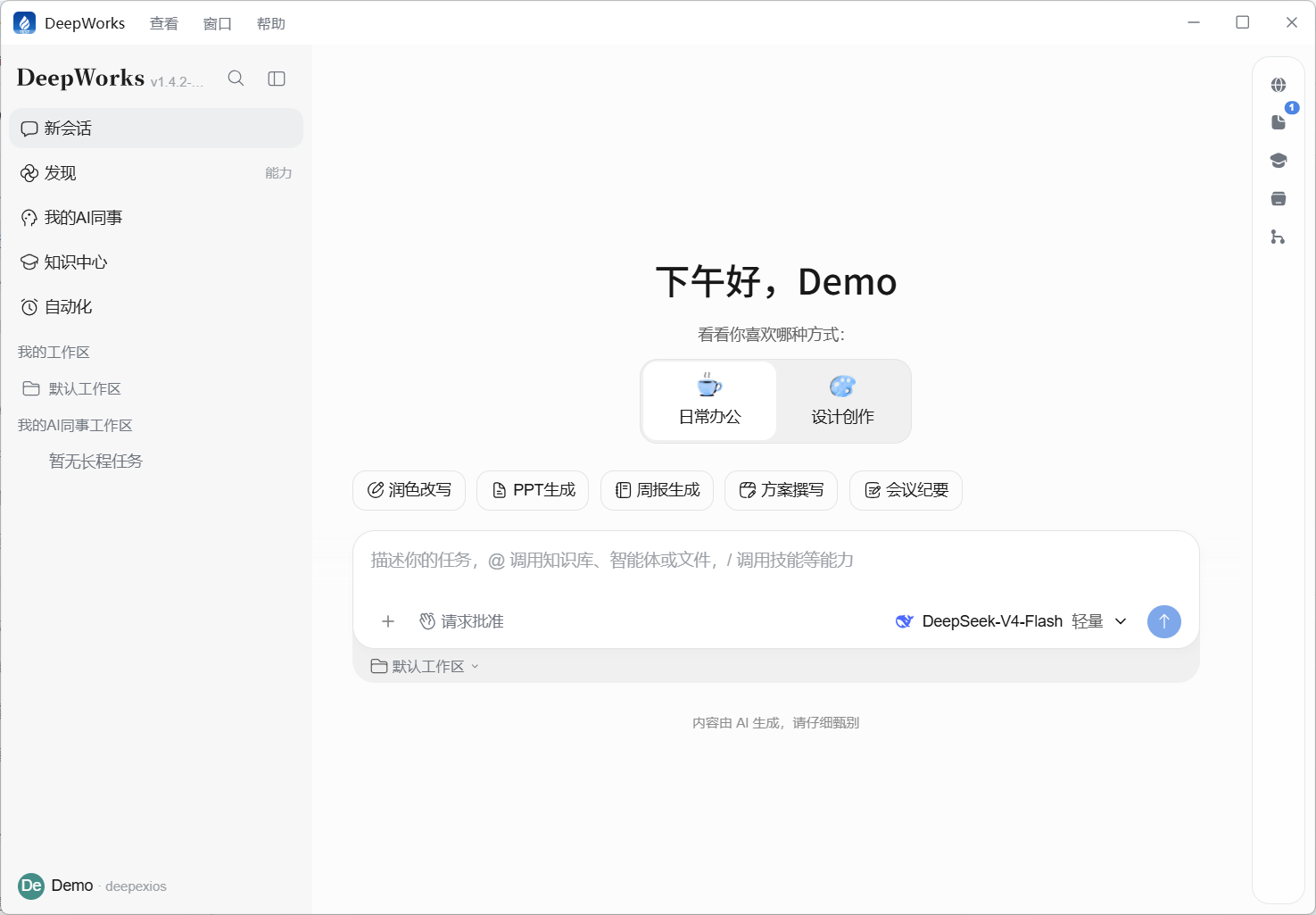
- After sign-in, return to the DeepWorks client automatically and start using it.
Enterprise Edition
Before using the Enterprise edition, subscribe to an enterprise plan. See Subscription Management for the subscription process.
-
Open DeepWorks and select Sign in to open the browser sign-in page.
-
Select Enterprise sign-in.

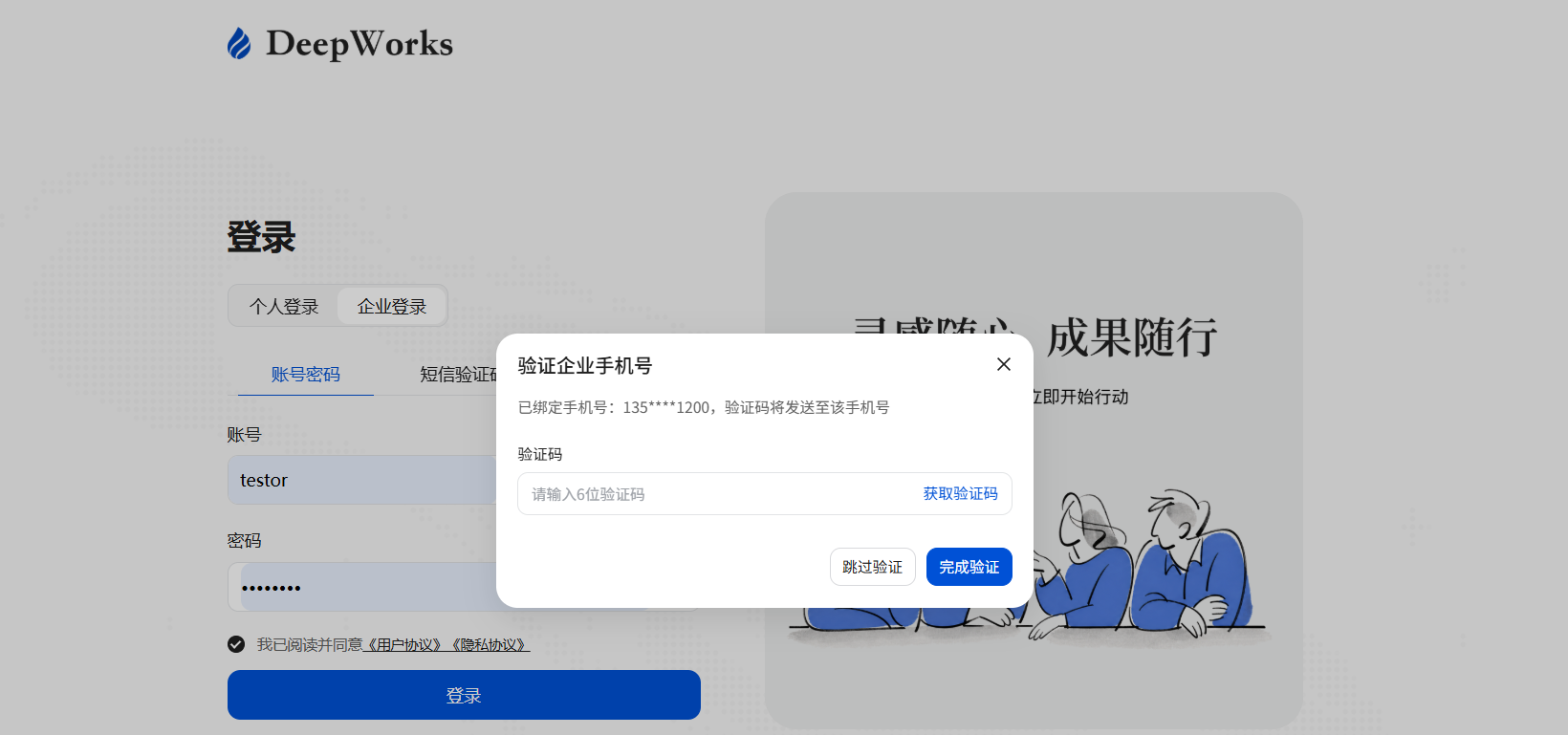
- Complete sign-in using the authentication method configured by your enterprise administrator:
-
Account and password: Enter the account and password assigned by the administrator.
-
SMS verification code: Enter your phone number and verification code.
-
Enterprise DingTalk QR code: Scan the code with enterprise DingTalk.
- If an enterprise user already has a personal account, the phone number can be bound so you can switch between personal and enterprise editions.
Update
- Open and sign in to DeepWorks, select Account in the lower-left corner, and choose Check for Updates.
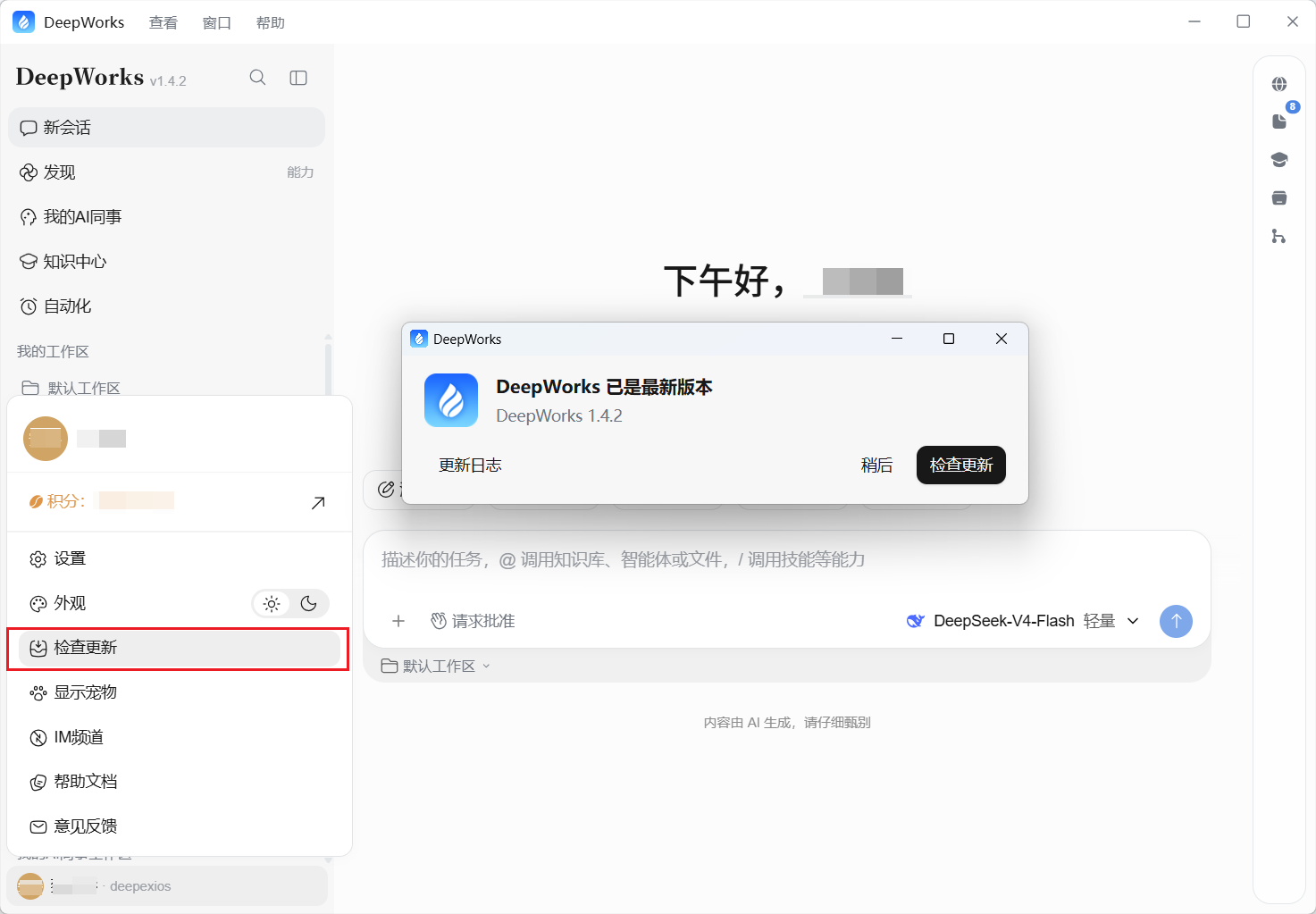
- If a new version is available, select Install Now to update.