Collaboration Space Case Study
Case Introduction
Use Case
This case is for users who are new to Collaboration Spaces or want a quick overview of their core features. Using the common office task of refining a monthly sales summary and creating a presentation for the report, it shows how to manage materials in a Collaboration Space, track progress with tasks, request changes through annotations, connect local execution with cloud AI processing, and retain traceable deliverables.
The scenario is preparation for a monthly business review meeting: verify the data conclusions in a sales summary, add regional, product, and channel analysis, then turn the revised material into a presentation. The case starts with September Sales Operating Summary.md, a file containing simulated business data from July through September. It moves from uploading the material through document refinement, version updates, and presentation delivery.
The complete workflow can be completed by one user with one account, without inviting other members or switching accounts. This article demonstrates how to use Collaboration Space features; it does not show an actual multi-person collaboration scenario. Member invitations, multi-person division of work, task handoffs, cross-account shared access, and role-permission differences are outside its scope.
Case Objectives
-
Create the
Complete the business review presentationtask, track the whole process through status transitions, and perform final acceptance in one place. -
Annotate errors and additional requirements in the document so each change has a clear basis.
-
Add the document to a conversation and revise it in a local workspace.
-
Submit the revised document back to the original Asset Library while retaining historical versions.
-
Reference the revised version in the Collaboration Space and ask an AI Colleague to generate the presentation.
-
Review and save the presentation, then mark it as a key deliverable.
Workflow
Create and start the task → upload, review, and annotate the material → refine the document locally → submit the revised document back to the Collaboration Space → ask an AI Colleague to generate the presentation in the cloud → review and submit the presentation → mark the key deliverable → submit the task for acceptance and complete it.
This case submits results twice: first the revised document from the local workspace, then the presentation from a cloud execution session in the Collaboration Space. Confirm that the revised document has been saved to the Asset Library before generating the presentation. Saving the document is an intermediate milestone, and the task remains In Progress; after the final presentation is saved and passes review, perform acceptance.
Usage and Expected Results
The same user provides the change requirements, checks the revised document, and accepts the presentation. Use the following two outputs to confirm whether the case is complete.
| Result | File name | How it is saved |
|---|---|---|
| Revised operating summary | 9月销售经营总结.md | Updates the version of the original file in the Asset Library |
| Business review presentation | index.html (an 11-page HTML presentation) | Generated in the cloud and submitted to the library by the user |
Preparation
Prepare the Input Material
Download and prepare the input material: 9月销售经营总结.md. The material contains monthly operating data and regional, product, and channel details. All data is simulated. The preliminary summary intentionally retains incorrect conclusions and analysis gaps.
Determine the Space, Asset Library, and Workspace
| Object | Case name | Purpose |
|---|---|---|
| Collaboration Space | Monthly Sales Reporting Collaboration Space | Organizes case materials, AI capabilities, and deliverables |
| Asset Library | Sales Reporting Asset Library | Stores the original document, revised versions, and the PPT |
| Local workspace | Daily Office | Performs document calculations, corrections, and supplementary analysis |
Create the Collaboration Space and Asset Library
Create a Collaboration Space
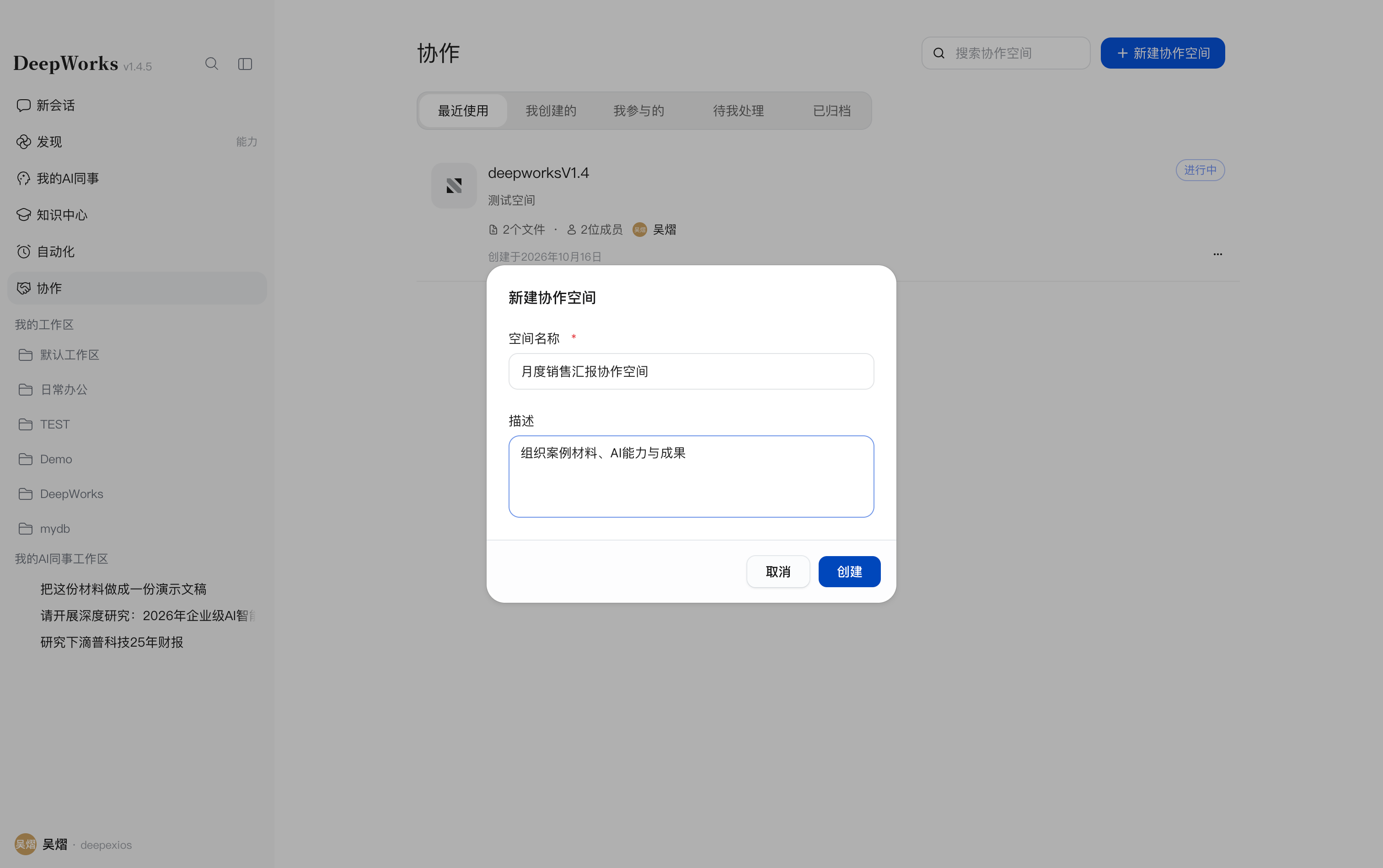
Create Monthly Sales Reporting Collaboration Space to organize the sales summary, AI capabilities, and reporting deliverables for this case.
Path: Collaboration in the left navigation → New Collaboration Space.
-
Click
Collaborationin the left navigation to open the collaboration page. -
Click
New Collaboration Spacein the upper-right corner to open the creation dialog. -
Fill in the following information:
Field Value in this case Description Space name Monthly Sales Reporting Collaboration Space Required. Identifies the space used in this case. Description Organize case materials, AI capabilities, and deliverables Optional. Explains the purpose of the space. -
Check the values and click
Create. To stop without creating, clickCancel.
Confirm the result:
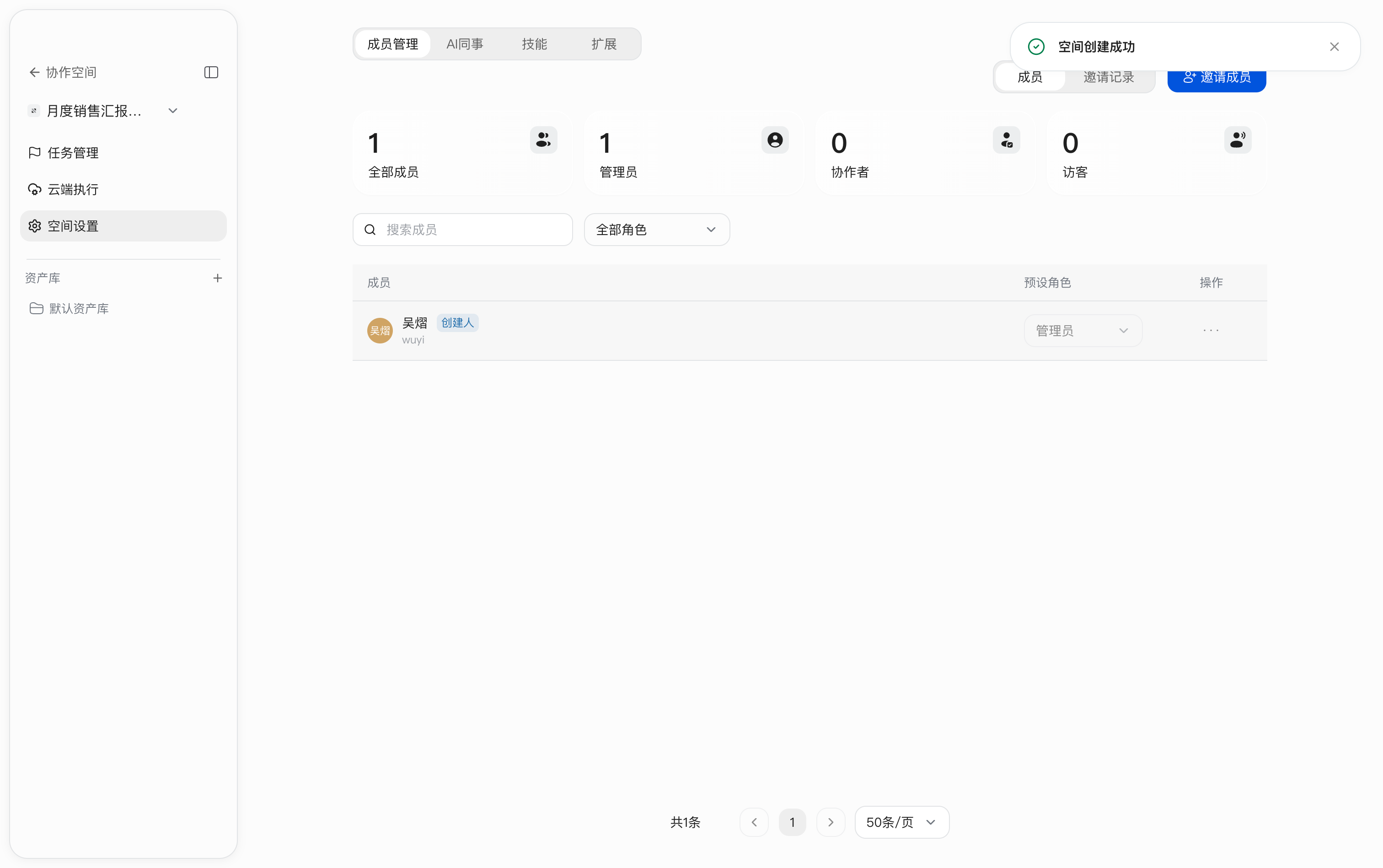
After a successful submission, the system shows Space created successfully and enters the space automatically.
Create the Sales Reporting Asset Library
The Asset Library stores the original sales summary, revised versions, and presentation deliverables for this case.
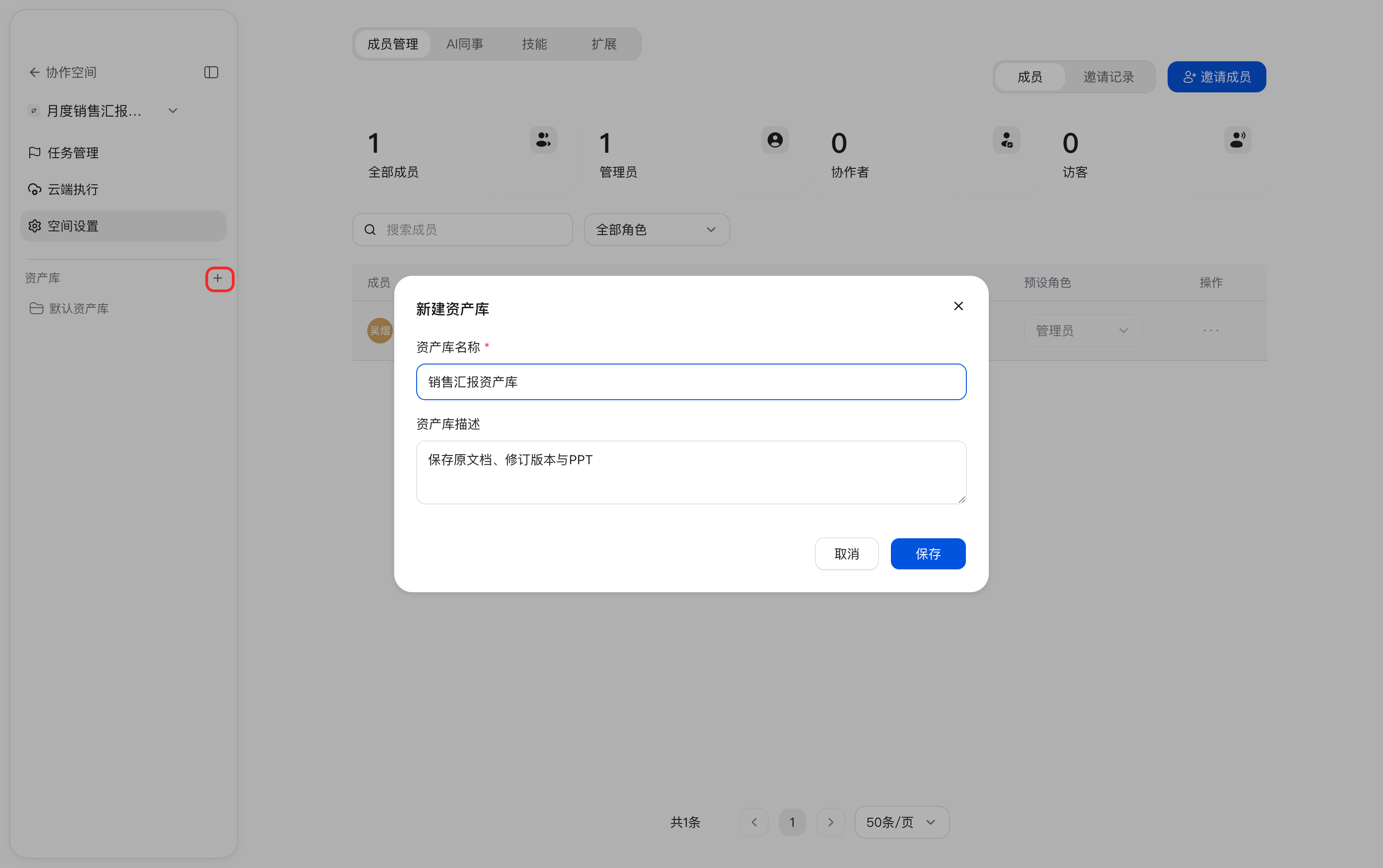
Path: Enter the Collaboration Space → + next to Asset Library on the left.
-
In
Monthly Sales Reporting Collaboration Space, click+next toAsset Libraryon the left to open theNew Asset Librarydialog. -
Fill in the following information:
Field Value in this case Description Asset Library name Sales Reporting Asset Library Required. Identifies where this case stores materials. Asset Library description Store the original document, revised versions, and PPT Optional. Explains the purpose of the library. -
Click
Saveto create it. To stop without creating, clickCancelor the close button in the upper-right corner.
Confirm the result:
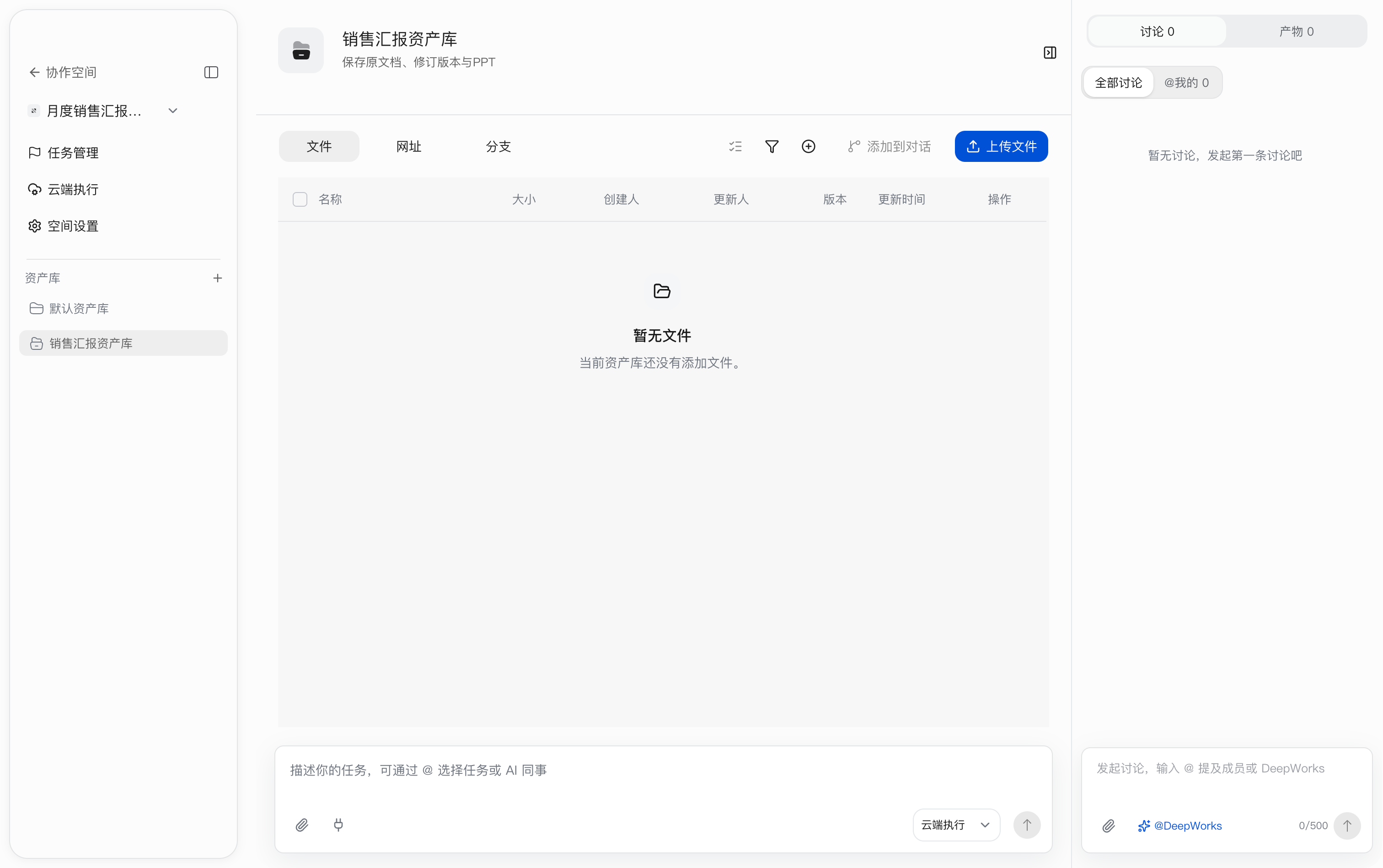
After creation, Sales Reporting Asset Library appears in the left Asset Library directory. Enter the library to check its name and description. The Files tab shows No files yet, meaning no material has been added. Later, Upload File will be used to add 9月销售经营总结.md, and both the revised document and generated presentation will be saved in this library.
Add the AI Colleague Used to Generate the Report
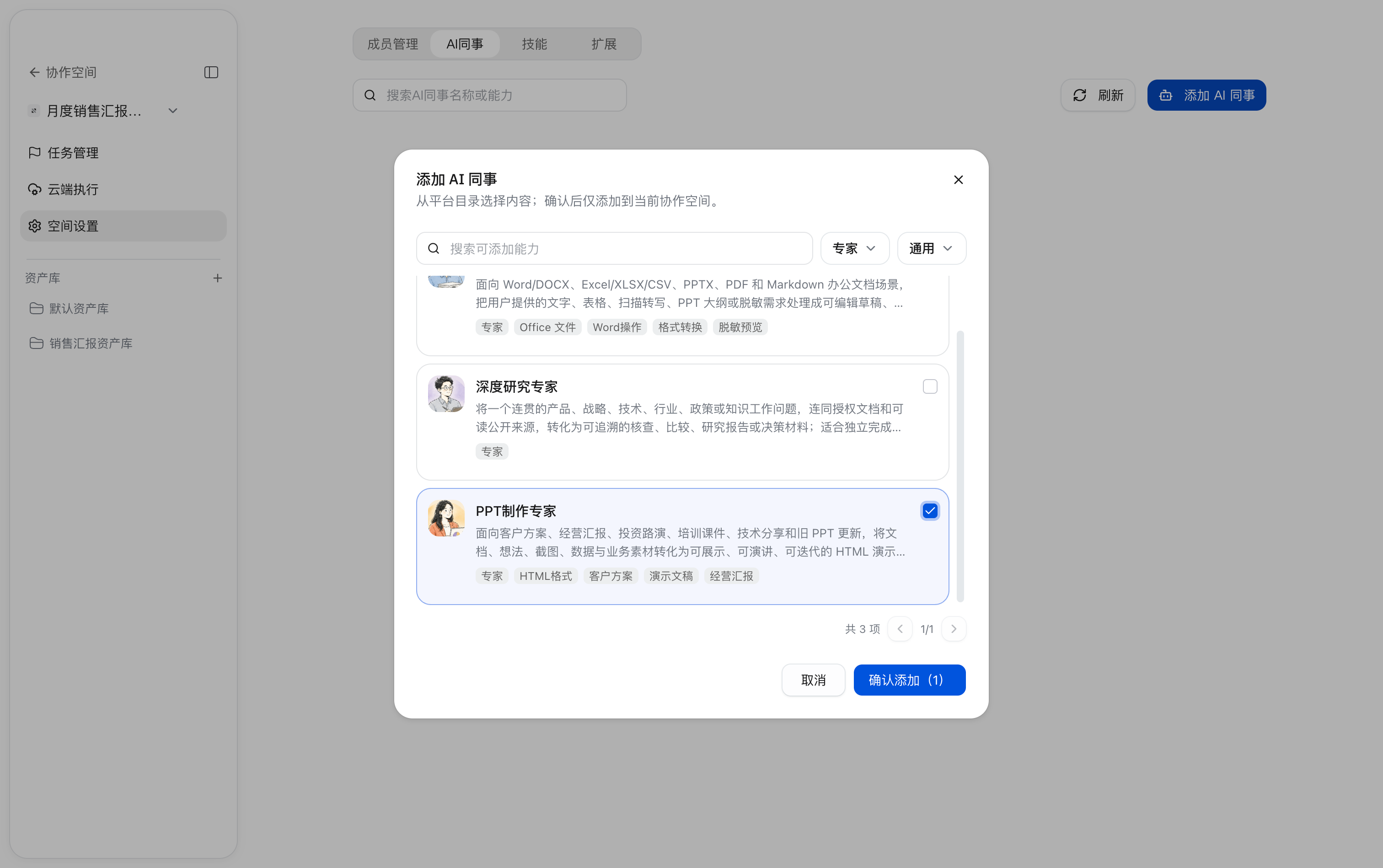
Add PPT Creation Expert to the current Collaboration Space to prepare the AI capability that will create the business review presentation from the revised sales summary.
Path: Space Settings → AI Colleagues → Add AI Colleague.
- Click
Space Settingson the left and switch to theAI Colleaguestab. - Click
Add AI Colleaguein the upper-right corner to open the selection dialog. - Find
PPT Creation Expertin the candidate list. Search for available capabilities or filter with the type and category selectors; this case usesExpertandGeneral. - Read the capability description, then select
PPT Creation Expert. It is suitable for business reports, customer proposals, and other presentation content. - Check the selection and click
Confirm to Add (1). The selected AI Colleague is added only to the current Collaboration Space. ClickCancelto stop.
Confirm the result:
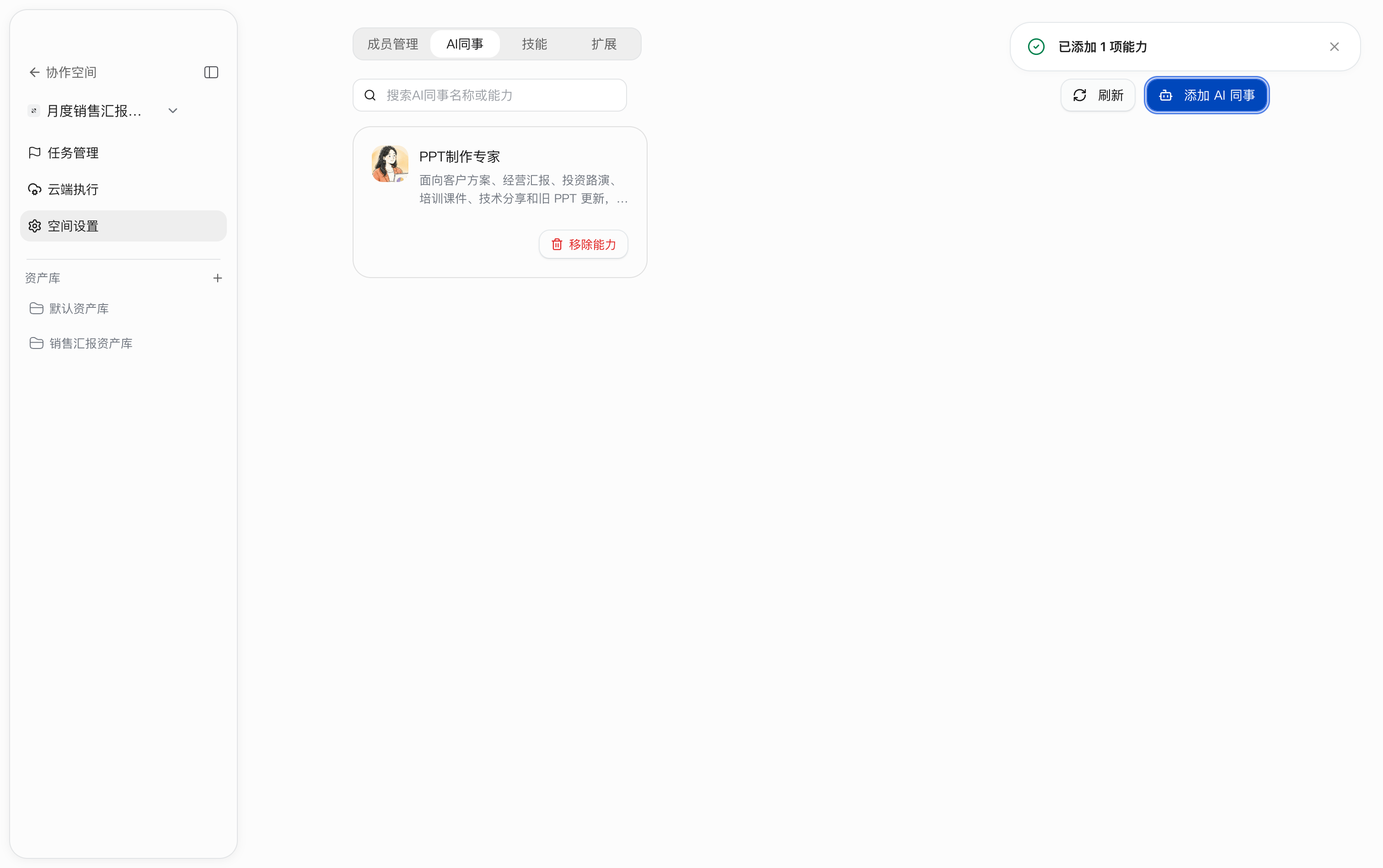
After it is added, the system shows 1 capability added, and PPT Creation Expert appears in the space’s AI Colleague list. When generating the business report later, select this AI Colleague in the conversation and submit the specific production requirements.
Create the Business Reporting Task
This case creates one task, Complete the business review presentation. The same user uploads and reviews the material, refines the document, returns it to the library, creates the presentation, and performs final acceptance. No dependent task is configured.
Path: Task Management → Add Task.
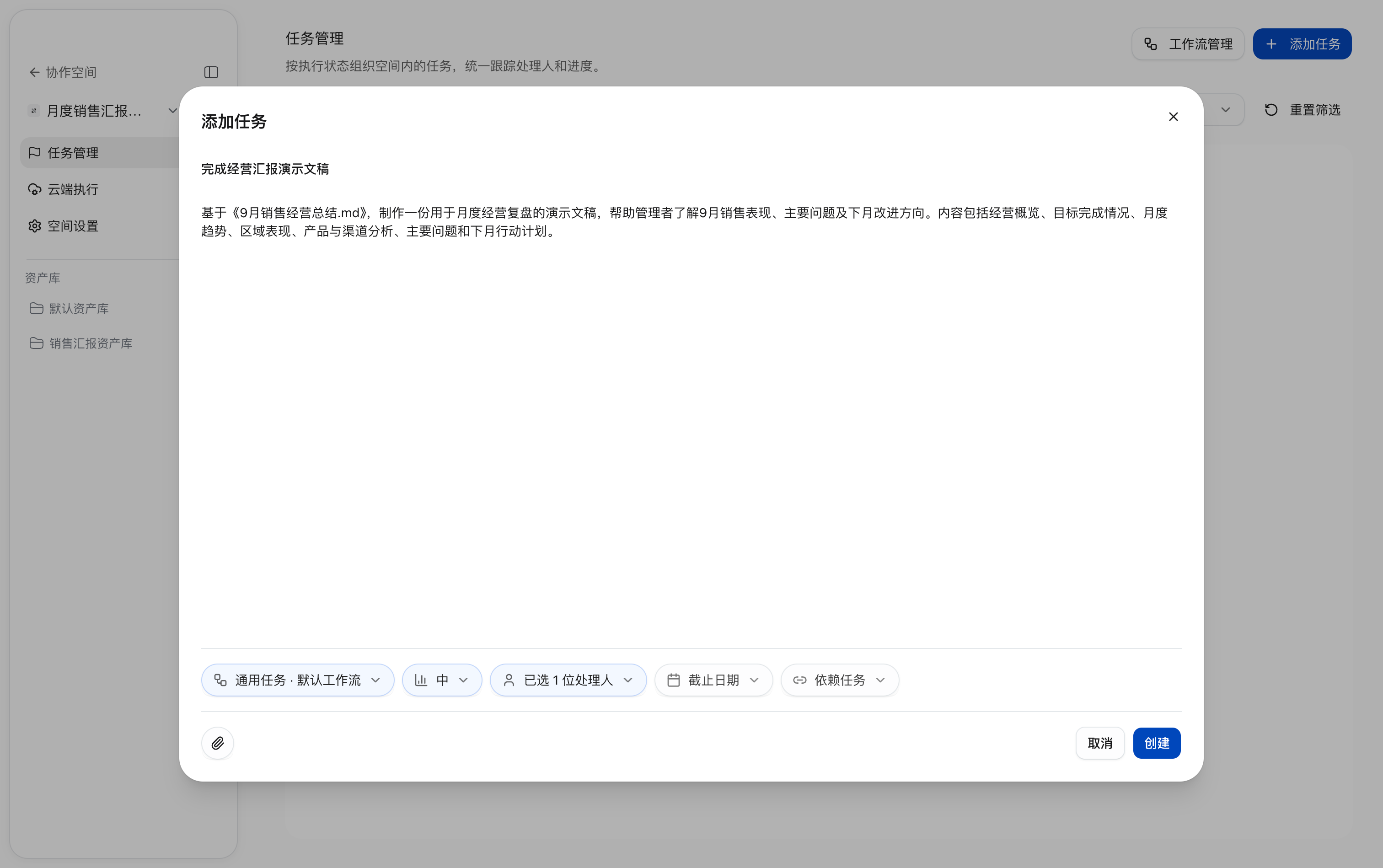
-
Click
Add Taskand enter the titleComplete the business review presentation. -
Enter this description:
Based on 9月销售经营总结.md, create a presentation for the monthly business review to help managers understand September sales performance, key issues, and next month’s improvement direction. Include the operating overview, target completion, monthly trends, regional performance, product and channel analysis, key issues, and next month’s action plan.
-
Set the properties as follows, check them, and click
Create.Property Setting in this case Task type and workflow General task · Default workflow Priority Medium Assignee Yourself Due date Not set; adjust as needed Dependencies None
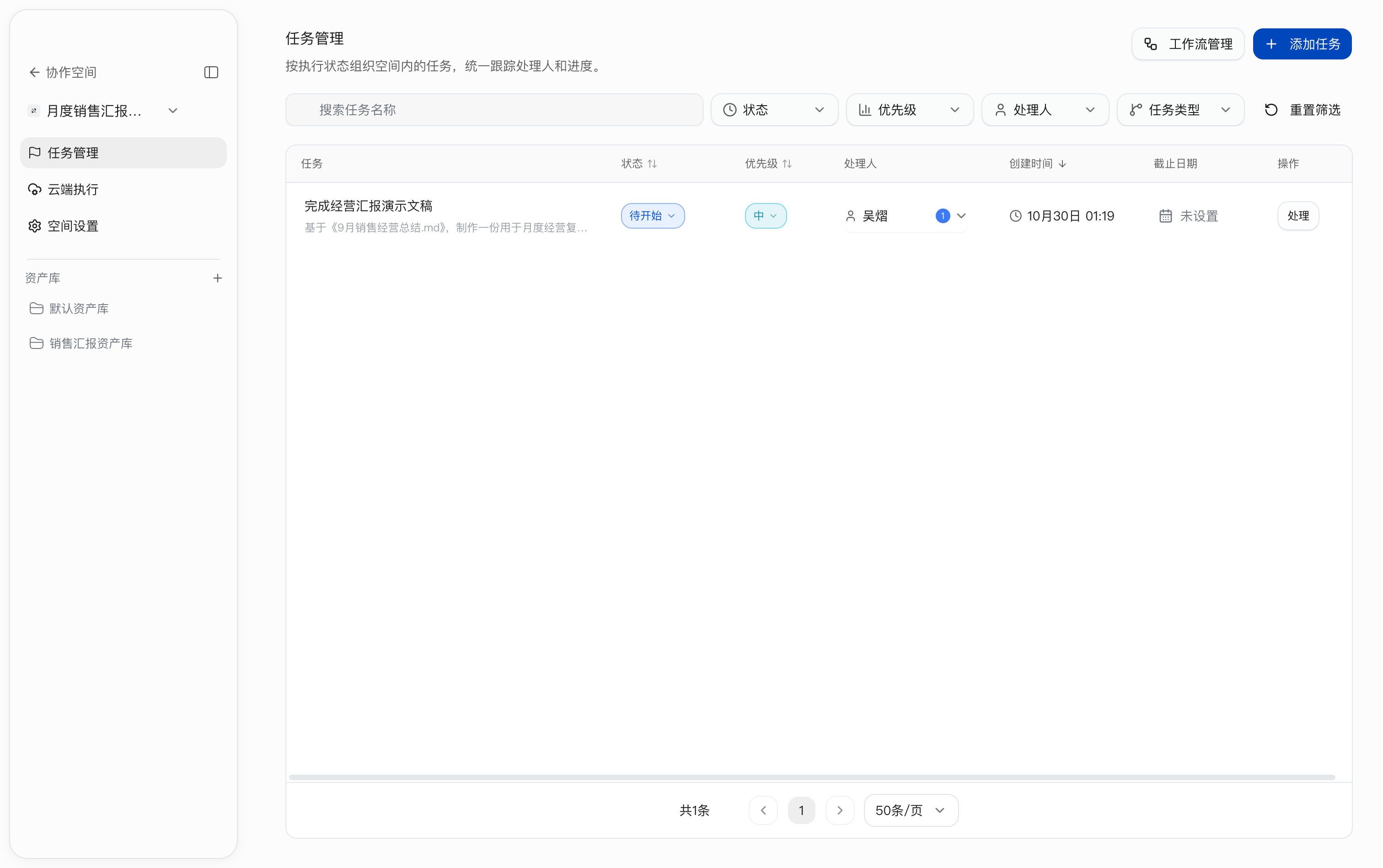
- Return to the task list and confirm that it contains only
Complete the business review presentation, with statusNot Started, priorityMedium, assignee yourself, and due dateNot Set. Do not add attachments before uploading the material; associate them in section 4.3 after the upload.
Understand Task Statuses and Completion Criteria
This case moves through Not Started → In Progress → Pending Acceptance → Completed. The actual allowed paths are subject to View Workflow and the statuses available in the UI.
| Status | Stage in this case |
|---|---|
| Not Started | The task is created but has not started |
| In Progress | Upload material, review annotations, refine locally, return the revised document, generate the presentation, and save it to the library |
| Pending Acceptance | The revised document and final presentation are saved, the presentation is marked as a key deliverable, and final review is submitted |
| Completed | Revised content, version records, presentation data, and layout all pass acceptance |
Start the Business Reporting Task
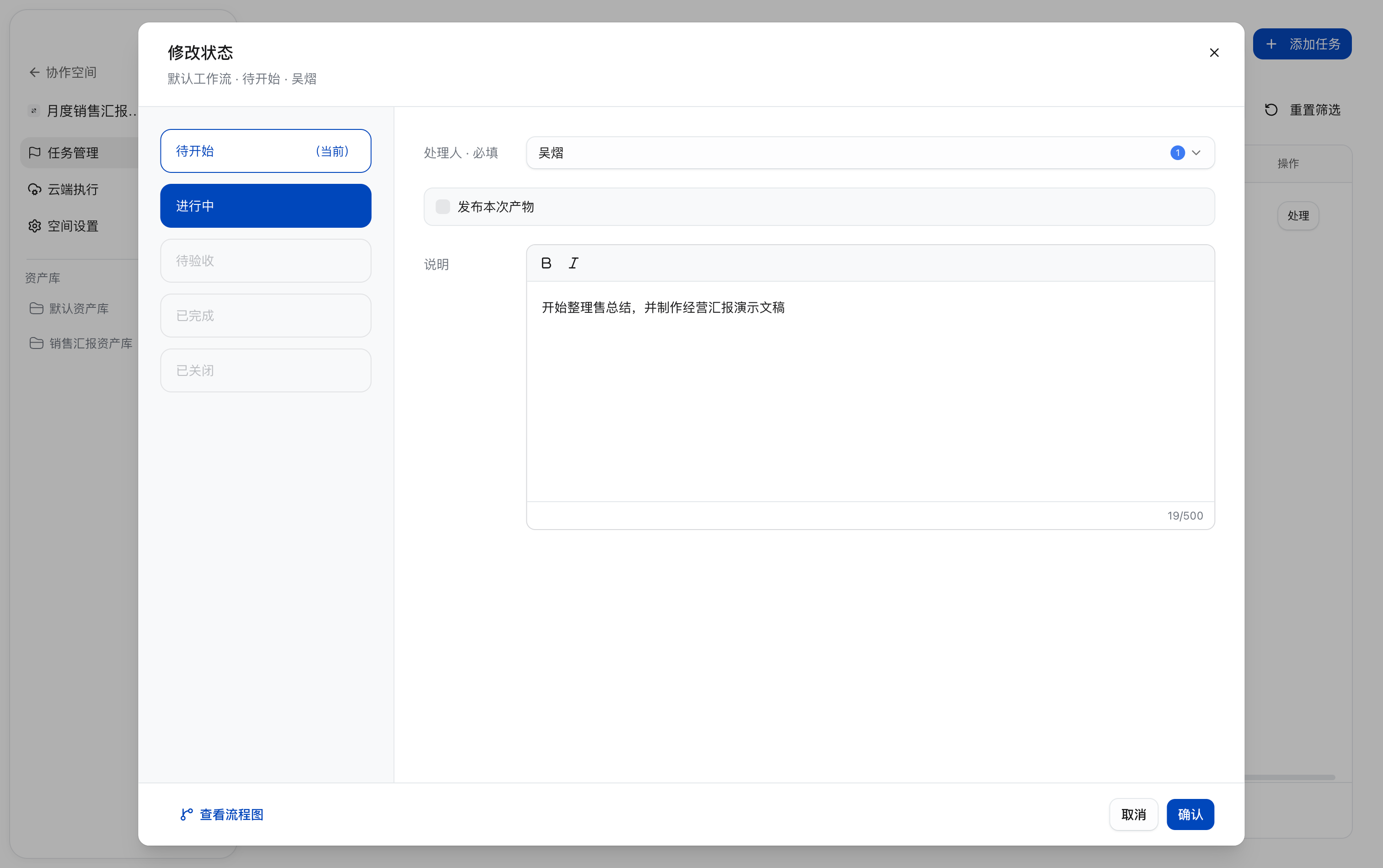
- In
Task Management, findComplete the business review presentation, clickNot Startedin its row, and openChange Status. - Select
In Progressand confirm that the required assignee is yourself. Do not selectPublish current deliverableswhen starting this task. - In
Notes, enterStart organizing the sales summary and creating the business review presentation, then clickConfirm.
- Return to the list and confirm that the status of
Complete the business review presentationis nowIn Progress. Follow chapters 4 through 9 to upload material, review and refine it, and create the presentation until the final deliverables are saved and submitted for acceptance.
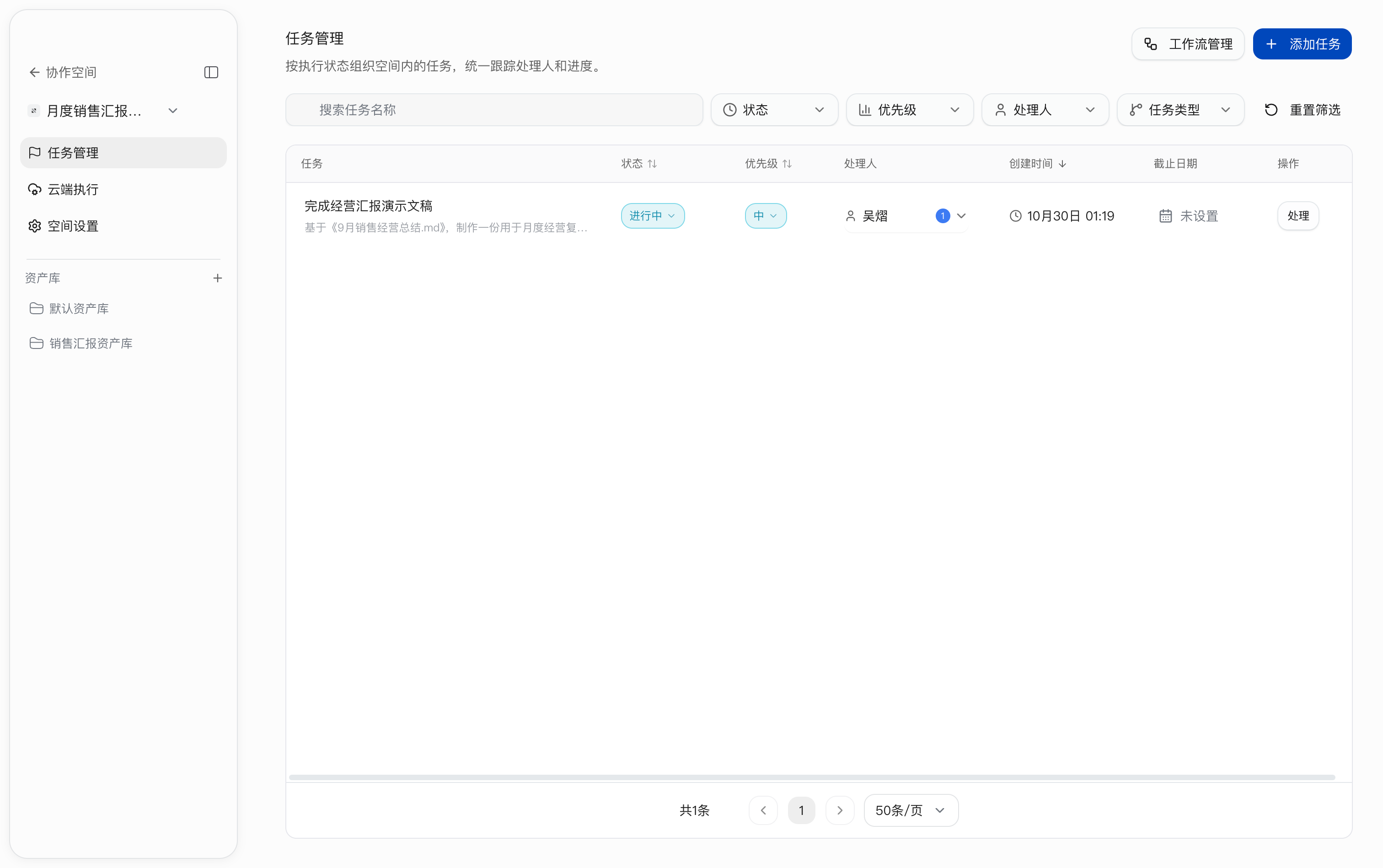
To view transition paths, click View Workflow in the dialog. Click Cancel to discard the change.
Upload and Preview the Sales Summary
Upload the Input Document
Upload 9月销售经营总结.md to Sales Reporting Asset Library as the original material for annotation, refinement, and report creation.
Path: Sales Reporting Asset Library → Files → Upload File.
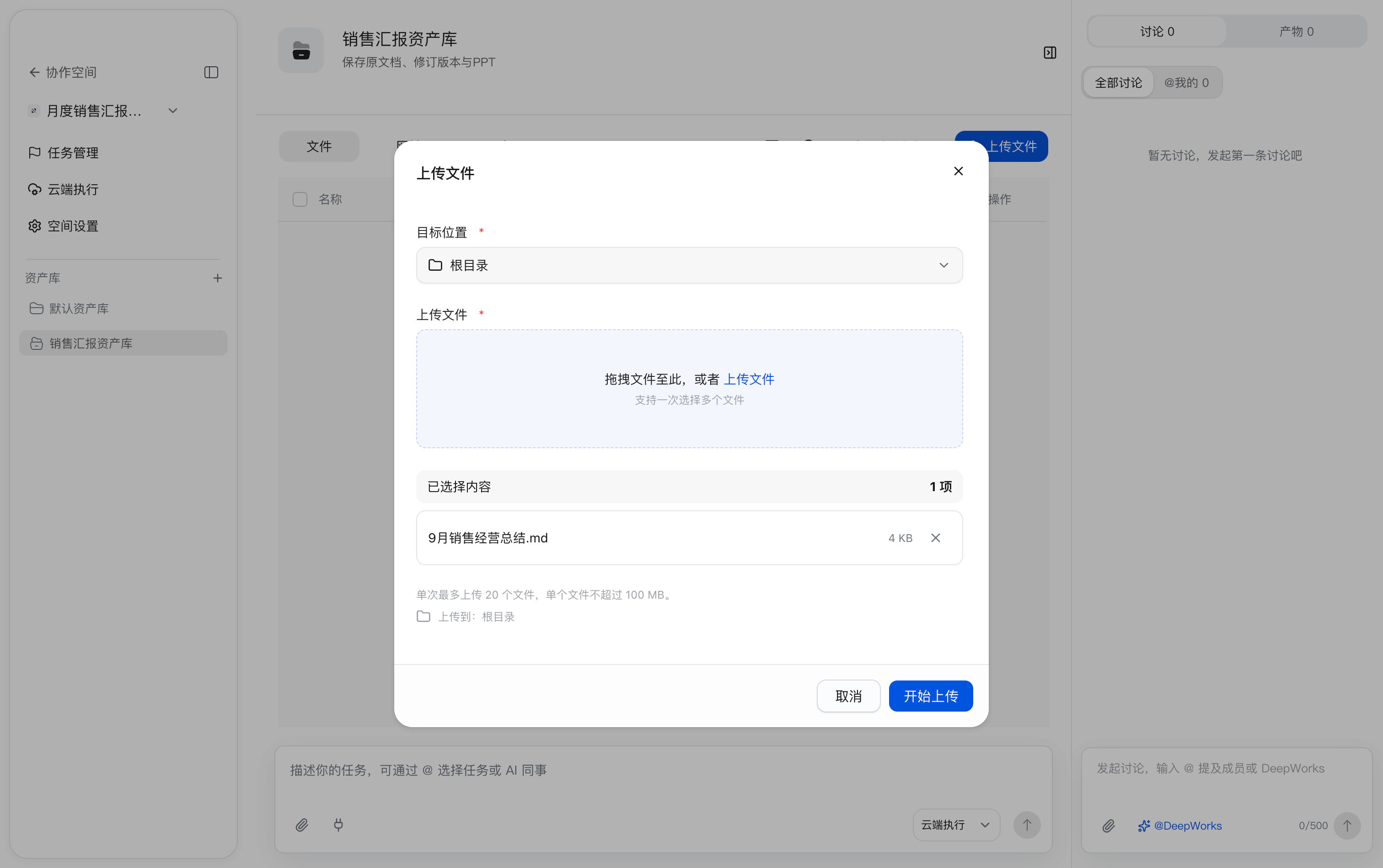
- Select
Sales Reporting Asset Libraryon the left, open theFilestab, and clickUpload File. - Click
Upload Filein the file-selection area and choose local9月销售经营总结.md; you can also drag the file into the area. - Check the destination and file, then click
Start Upload. To stop, clickCancel.
Confirm the result:
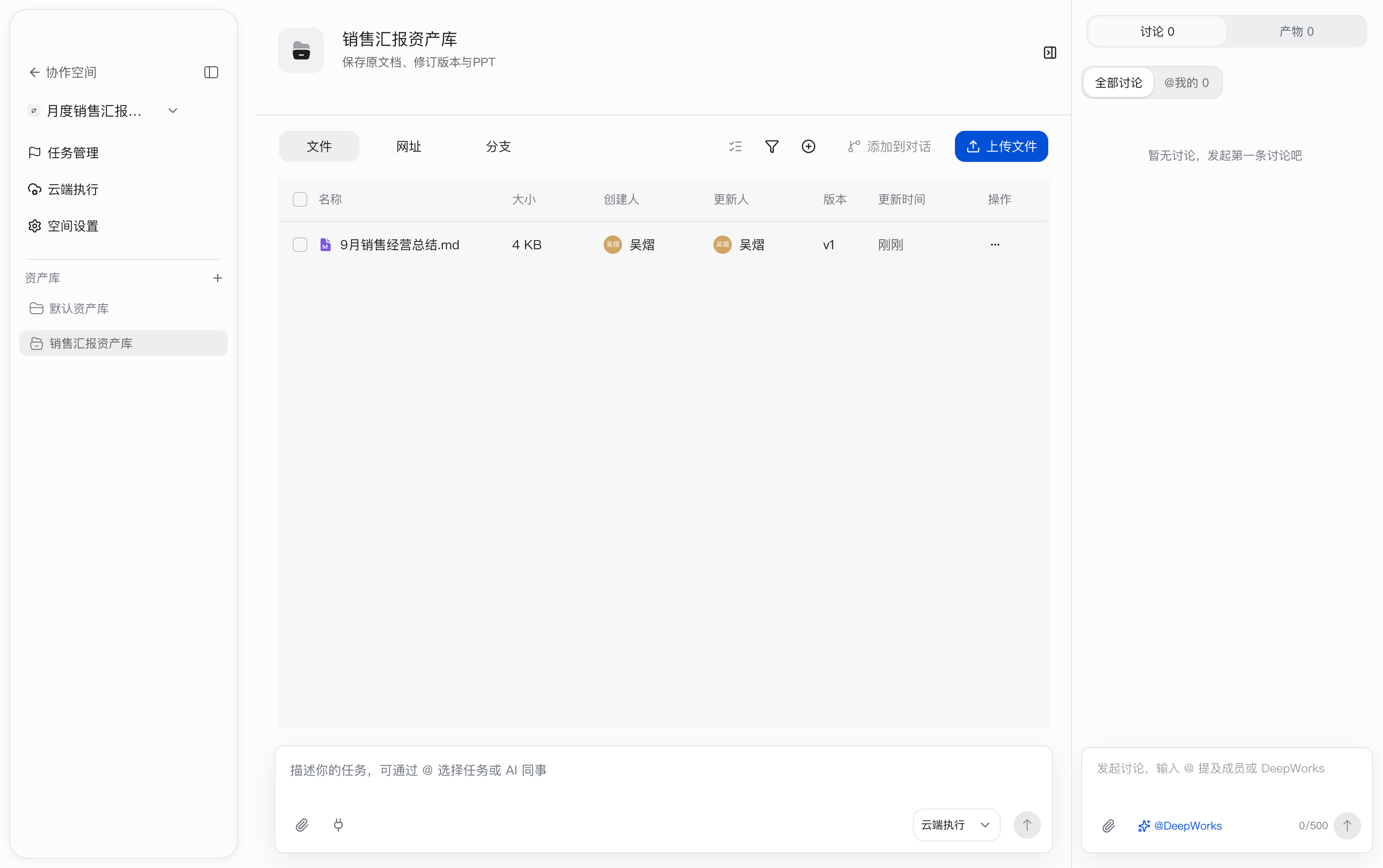
After the upload, 9月销售经营总结.md appears in the Files list, and its initial version is v1. The list also shows the creator, updater, and update time for later version checks. Next, open the document preview, review its data and preliminary summary, then add change annotations.
After uploading the material, associate it with the task and record progress as described in section 4.3.
Preview the Document and Initial Version
After uploading, read the sales summary, check the statistical scope and base data, and confirm the file version used for this review.
Path: Sales Reporting Asset Library → Files → 9月销售经营总结.md.
- Click the file name to open the preview.
- Read
Report background and statistical scopeandJuly-September operating base data, then scroll down through regional, product, channel, and preliminary business summary data to prepare for checking the conclusions. - Check the version information under the file title. At this point, the case shows
v1 · Latest Version, indicating the initial uploaded version. - Check version records in
Version Managementon the right. The list contains v1, markedLatest Version; the version card shows creator, file size, and time to help identify it.
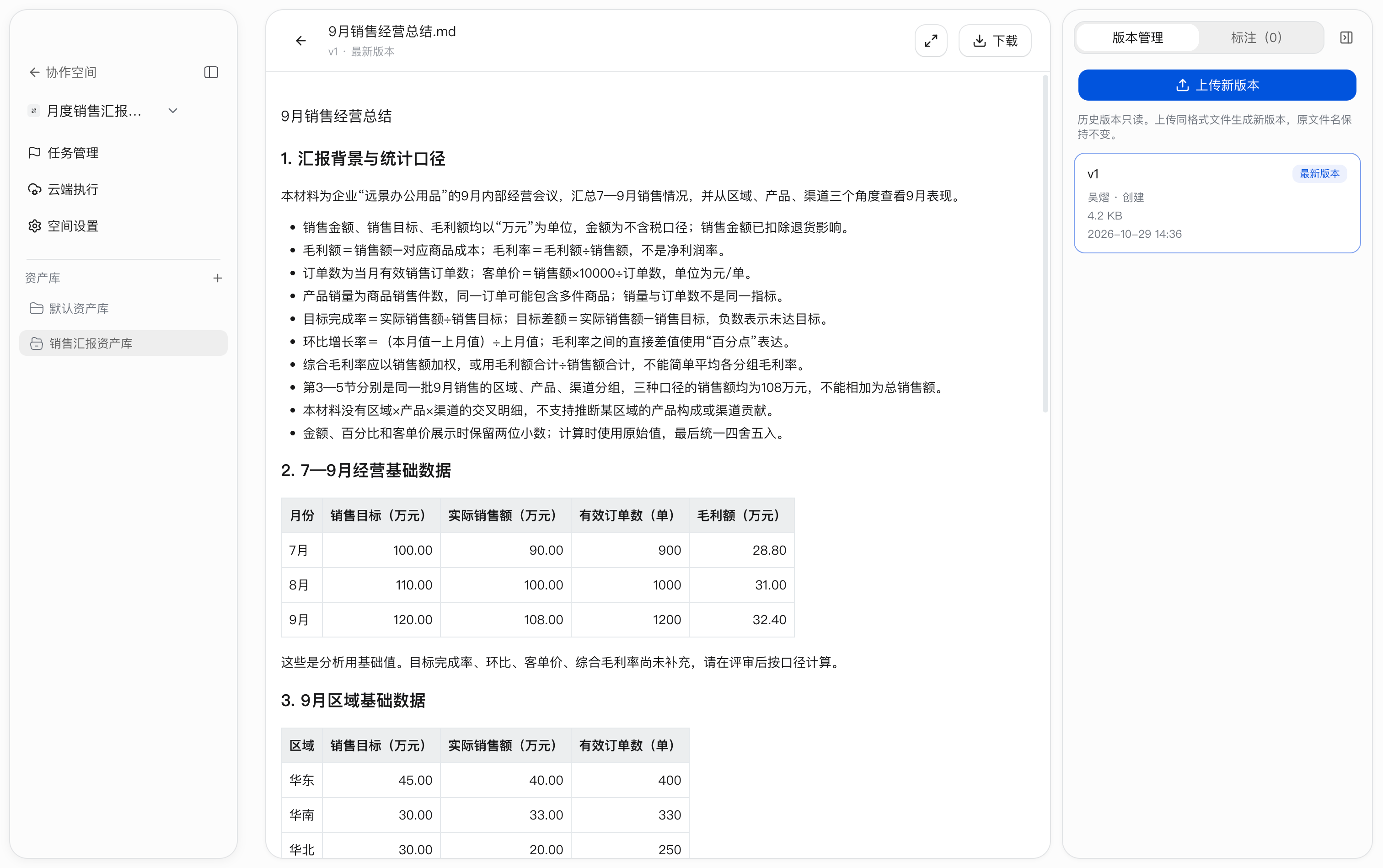
While reading, use the fullscreen button in the upper-right corner to enlarge the preview or click Download to save the file. Use the back arrow to the left of the title to return to the file list.
Attach the Material in a Task Comment and Record Progress
Use a task comment with an attachment to record material preparation, making the sales summary easy to find from the comments.
-
Return to
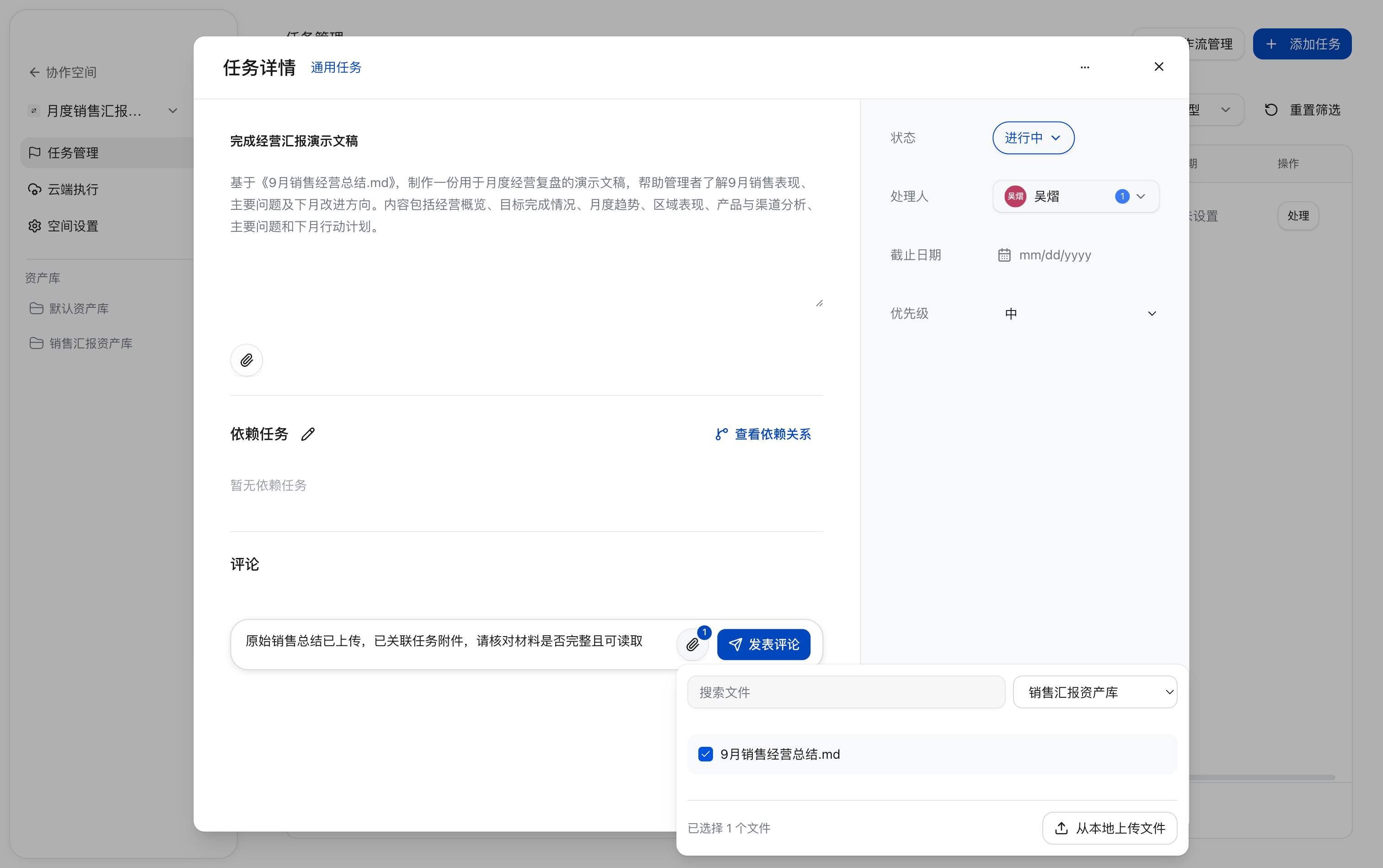
Task Management, open the details ofComplete the business review presentation, and enter the following in the comment box at the bottom:The original sales summary has been uploaded and associated with the task. Please verify that the material is complete and readable.
-
Click the attachment icon to the right of the comment box and select
Sales Reporting Asset Libraryin the Asset Library selector. -
Select
9月销售经营总结.md, confirm that it shows1 file selectedand the comment attachment icon shows1. UseSearch Filesto locate the material.
- Collapse the file-selection popover, then click
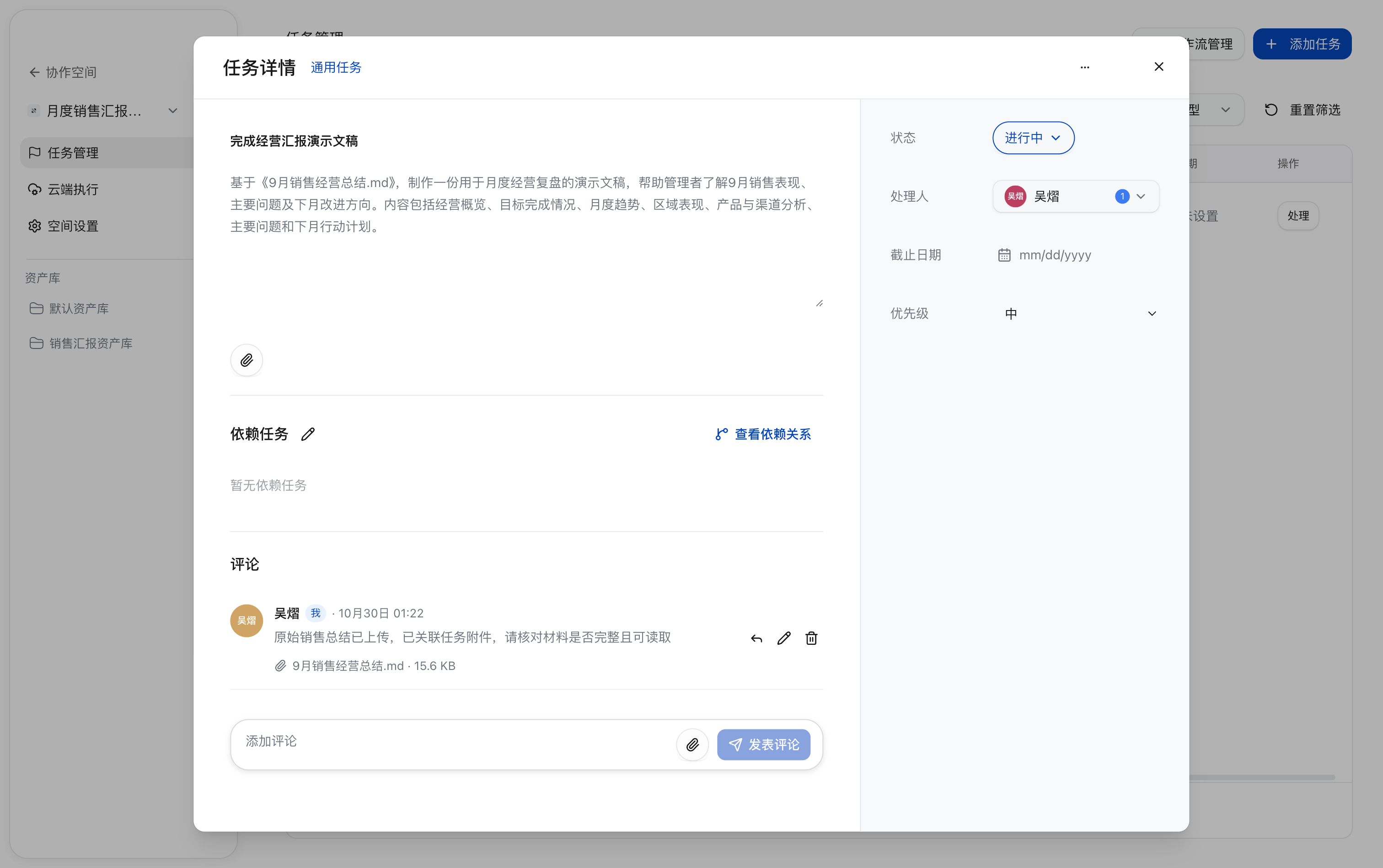
Post Commentto publish the text and selected attachment. - Confirm that the comment record contains the description and the
9月销售经营总结.mdattachment, and that the task remainsIn Progress. Continue with review annotations and local refinement.
Request Changes Through Document Annotations
Select problematic content in the document and add annotations to provide a clear basis for local refinement.
Annotate the Target Completion-Rate Error
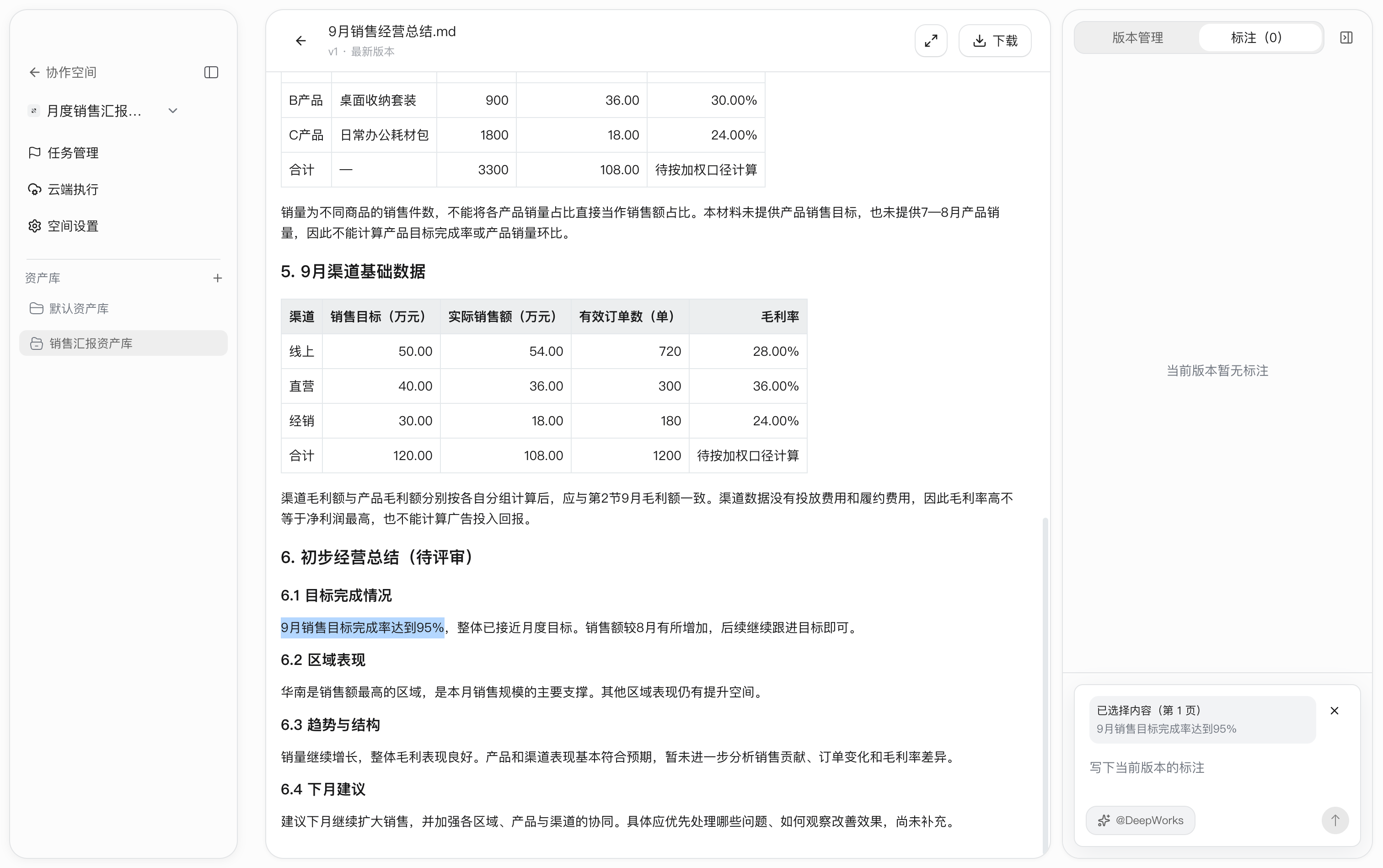
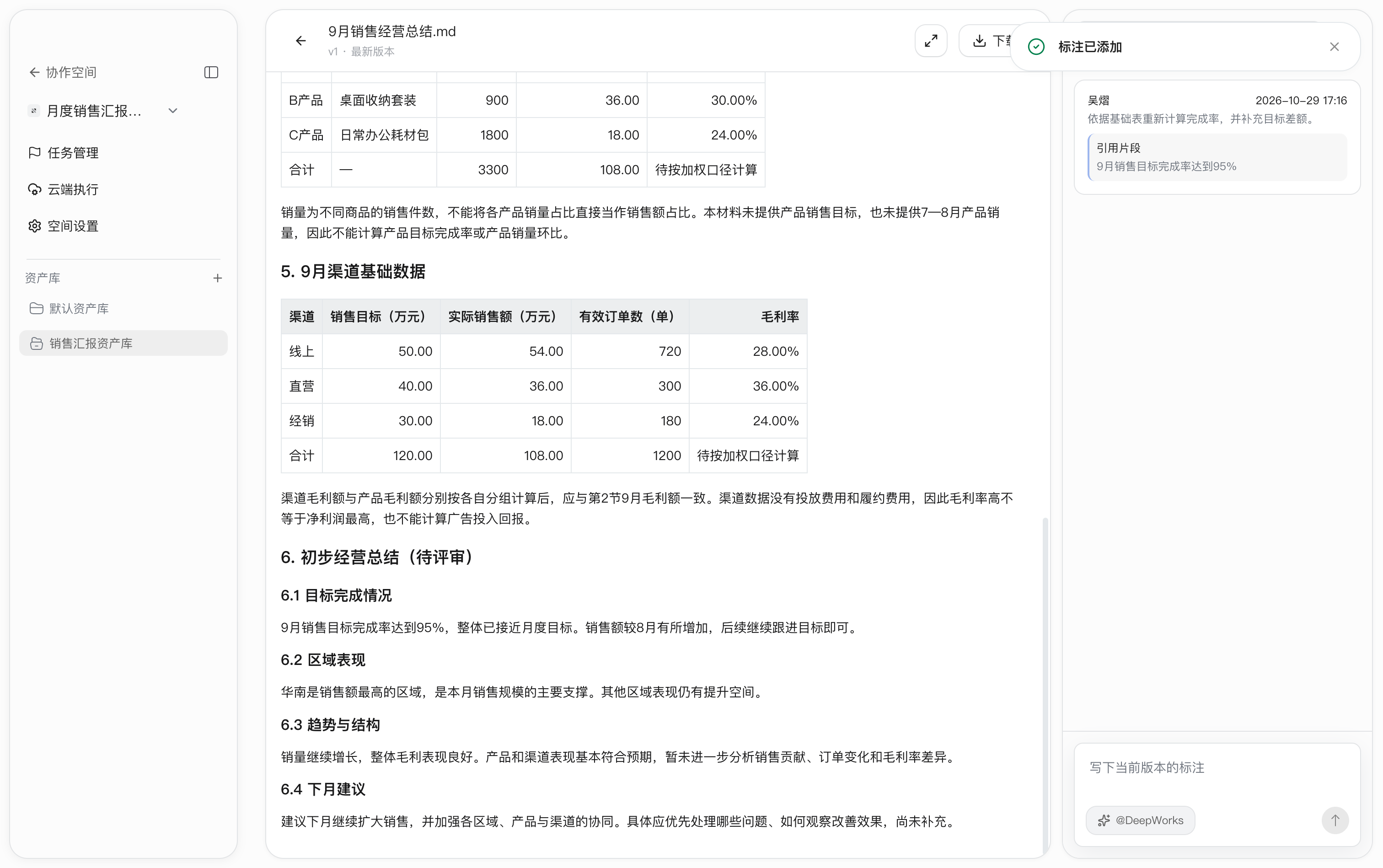
- Open the document and switch to the
Annotationstab on the right. - Select
The September sales target completion rate reached 95%and confirm that the input area quotes the fragment.
-
Enter the following comment and click the upward arrow in the lower-right corner to send it:
Recalculate the completion rate from the base table and add the target variance.
After it is sent, the system shows Annotation added; the annotation list contains the comment and quoted fragment.
Annotate the Regional Ranking Error
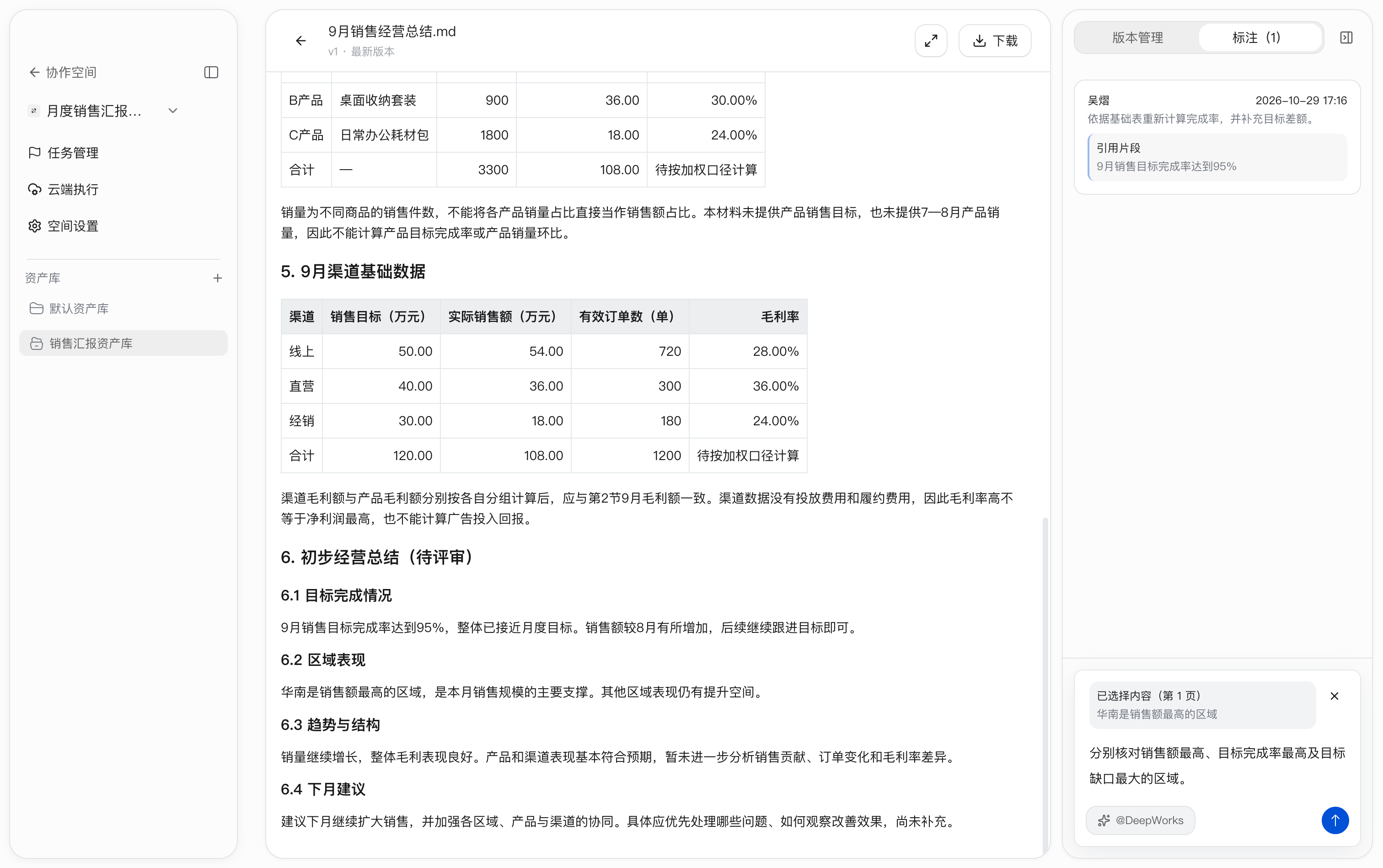
Select South China is the region with the highest sales, enter the following comment, and send it:
Check separately which regions have the highest sales, highest target completion rate, and largest target gap.
Annotate Additional Analysis and Recommendation Requirements
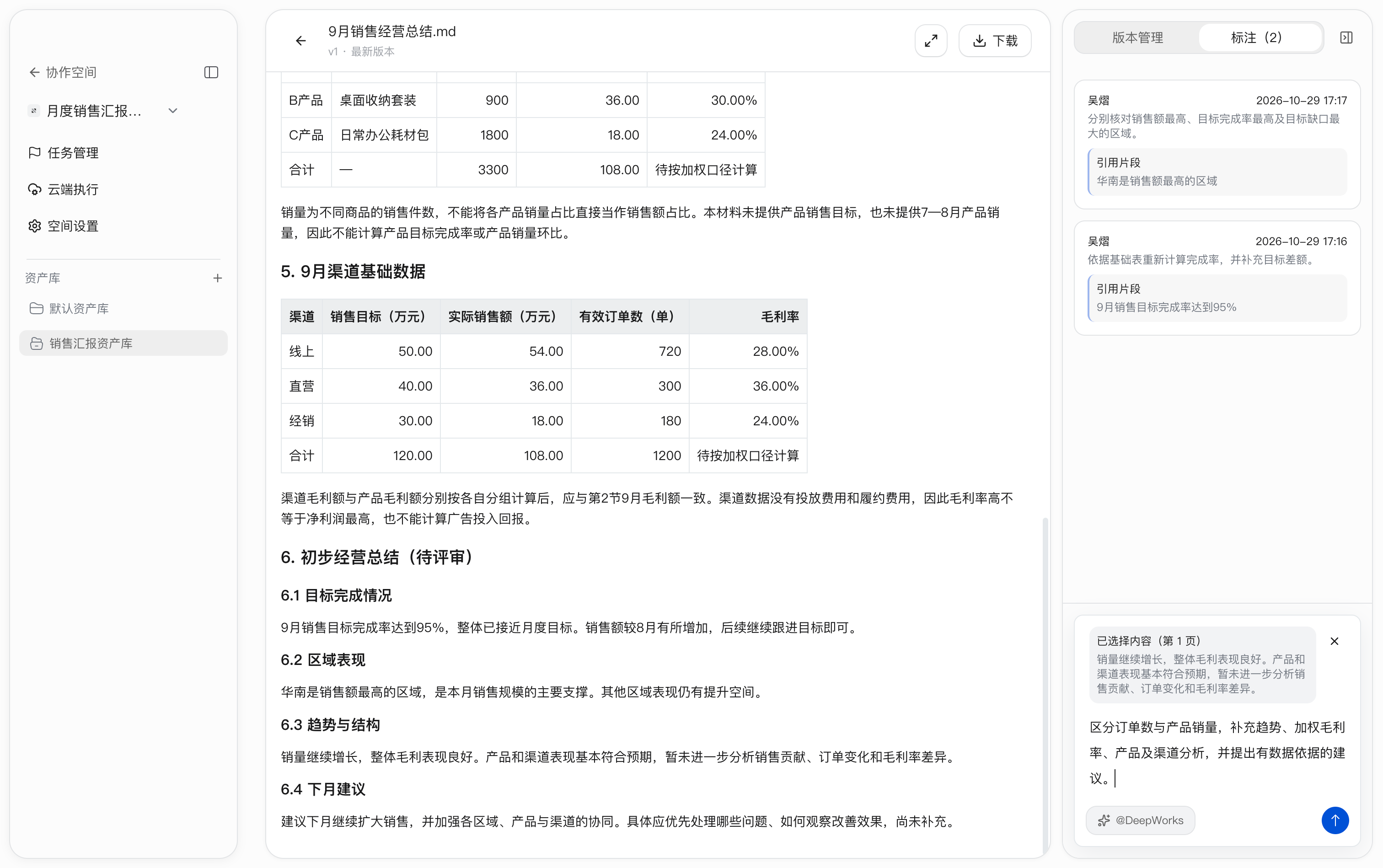
Select the body text under 6.3 Trends and structure, enter the following comment, and send it:
Distinguish order count from product sales volume. Add trend analysis, weighted gross margin, product and channel analysis, and data-supported recommendations.
Check Annotations and Document Version
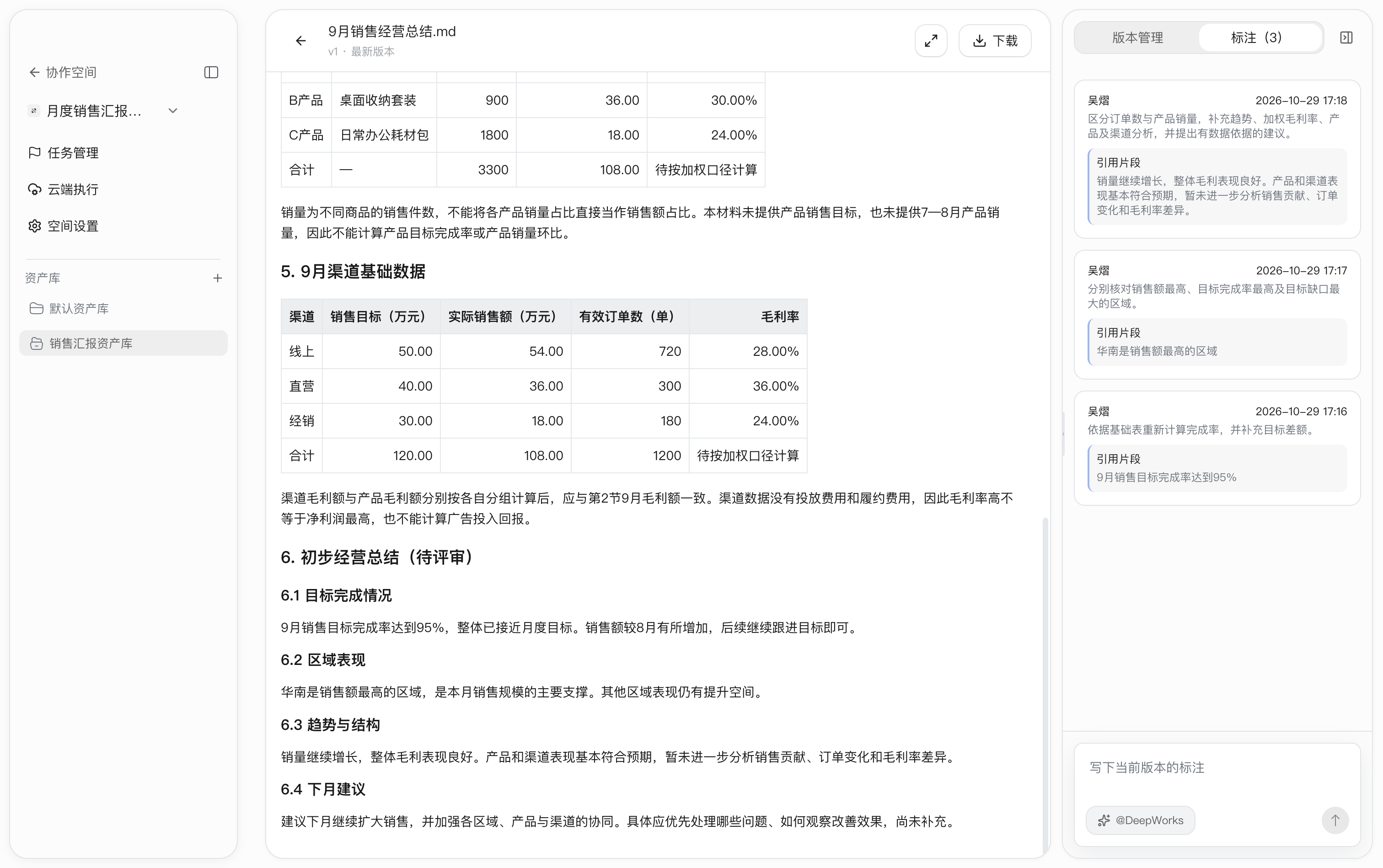
Confirm that the document is still v1 and that Annotations (3) on the right contains the three comments and their quoted fragments. Adding annotations does not directly change the body. Next, add the document to a conversation and execute the refinement locally.
Add the Document to a Conversation and Refine It Locally
Add the Document to a Conversation
- Return to
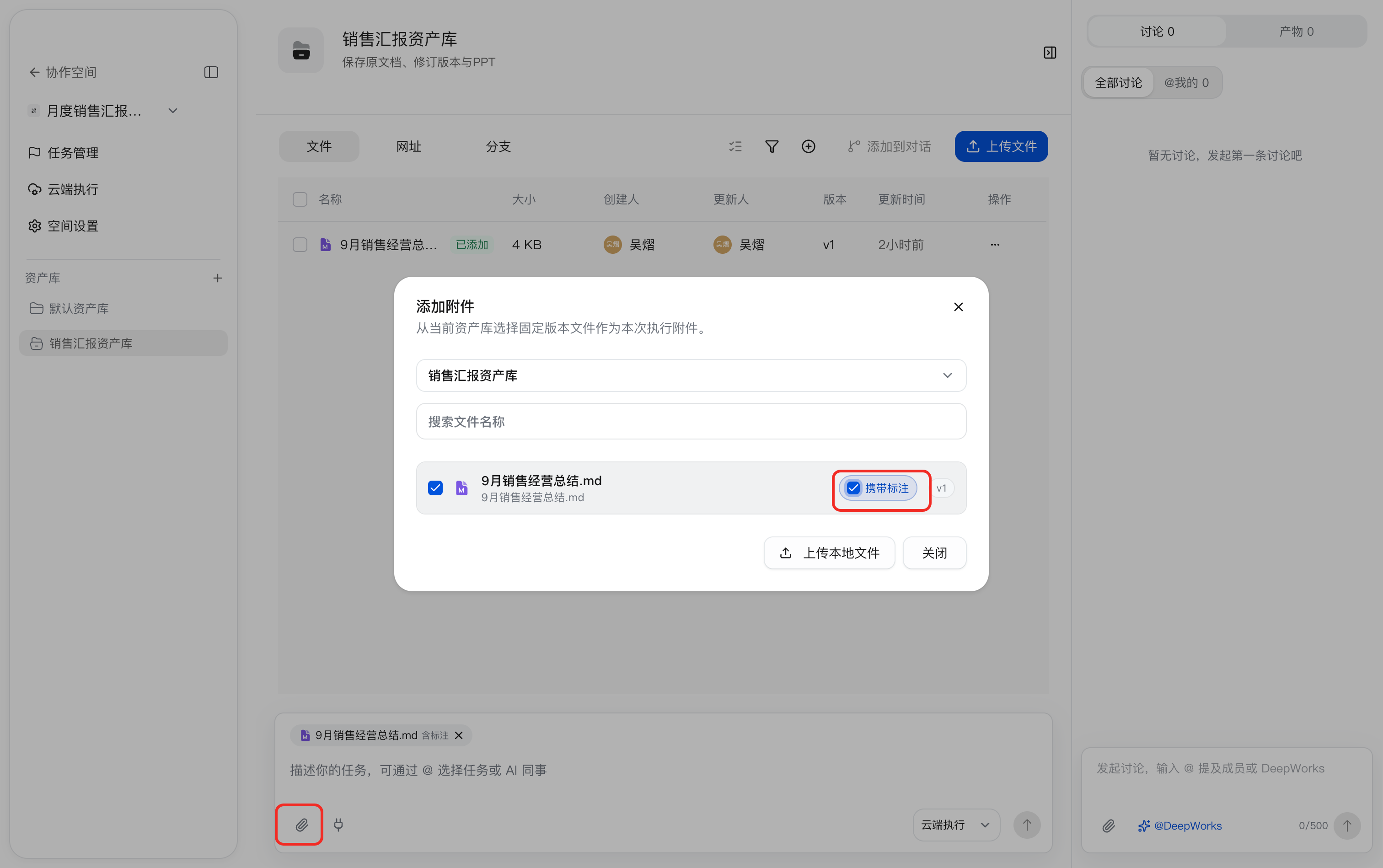
Sales Reporting Asset Library, click the attachment icon in the conversation input area at the bottom, and openAdd Attachment. - Select
9月销售经营总结.md, confirm that the version is v1, and selectInclude Annotations. - Click
Closeand confirm that the file tag in the input area showsWith annotations.
Choose Local Execution and a Workspace
This step can also be executed in the cloud. This chapter describes the local execution process as an example.
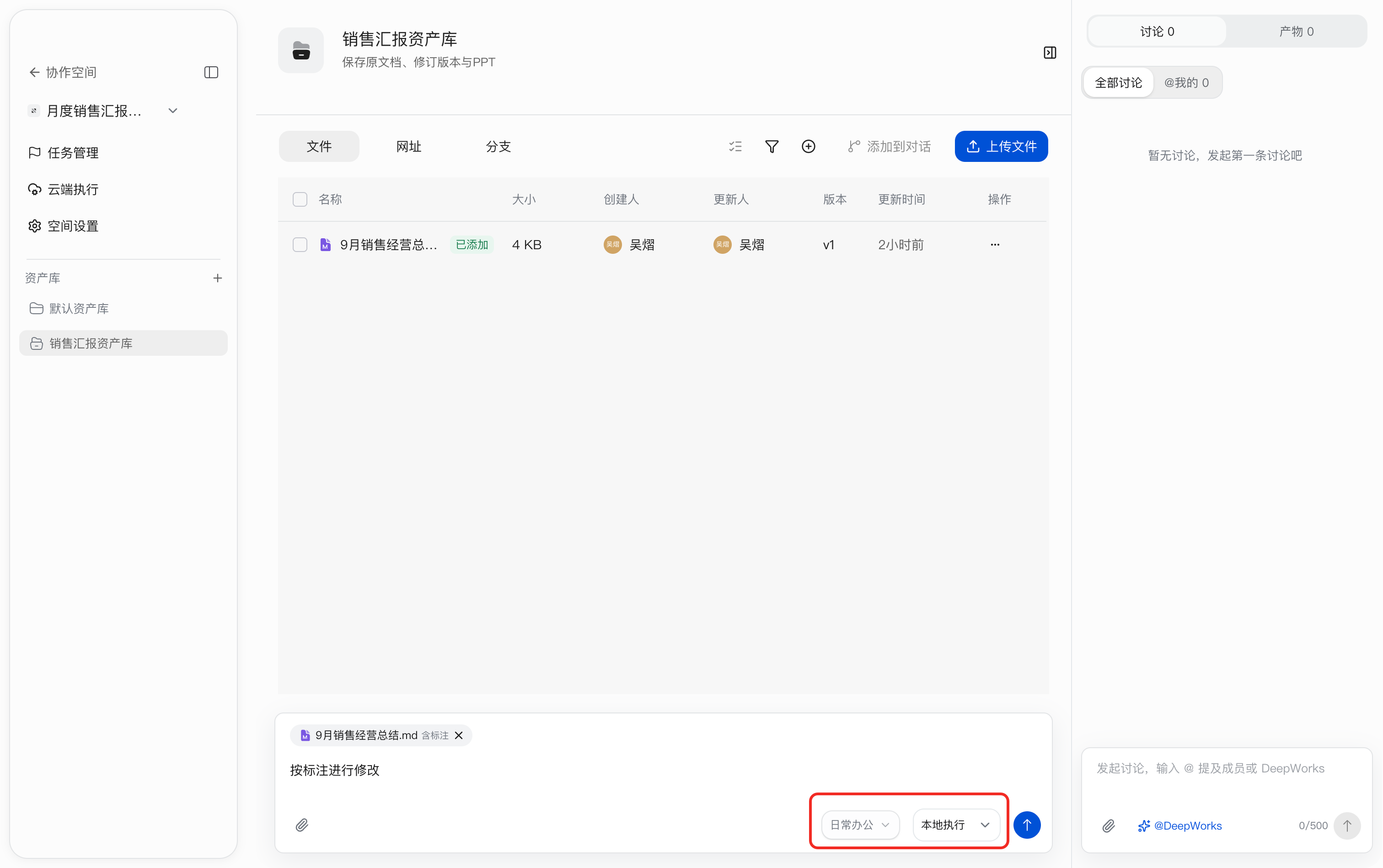
- Switch the execution method to
Local Executionand select theDaily Officeworkspace. - Enter
Apply the requested annotations, then click the upward arrow on the right to send it.
Check Files and Annotation Context
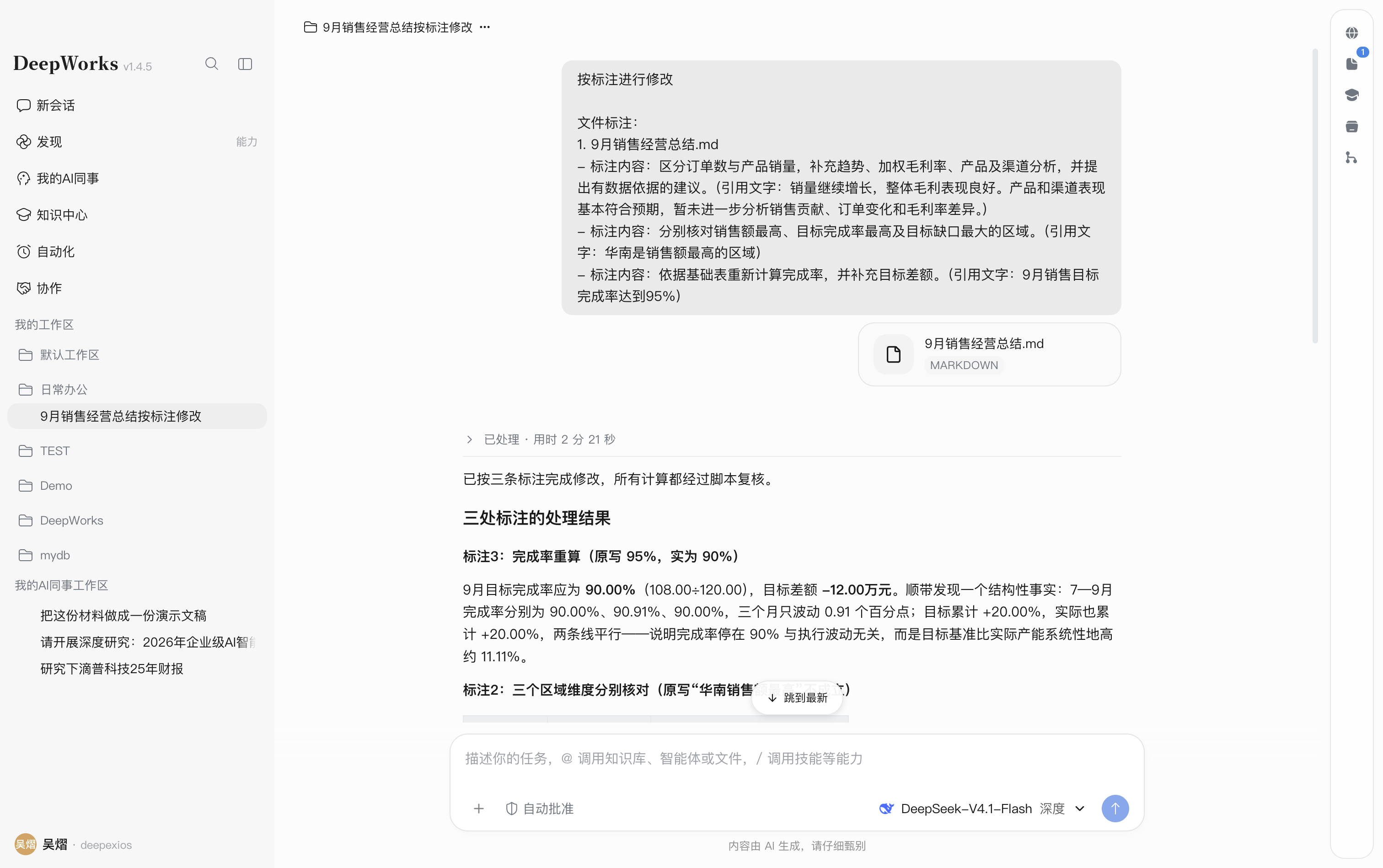
Open the local conversation in Daily Office and confirm that the message contains the 9月销售经营总结.md attachment, the three annotations, and their quoted text.
Review the Refined Result
After processing, click the 9月销售经营总结.md link in the conversation or open the file with the same name under Folder Deliverables, then preview the revised content on the right.
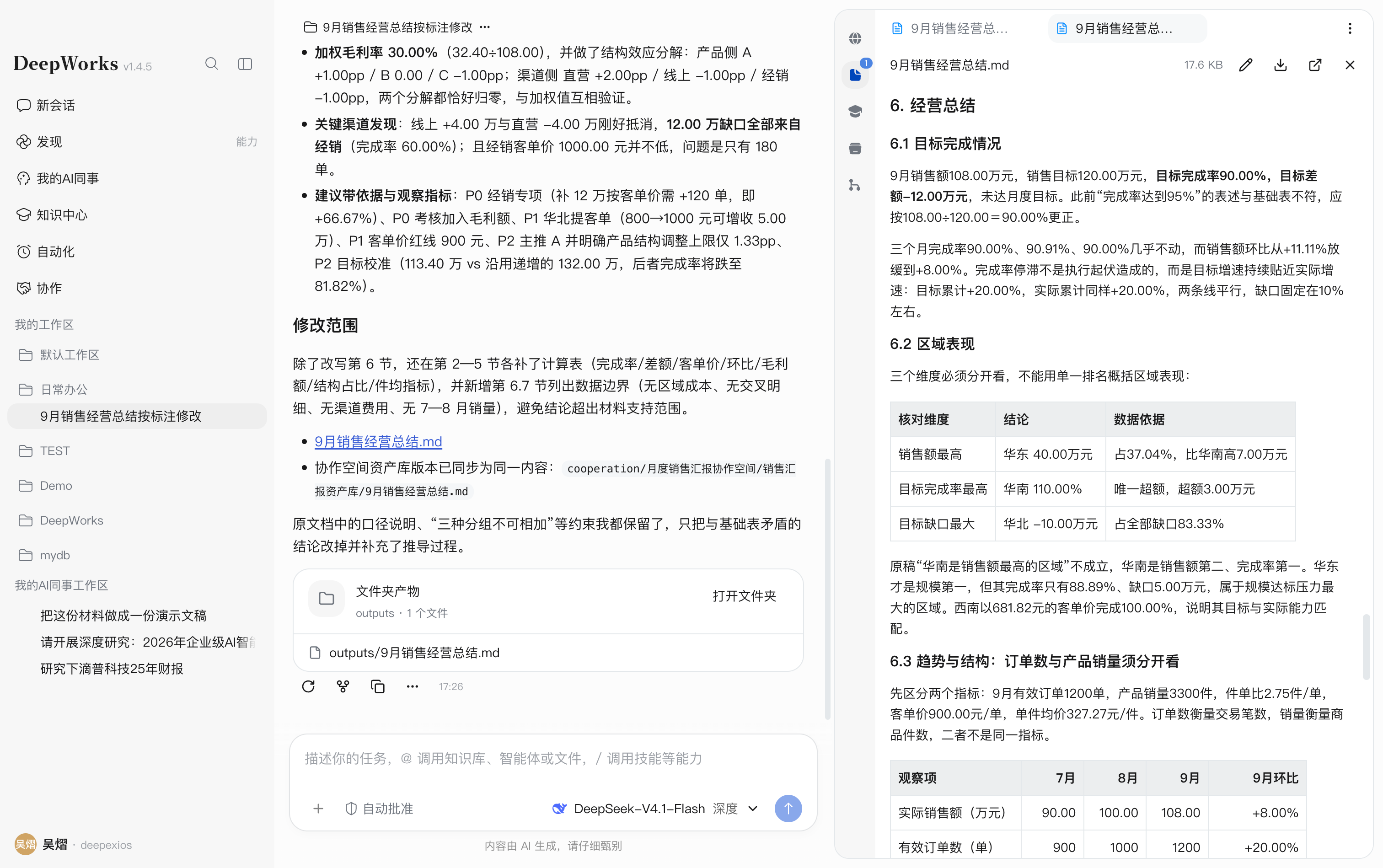
You can refine the document further to remove comparison content such as the original draft.
Submit the Revised Document to the Collaboration Space
Select the Revised Deliverable in the Workspace
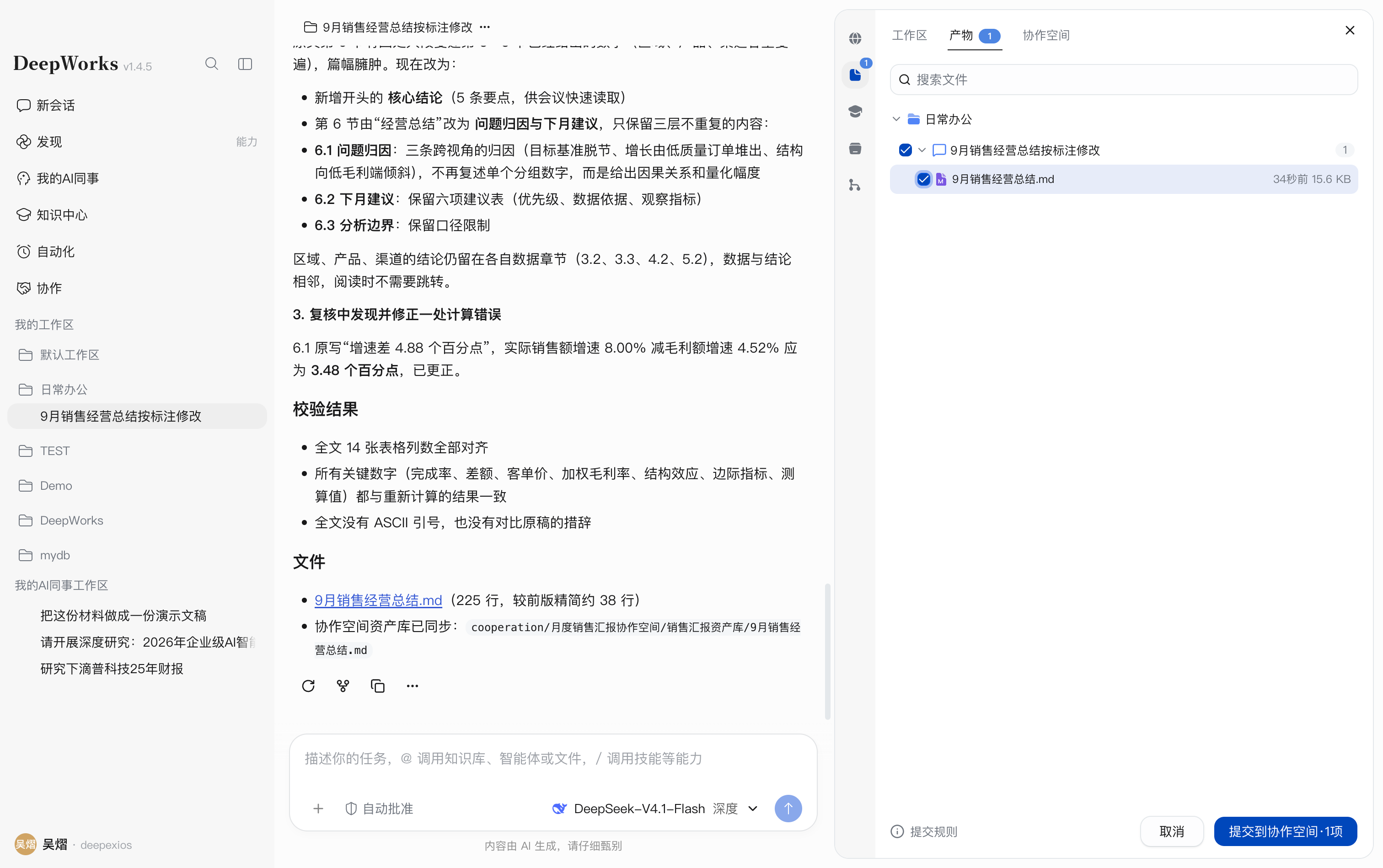
- Open the file panel on the right of the local conversation and switch to
Deliverables. - Expand the current conversation under
Daily Officeand select the revised9月销售经营总结.md. - Confirm that only this file is selected, then click
Submit to Collaboration Space · 1 itemat the bottom.
Set the Submission Method and Destination
- In the submission dialog, confirm that one file is selected.
- Set the method to
Submit files onlyto place the document in the target Asset Library root directory. - Select
Select existing space, chooseMonthly Sales Reporting Collaboration Spaceas the Collaboration Space andSales Reporting Asset Libraryas the Asset Library. - Expand
View selected files and target pathsto check the location, then clickSubmit 1 file.
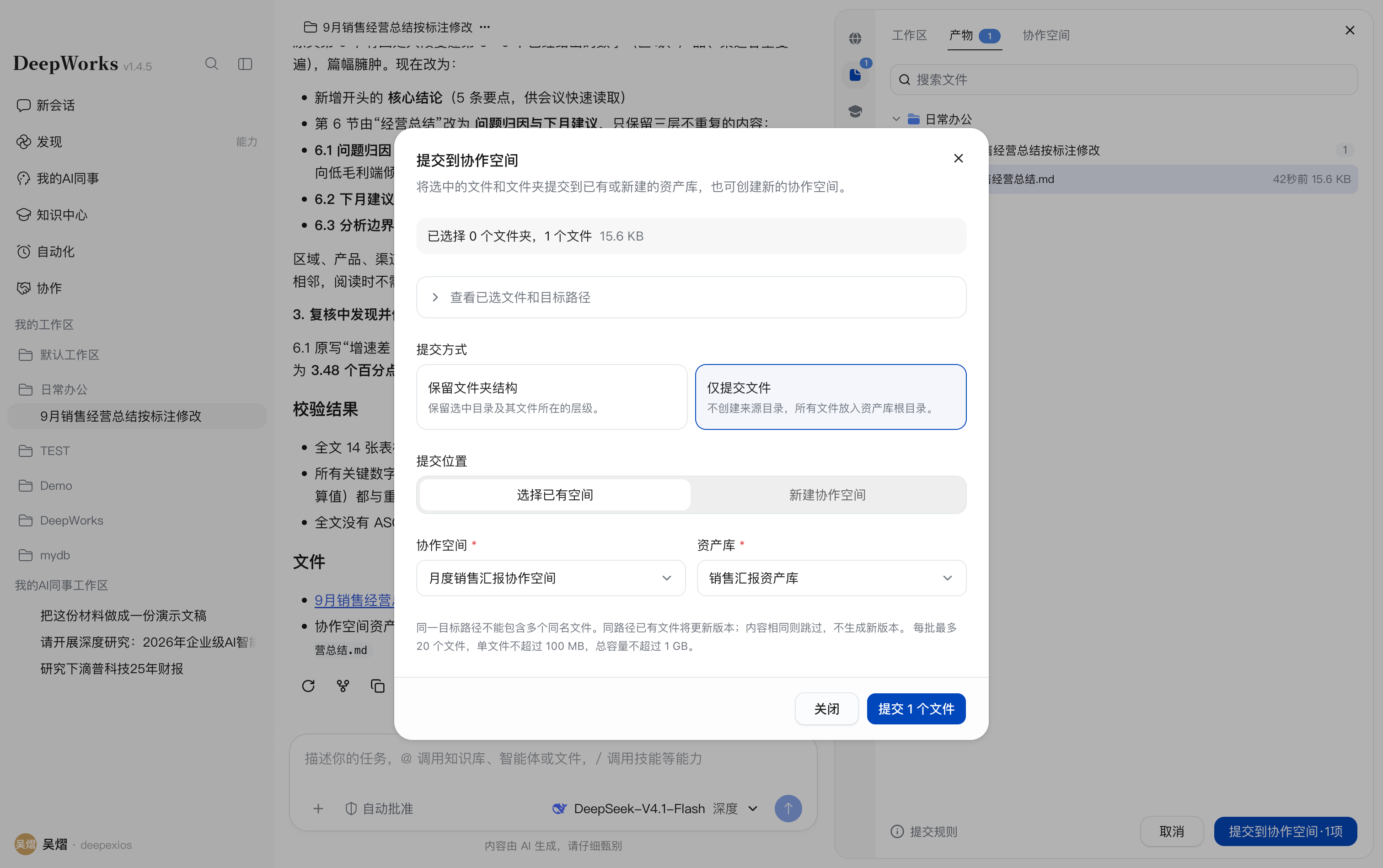
A file with the same path updates its version; if the content is unchanged, it is skipped and no new version is generated. This case keeps the same file name and root directory, so the revised draft becomes a new version of the original document.
Check the Revised Version in the Asset Library
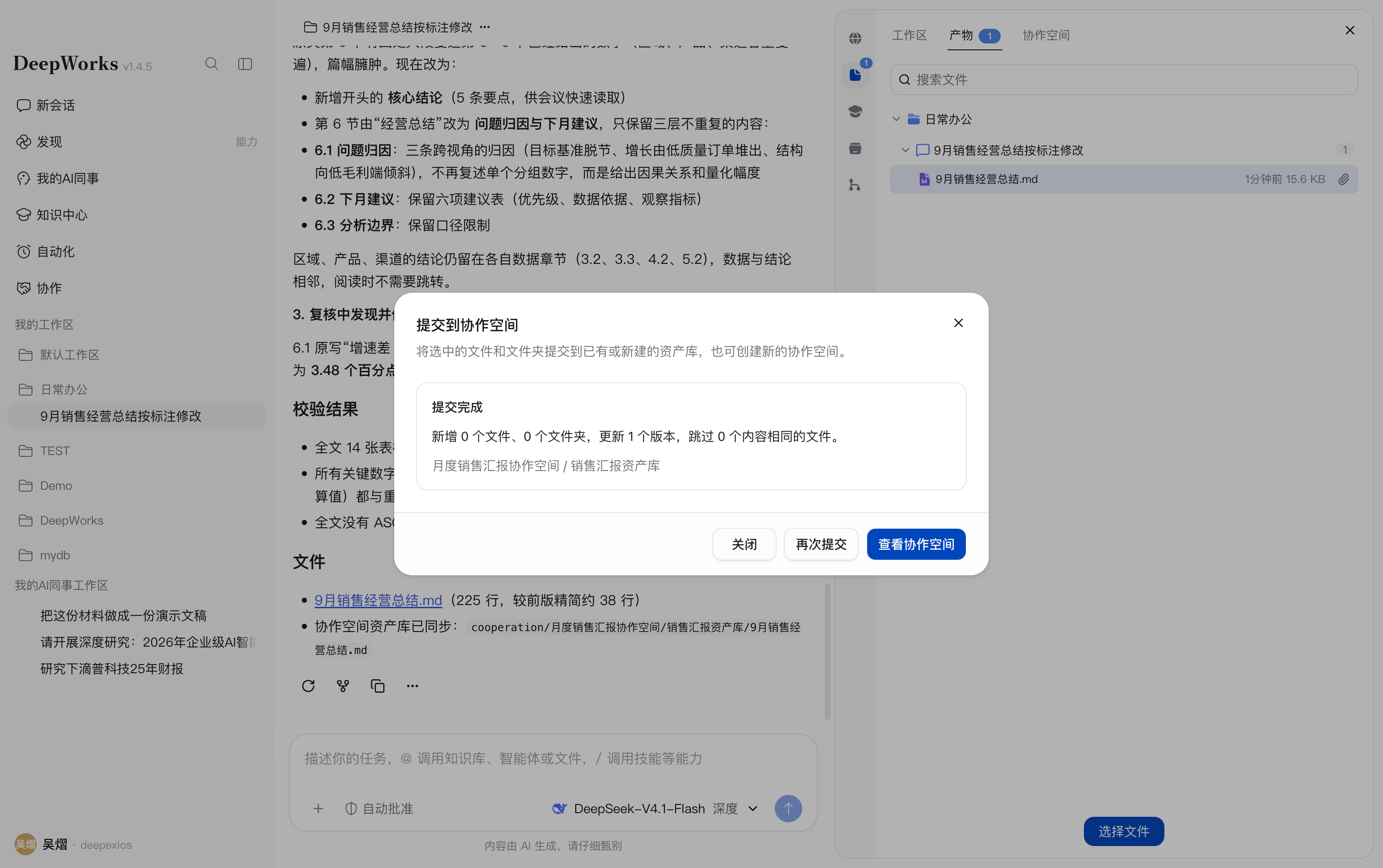
- After submission, confirm that the dialog shows
1 version updatedand the destination isMonthly Sales Reporting Collaboration Space / Sales Reporting Asset Library. - Click
View Collaboration Spaceto return to the target Asset Library. - Confirm that the version of
9月销售经营总结.mdchanged from v1 to v2 and the update time isJust now. Reference this revised document again when generating the presentation.
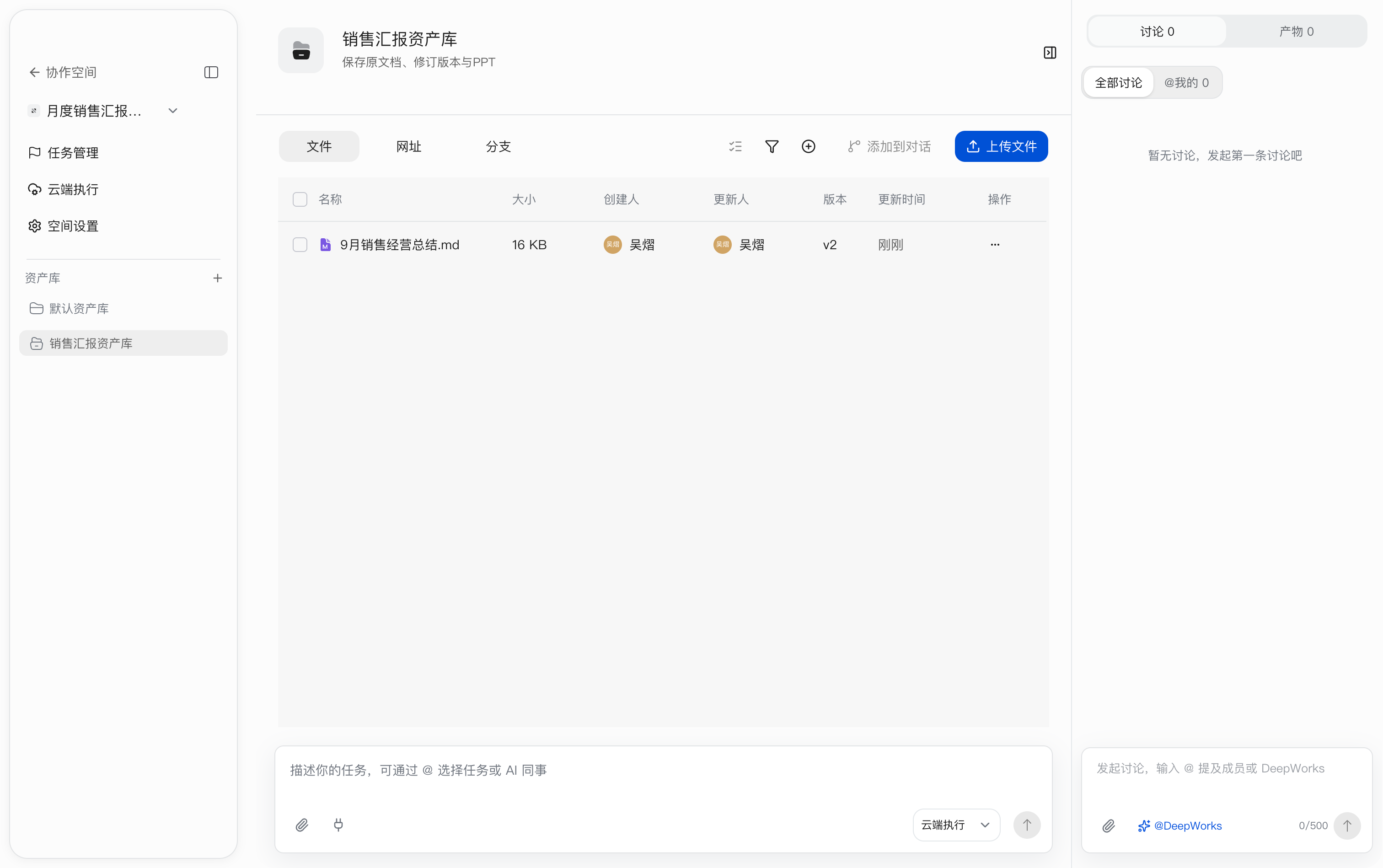
Open 9月销售经营总结.md and confirm that the title shows v2 · Latest Version. In Version Management on the right, confirm that v2 is marked Latest Version and v1 remains available; historical versions are read-only. Read the revised body and check the calculations, conclusions, and supplementary analysis related to the original annotations.
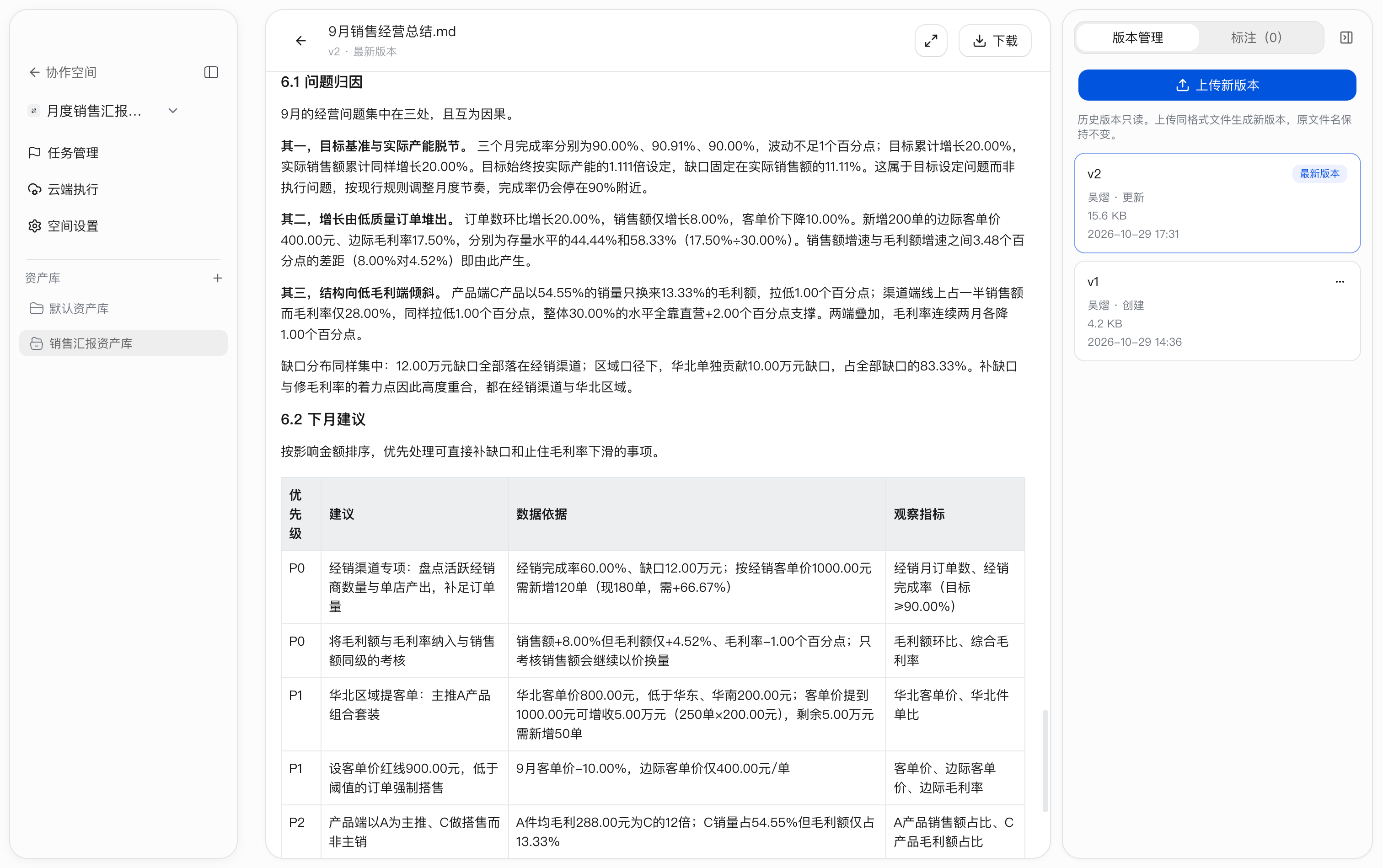
A version update only means the revised document is in the library; content quality still needs review. For cause analysis and action recommendations, distinguish data facts, assumptions to be verified, and suggestions. Avoid presenting unsupported inferences directly in the presentation.
Record Document Refinement Progress
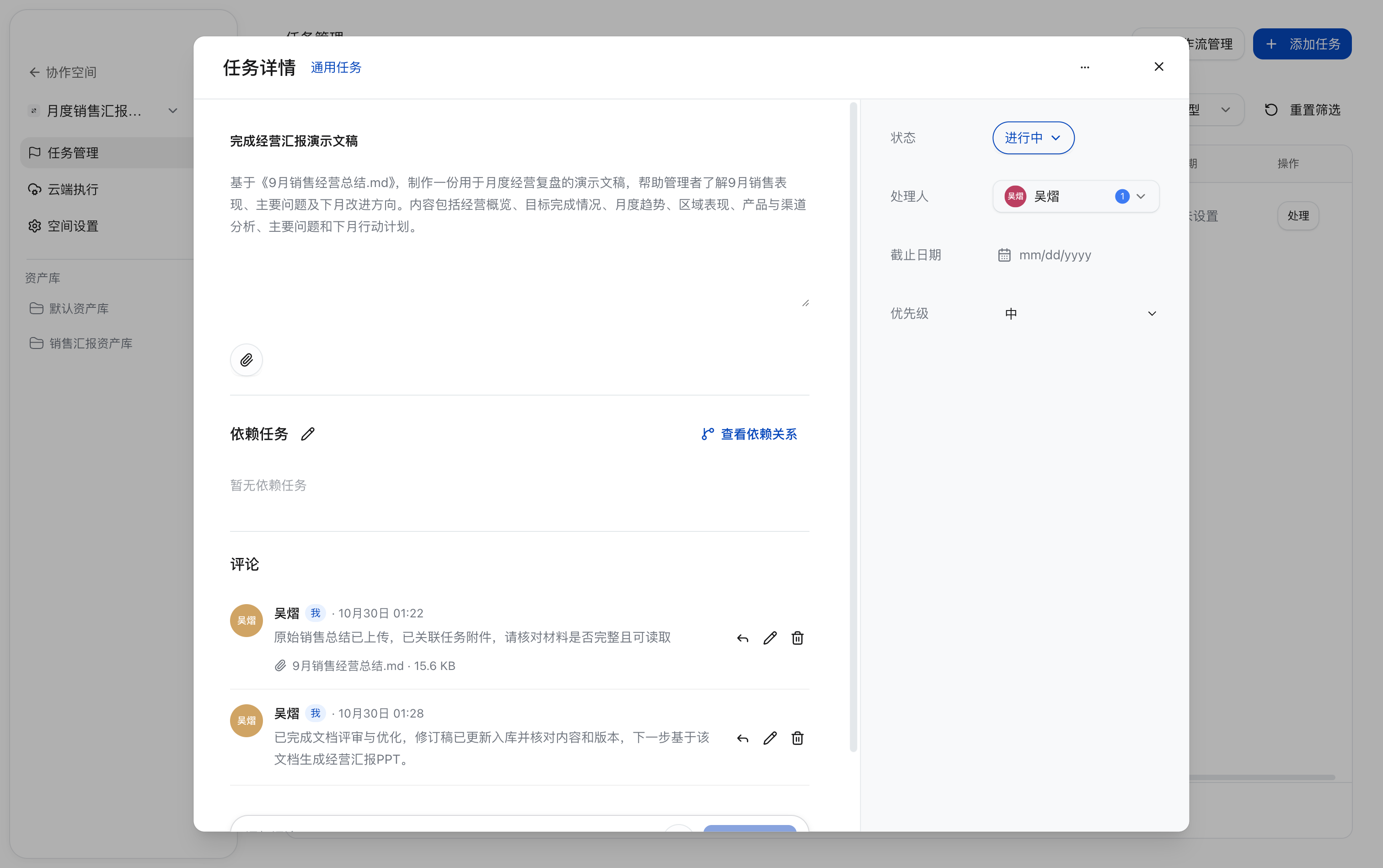
- Open the details of
Complete the business review presentationand confirm that the associated document content is the revised draft. - Check that completion rate, regional ranking, and other conclusions are corrected; supplementary analysis is supported; original data is not changed arbitrarily; and historical versions remain traceable.
- After the content check passes, enter
Document review and refinement are complete. The revised draft has been saved and its content and version checked. Next, generate the business review PPT from this document.in the comments, then clickPost Comment. - Confirm that the new progress comment appears after the earlier material-preparation comment and that the task remains
In Progress.
The task remains In Progress. If the document still has issues, continue revising and returning it; confirm it before generating the presentation. Do not transition to Pending Acceptance or Completed at this stage.
Ask an AI Colleague to Generate the Presentation in the Collaboration Space
This phase continues the Complete the business review presentation task; no new task or status transition is needed. After confirming that the revised document is saved and passes review, reference the current version to generate the presentation while the task remains In Progress.
Enter Cloud Execution from the Task
Path: Task Management → Process on the Complete the business review presentation task row.
- Confirm that the task is
In Progress, then clickProcesson the right of the row. - Go to
Cloud Execution, confirm that the conversation title isTask · Complete the business review presentation, and that the input area carries the task tag with the same name.
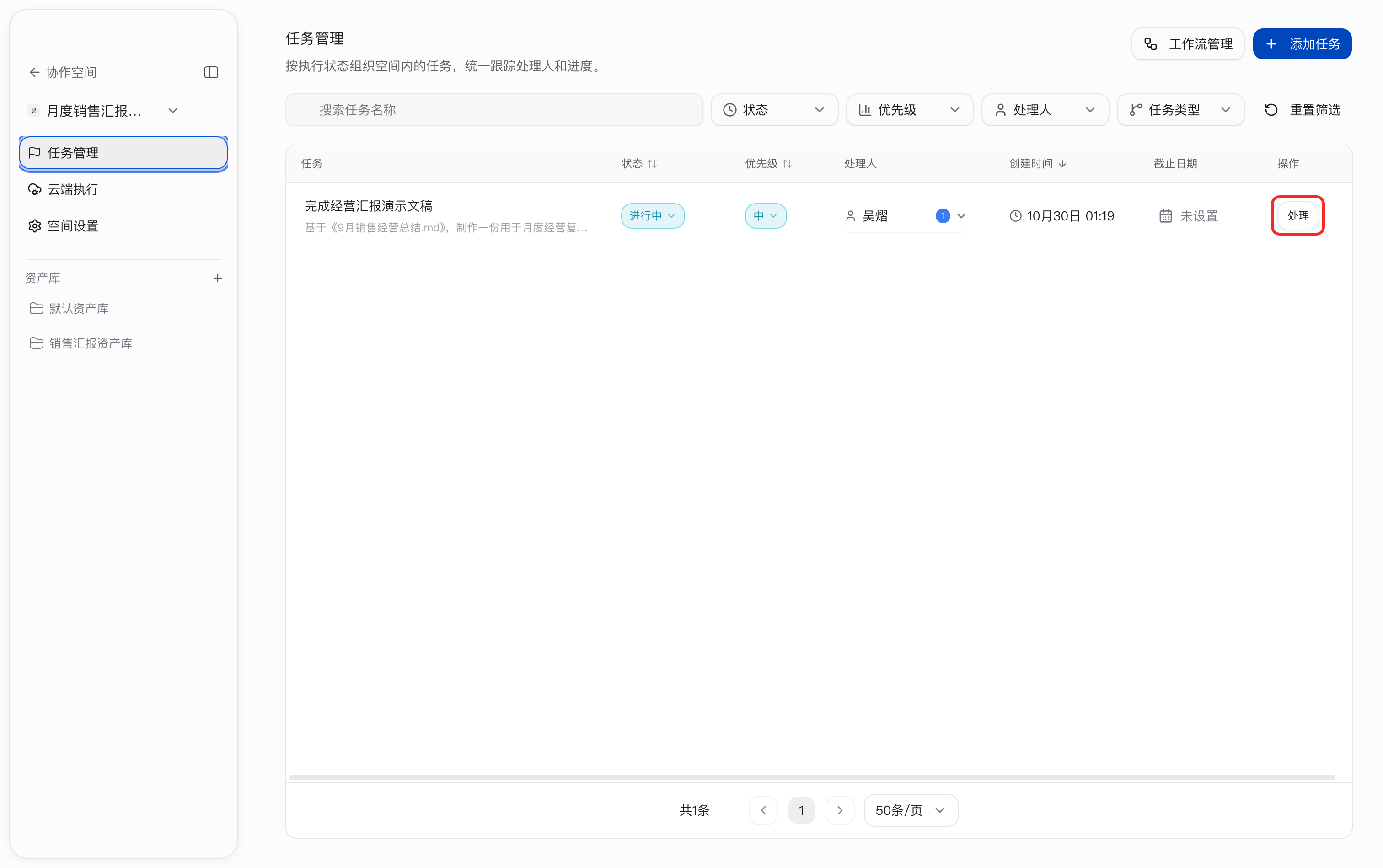
After entering the execution conversation with Process, you still need to select attachments and an AI Colleague and send the requirements before execution starts.
Select the AI Colleague and Revised Document
- In the cloud conversation input area, set the Asset Library to
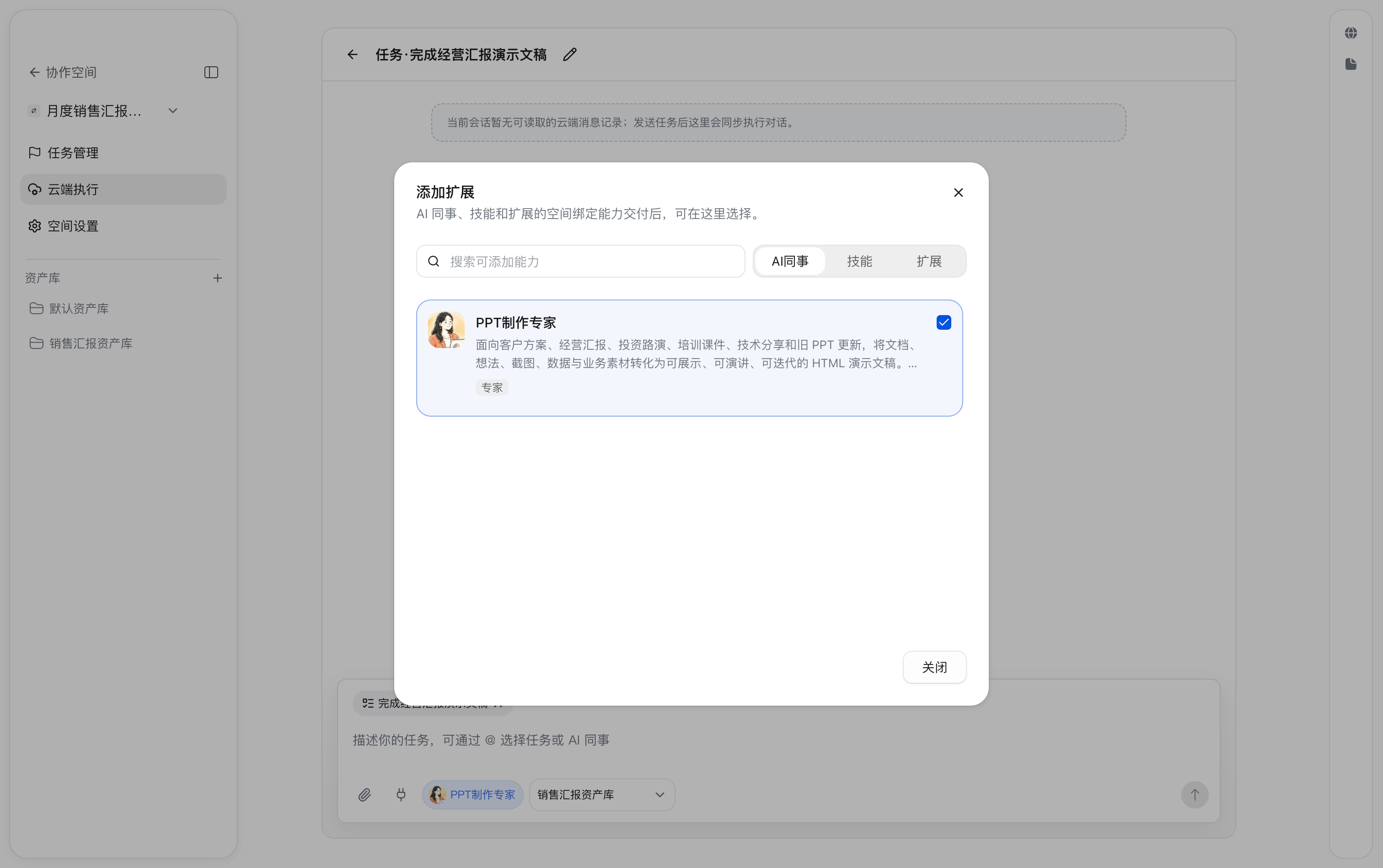
Sales Reporting Asset Library. - Click the extension icon at the bottom of the input area to open
Add Extension, then switch toAI Colleagues. - Select
PPT Creation Expert, clickClose, and confirm that the AI Colleague tag appears in the input area.
- Click the attachment icon in the input area to open
Add Attachment. - Select
9月销售经营总结.mdand confirm that the version is v2. This step uses the revised body to generate the report.
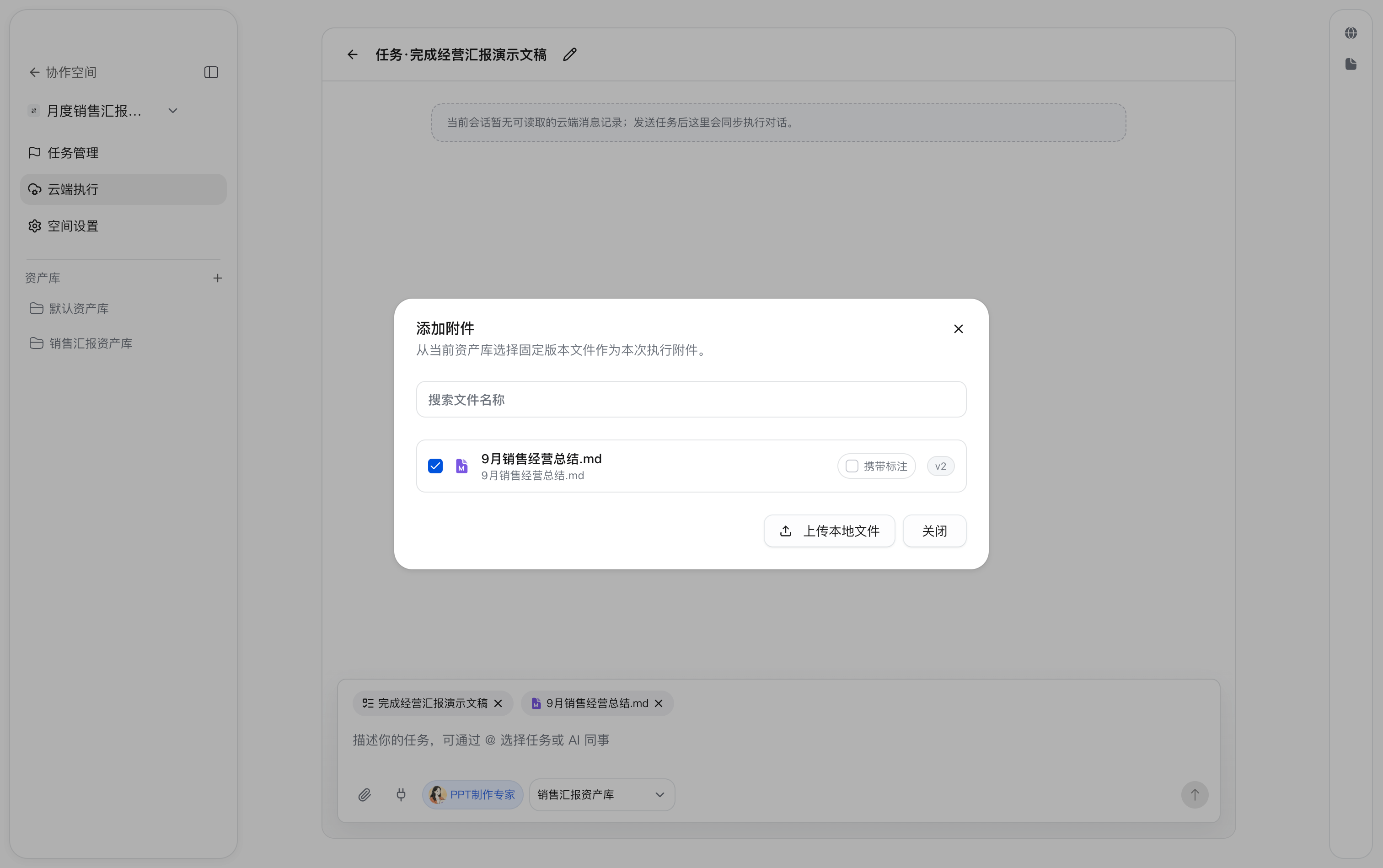
Execution attachments reference a fixed file version. If the document is updated again, reselect it and check the version to avoid using an old attachment.
Enter Requirements and Start Execution
-
Enter the following in the input area:
Generate the presentation according to the task requirements.
-
Confirm that the task, v2 document attachment, AI Colleague, and
Sales Reporting Asset Libraryare all selected. -
Click the upward arrow in the lower-right corner to send it. Review the execution conversation and resulting files in the current cloud session.
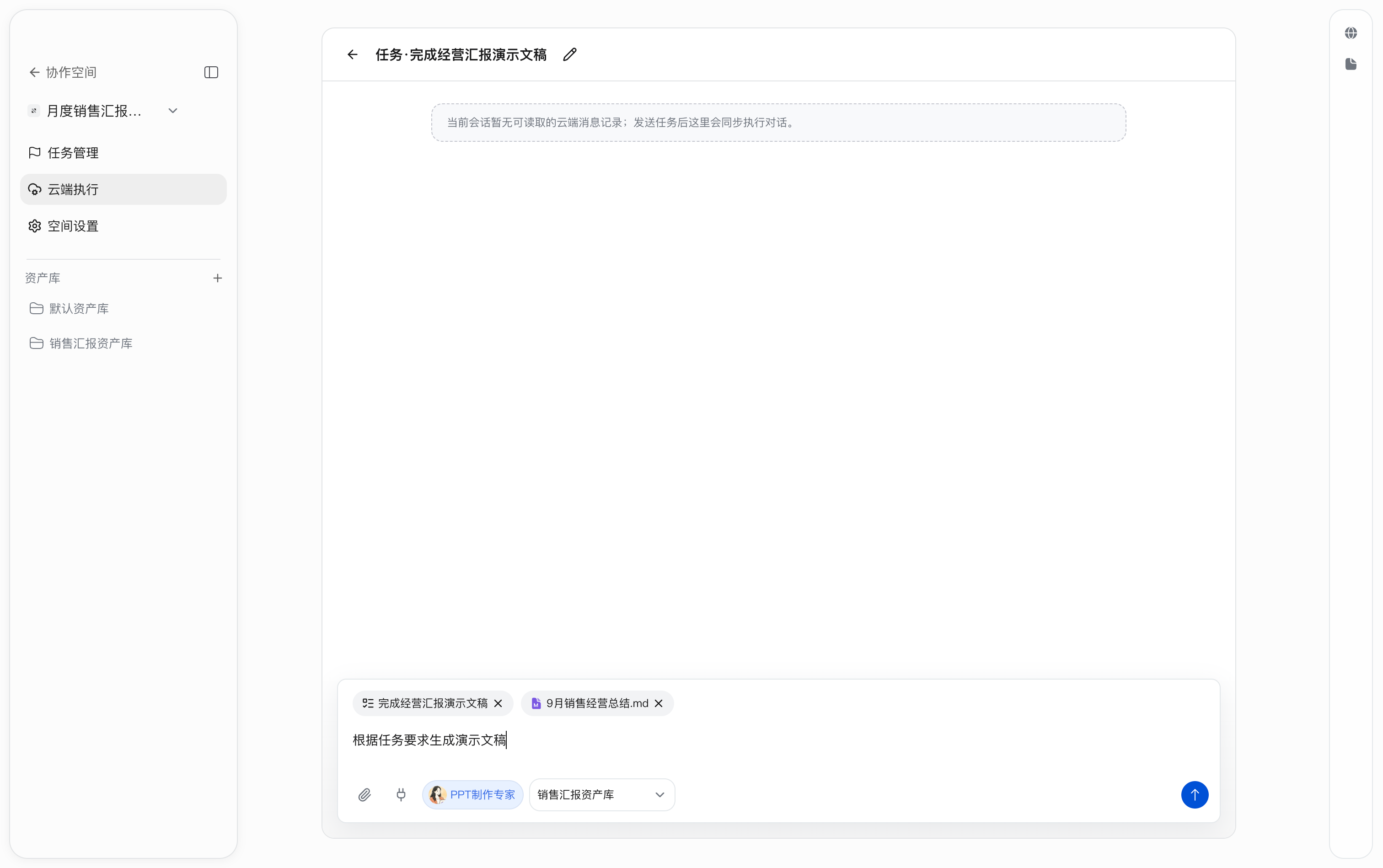
The task description already contains the report purpose and content scope. To constrain the result to eight pages, about ten minutes, a chart style, or PPTX format, add those requirements before sending. Verify the actual output format after generation; do not assume PPTX was generated from the AI Colleague name.
Review the Generated Result
After execution, open the deliverables panel on the right of the cloud conversation and expand the current task and Sales Reporting Asset Library to view the generated files. The main deliverable is index.html, an 11-page HTML presentation. The conversation also lists supporting files such as speaker notes, page planning, a review report, and thumbnail previews.
Open the main file and check every page’s content, charts, units, layout, and paging, comparing it with the revised sales summary. If issues are found, request changes in the current cloud conversation and check the updated deliverable before submitting it. A check conclusion in an AI reply cannot replace an actual preview and data review.
Save the Presentation and Complete Deliverable Acceptance
Submit the Cloud Presentation to the Asset Library
- In the deliverables panel on the right of the cloud conversation, expand
Sales Reporting Asset Libraryunder the current task. - Select the main file index.html. Submit only this presentation and leave supporting files unselected; before submission, its status is
Not in Library. - Click
Submitin the upper-right corner of the panel to open theSubmit Deliverables to Asset Libraryconfirmation dialog. - Confirm that one deliverable will be submitted and that the destination is
Sales Reporting Asset Library, then clickSubmit. The dialog notes that an immutable version will be created. To choose again, clickCancel.
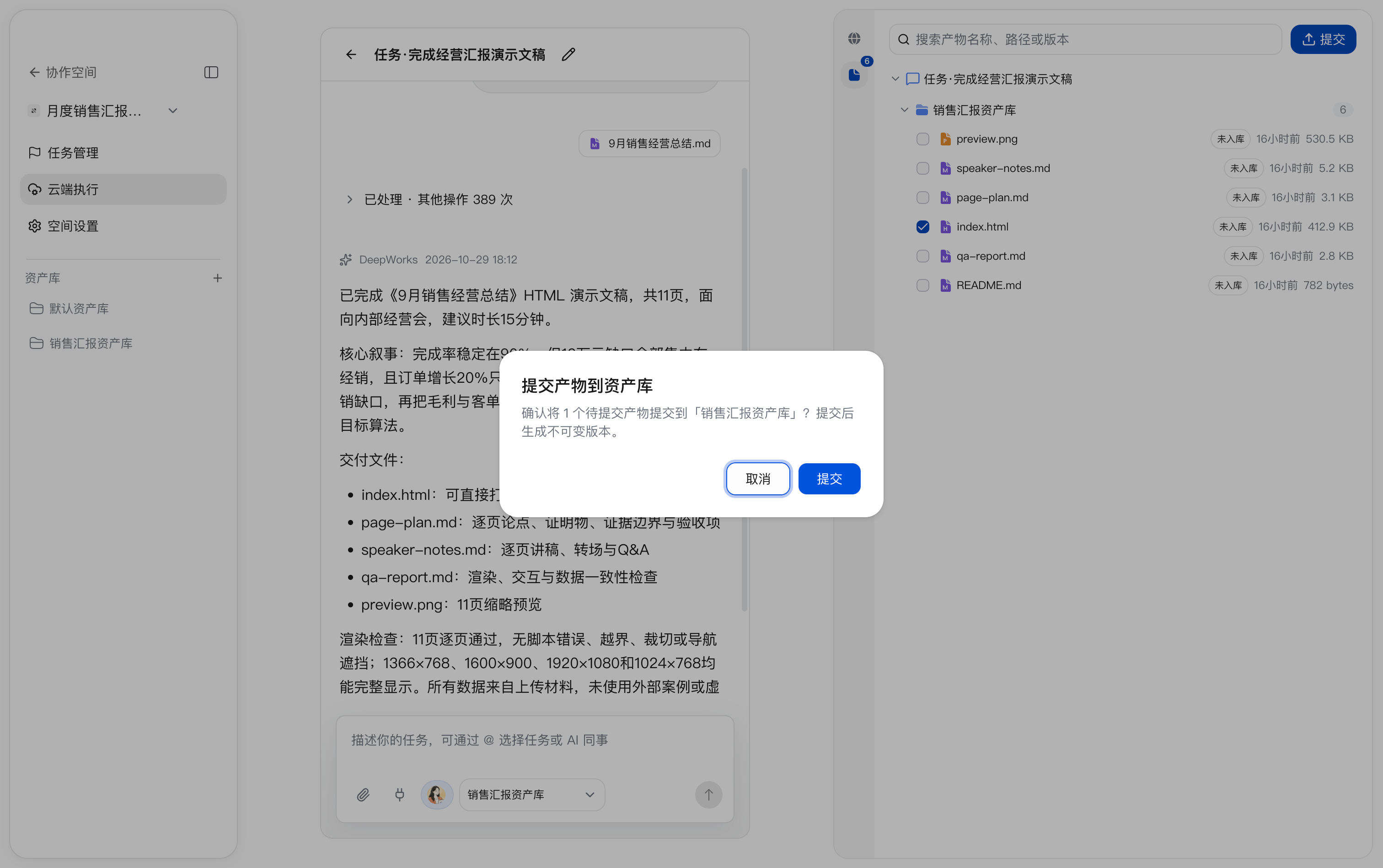
Check the Saved Result and Preview the Presentation
- Return to the
Filestab ofSales Reporting Asset Libraryand confirm that index.html (v1) was added while 9月销售经营总结.md (v2) remains.
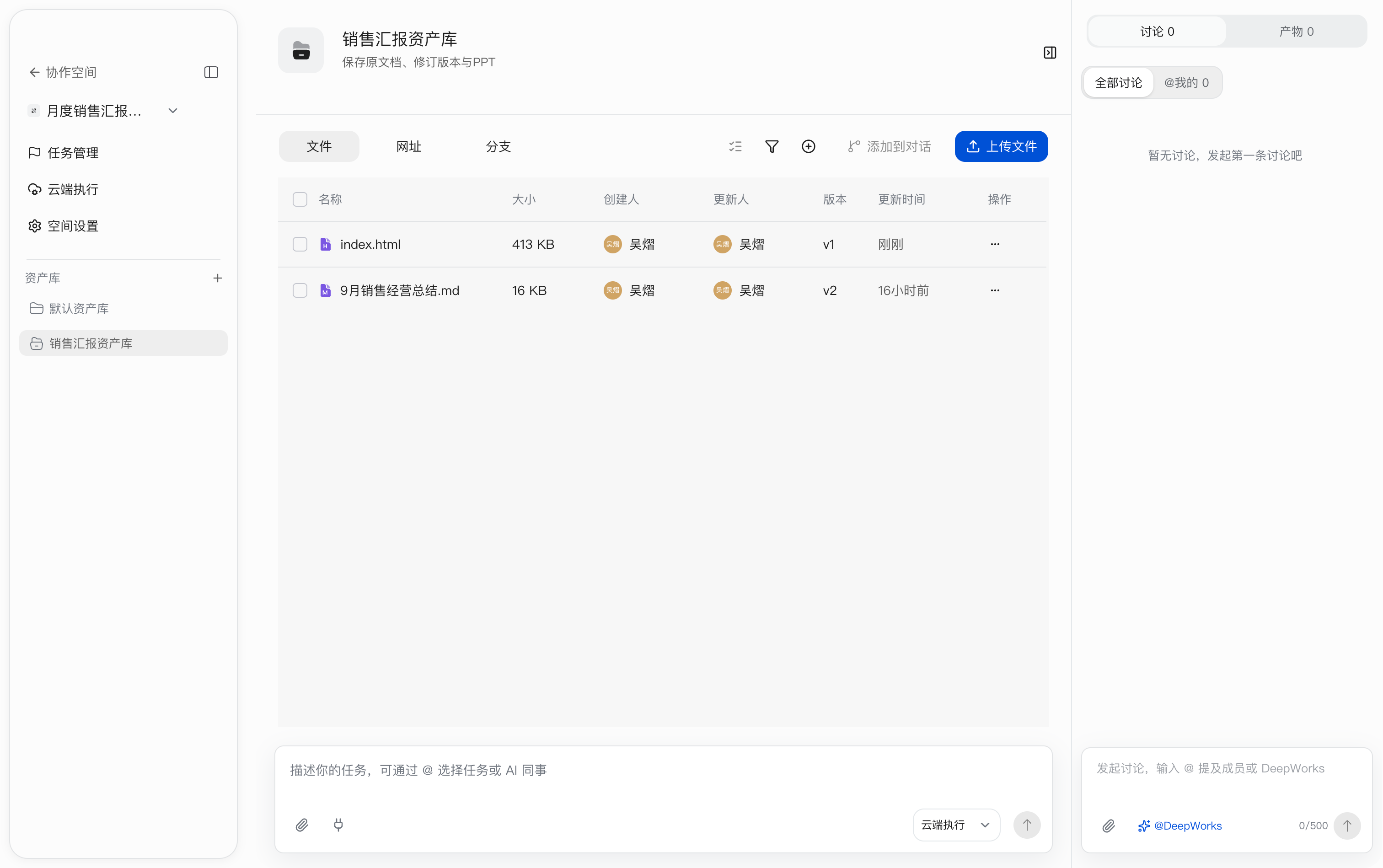
- Click index.html to open the preview. Confirm that the title shows
v1 · Latest Versionand thatVersion Managementon the right contains the v1 record. - Use the left and right arrows at the bottom to page through the presentation and check each page. This presentation has 11 pages, with the first page numbered
01 / 11. Use the fullscreen button in the upper-right corner of the preview area to enlarge it, or clickDownloadto save the file.
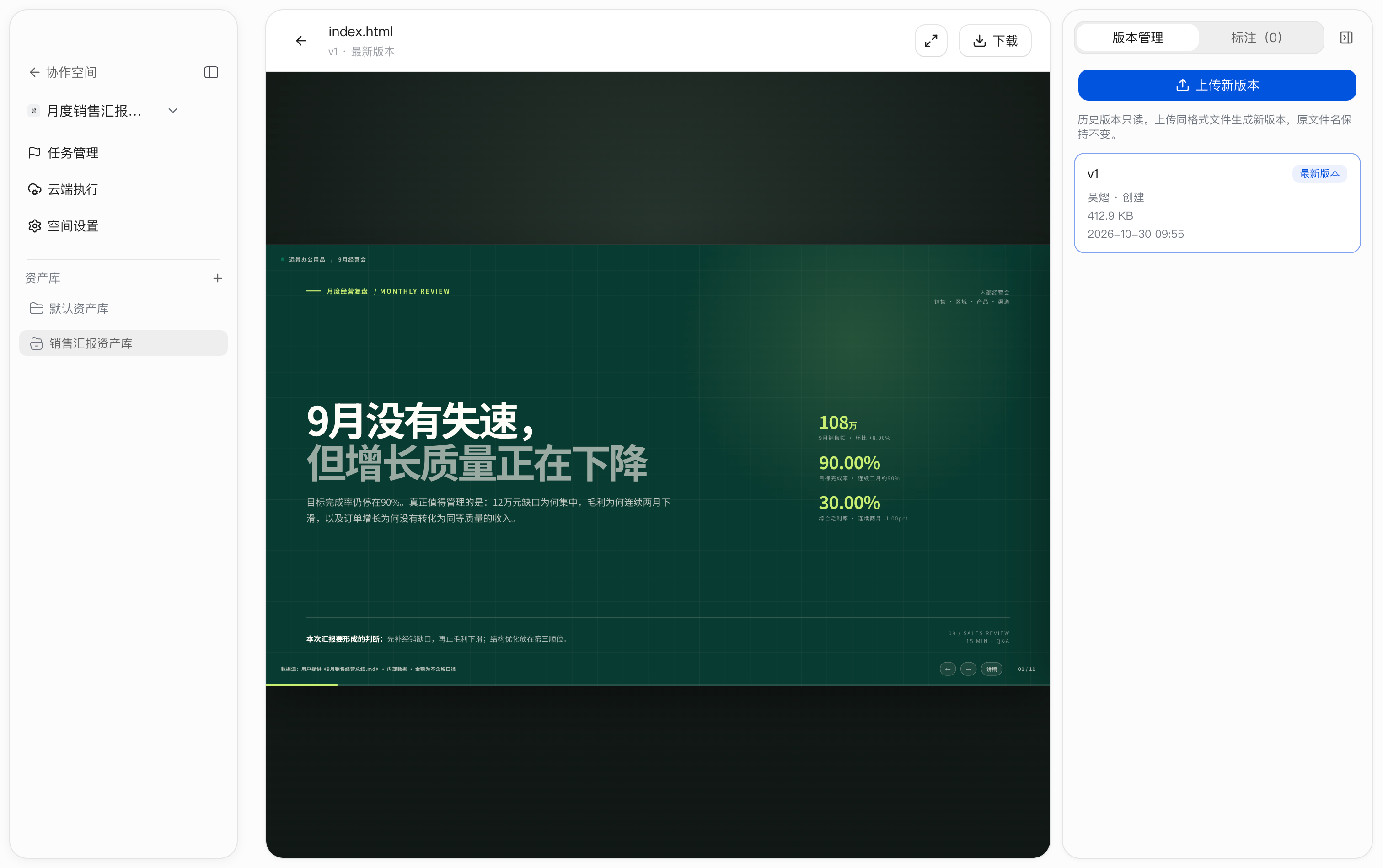
The HTML presentation is now saved and previewed. Continue by marking it as a key deliverable and completing task acceptance.
Mark the Presentation as a Key Deliverable
Mark the saved presentation as a key deliverable so it can be viewed together in the Deliverables tab on the right of the Asset Library.
Path: Sales Reporting Asset Library → Files → … on the row containing index.html → Mark as Key Deliverable.
- In the file list, find index.html and click
…on the right of its row. - In the action menu, click
Mark as Key Deliverable.
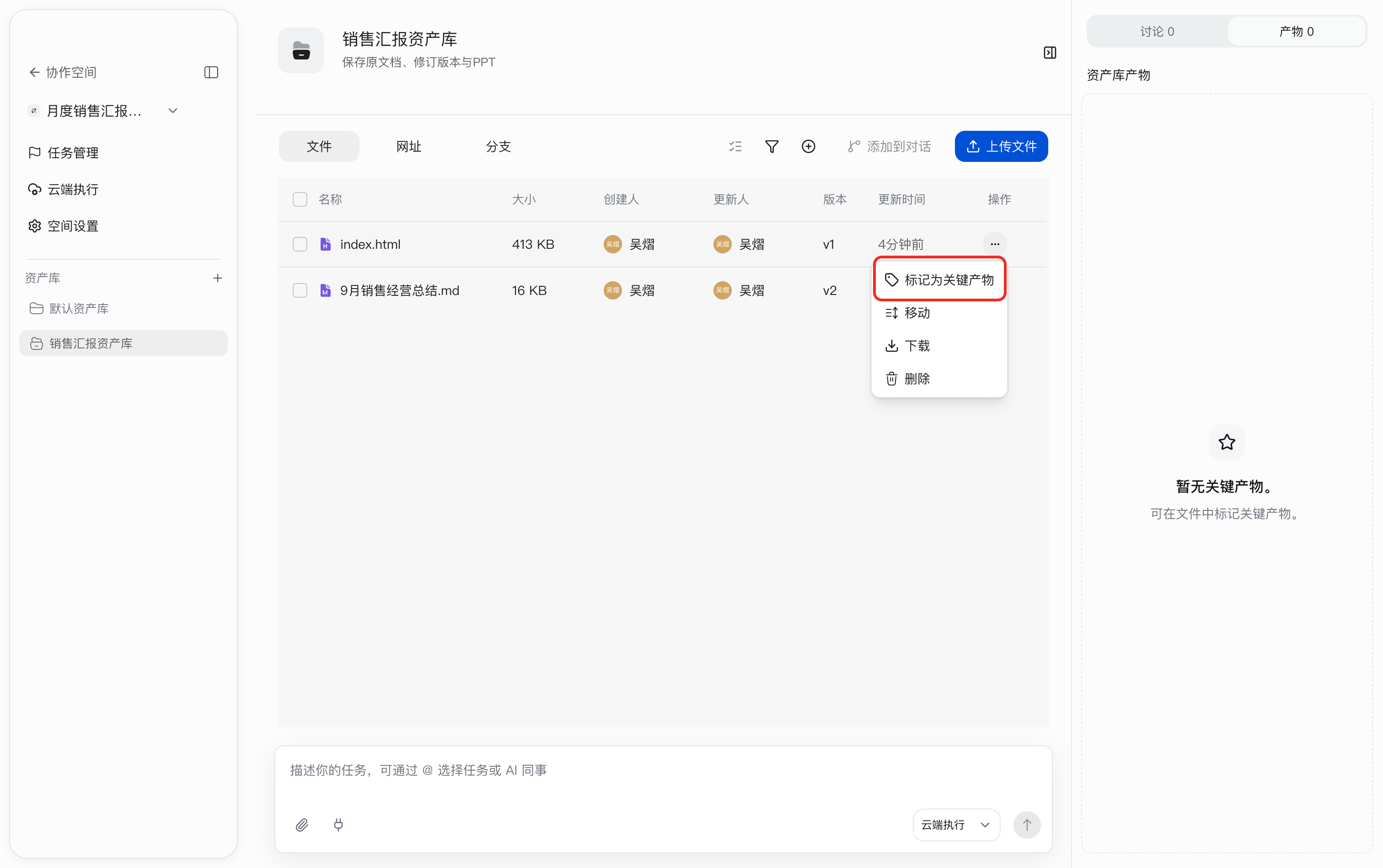
- Confirm that the
Key Deliverablelabel appears next to the index.html file name. - Switch to the
Deliverablestab on the right, confirm that the count is 1, and that index.html and its V1 version information appear underAsset Library Deliverables.
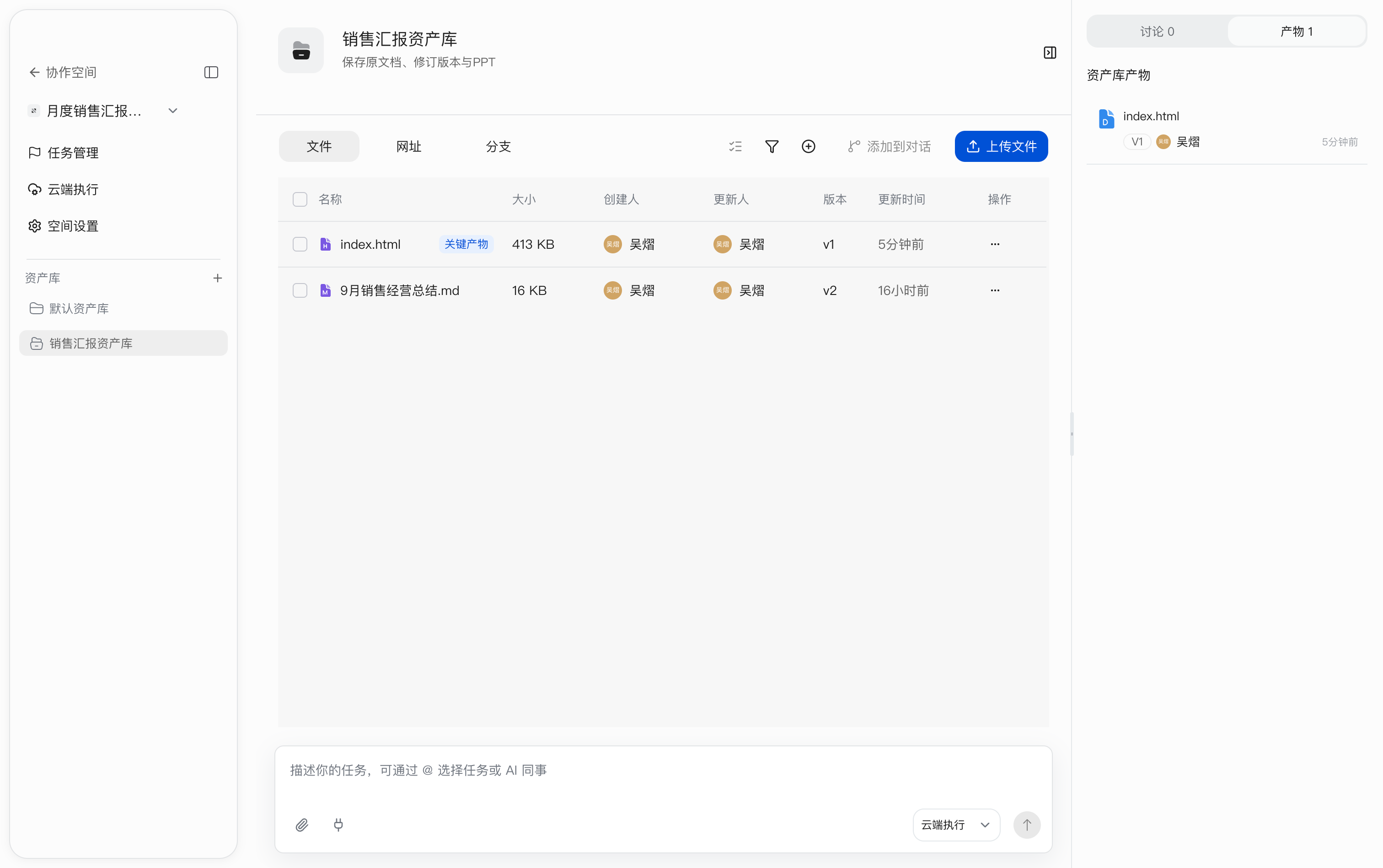
After marking it, record the acceptance conclusion and complete task acceptance. Marking a key deliverable does not mean the task is complete.
Check Acceptance Criteria
Before submitting for acceptance, confirm that Sales Reporting Asset Library contains the revised 9月销售经营总结.md and the presentation index.html, and that index.html is marked as a key deliverable. Use these criteria:
| Acceptance item | Pass condition |
|---|---|
| Document quality | Annotated issues are corrected, analysis is supported, and base data remains consistent |
| Document version | The revised document with the same name is saved, and the original version remains traceable |
| Presentation quality | index.html previews normally, has 11 pages and working paging, matches the revised document, has clear chart units, and no overflowing text |
| Deliverable storage | Final files are in the target Asset Library, and the presentation is marked as a key deliverable |
To record specific review comments, use task comments. The final status transition in this case does not include a note, and publishing an extra acceptance comment is not required.
Submit and Accept the Business Reporting Task
Submit for acceptance:
- Return to
Task Management, findComplete the business review presentation, clickIn Progressin its row, and openChange Status. - Select
Pending Acceptanceand confirm that the required assignee is yourself. - The document and presentation were saved in the preceding steps.
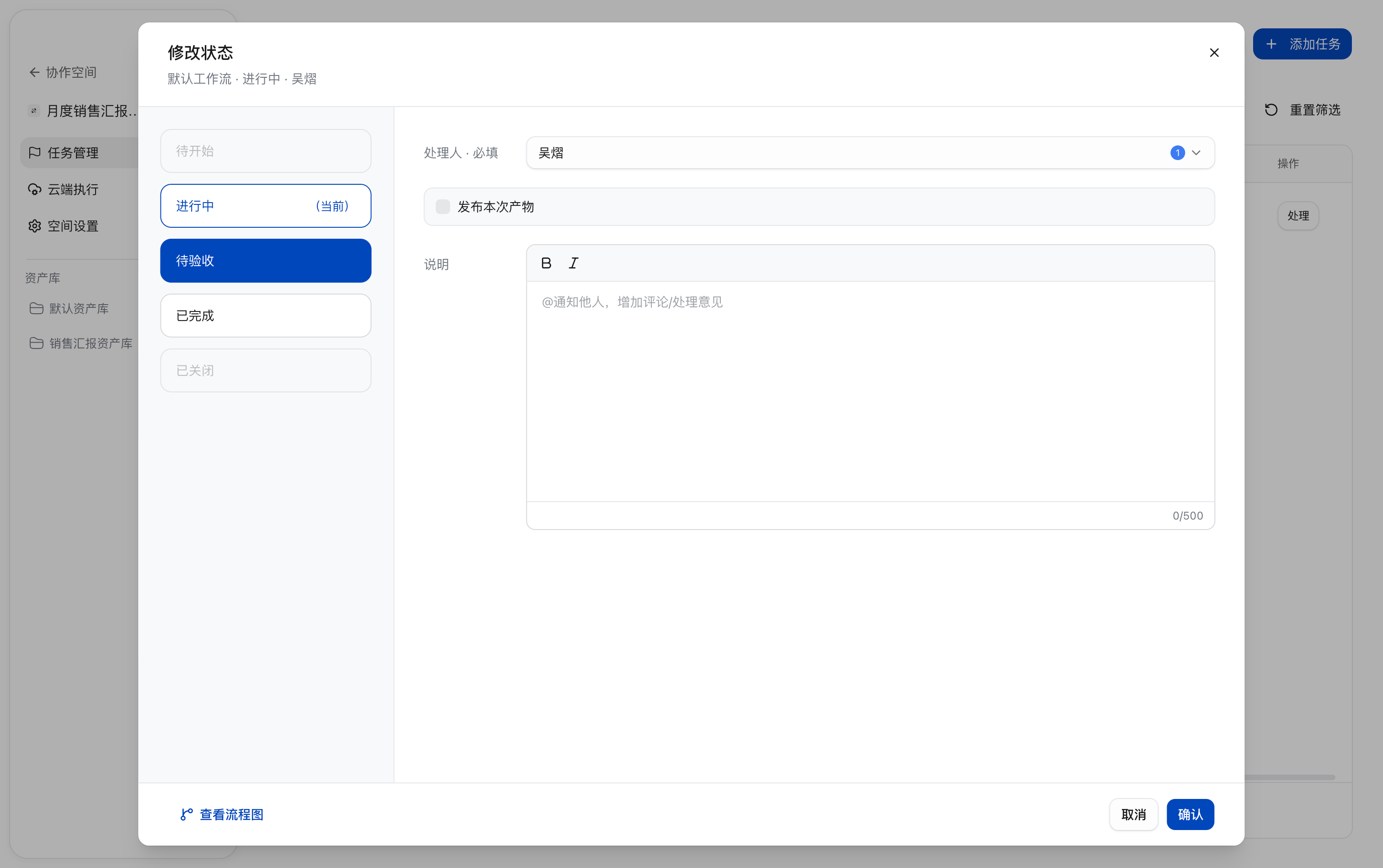
Accept and complete:
- Check the results as described in section 9.4. After they pass, click the task’s
Pending Acceptancestatus and openChange Statusagain. - Select
Completed, confirm that the assignee is yourself, and clickConfirm.
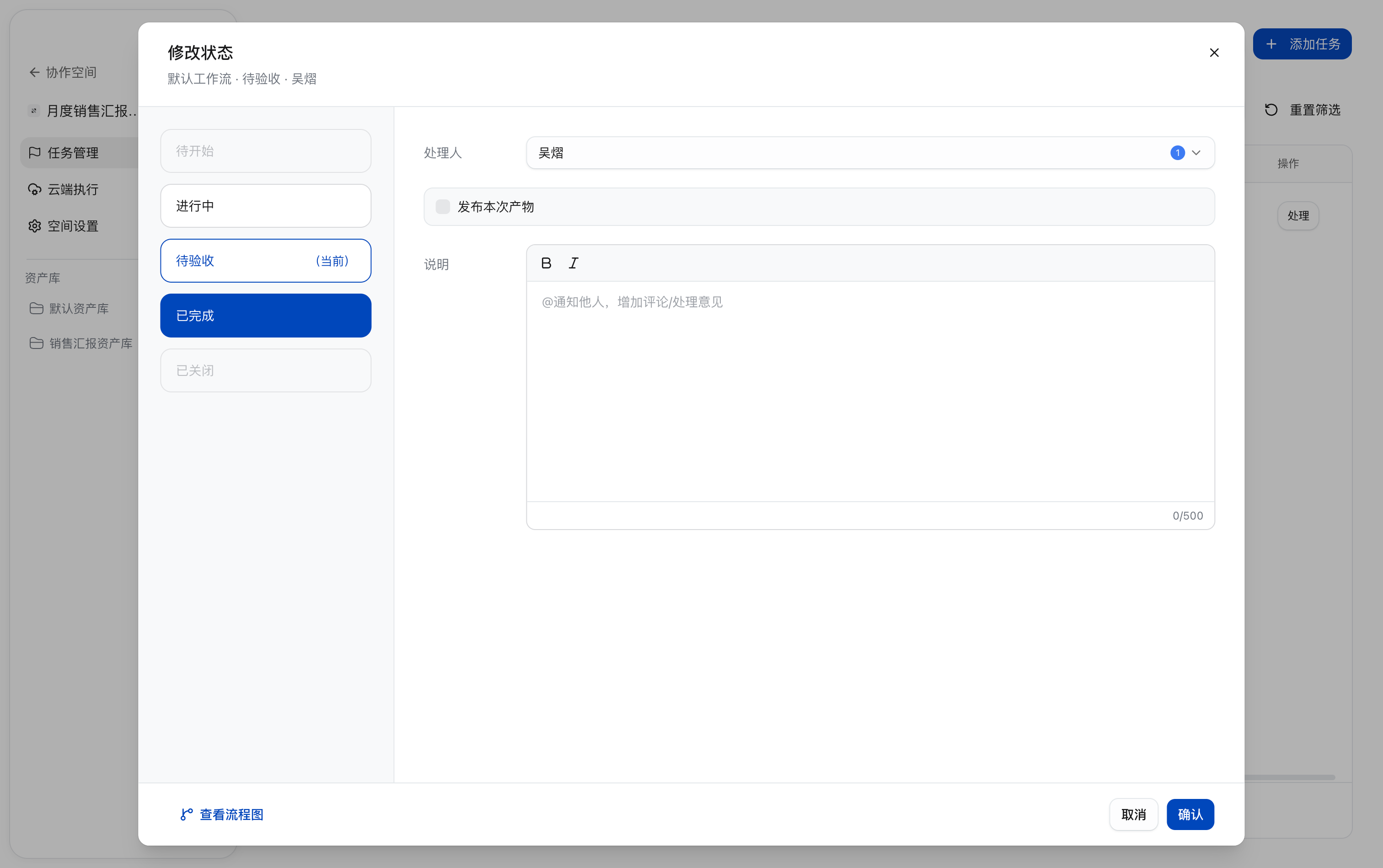
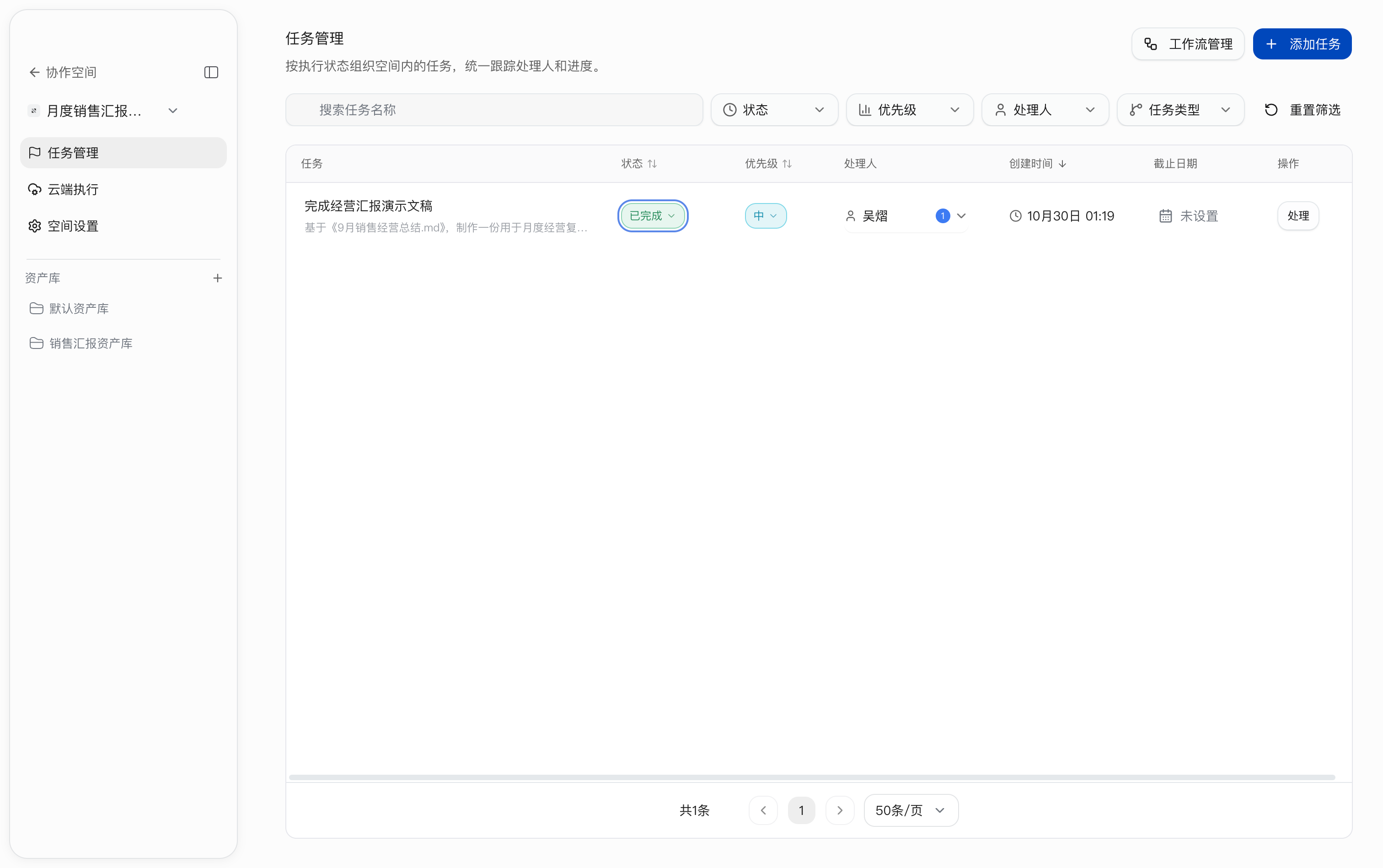
- Return to the task list and confirm that the status of
Complete the business review presentationisCompleted.
If acceptance finds an issue, change the status from Pending Acceptance back to In Progress, record the change requirements, revise and resubmit the affected files, then accept again. This case ends with In Progress → Pending Acceptance → Completed, all performed by the same account.
Appendix A: Case Data Verification Reference
| Check item | Reference result |
|---|---|
| September target completion rate | 108 ÷ 120 = 90.00% |
| September target variance | Actual sales were CNY 120,000 below target |
| September sales month over month | Up 8.00% |
| September orders month over month | Up 20.00% |
| September average order value | 900.00 CNY per order, down 10.00% from August |
| Regional comparison | East China has the highest sales, South China has the highest completion rate, and North China has the largest target gap |
| September blended gross margin | 30.00%, down 1.00 percentage point from August |
Region, product, and channel are different groupings of the same sales and must not be totaled again. Gross margin uses a sales-weighted basis.