Local Knowledge Base
Product Overview
Product Introduction
The DeepWorks Local Knowledge Base processes personal materials, project documents, research notes, and reusable skills into traceable, linkable, searchable, and callable knowledge assets, so that knowledge can be read by people and consumed directly by Agents.
The Local Knowledge Base uses the Knowledge Workspace as its basic management unit. Each Knowledge Workspace has its own material scope, knowledge files, ontology files, Schema, relation graphs, Data Lineage, and Skills, so knowledge from different projects or business domains is never mixed.
Knowledge inside a Knowledge Workspace is organized in three layers, progressing layer by layer:
- Raw (source materials layer): the original files imported by the user; the starting point of knowledge processing and the source of traceability;
- Wiki (Wiki knowledge layer): knowledge pages compiled from source materials; readable, editable, and governable;
- Ontology (ontology layer): objects and relations extracted from stable Wiki content, forming machine-parseable structured knowledge. On top of the three layers, the generated objects, relations, and Skills can be invoked by Agents during Q&A, analysis, and task execution, and Data Lineage supports tracing every step back to its source.
In this way, the Local Knowledge Base upgrades personal knowledge from a traditional retrievable file repository into a personal semantic foundation shared by people and Agents, continuously gaining value in the cycle of consumption and production.
Product Value
The product’s three layers of capability build on each other, solving three kinds of pain points: the first layer solves “fragmentation” — scattered materials; the second layer solves “shallowness” — AI that reads text without understanding the business; the third layer solves “dormancy” — knowledge assets that cannot be put to work. Data Lineage runs through all three layers, ensuring that the output of every layer is trustworthy and auditable.
Layer 1: Knowledge Accumulation (Raw → Wiki) — Turning fragmented materials into systematic knowledge
Personal project files are mostly isolated, unstructured information that is hard to organize into systematic knowledge. The Local Knowledge Base supports batch import of multimodal source materials and one-click compilation into structured Wiki entries; it supports the creation and iteration of topic domains for classified knowledge governance; and it visualizes the knowledge association network through the Wiki Graph. Fragmented materials thus settle into an editable, maintainable, dynamically updated personal Wiki knowledge system, laying the knowledge foundation for ontology modeling.
Layer 2: Knowledge Understanding (Wiki → Ontology) — Letting Agents understand the business, not just read the text
Ordinary Wiki entries lack entity-relation definitions, so AI cannot deeply understand business associations. The Local Knowledge Base supports describing a business domain in natural language; AI then automatically generates a business Schema that defines object types and relation patterns, and automatically completes instance extraction to build a visual project Knowledge Graph. With Data Lineage, the knowledge production chain is fully traceable. Tacit business logic is thus converted into machine-parseable ontology structures, making entity information trustworthy and auditable, and supporting stable domain knowledge reasoning.
Layer 3: Knowledge Invocation (Ontology + Wiki → Skill → Conversation) — Bringing knowledge assets out of the back office and into the work front line
If well-formed knowledge assets stay locked inside the system, they can hardly blend into daily project workflows. The Local Knowledge Base supports packaging the entire set of knowledge assets as knowledge Skills callable by Agents; in a conversation, you can invoke a Knowledge Workspace with the @ command, and the Agent draws on Wiki entries and ontology knowledge to solve complex project business problems, showing sources in its results. This connects the application chain from knowledge assets to intelligent Q&A, so that accumulated knowledge continuously supports project judgment and decision-making.
Applicable Roles
| Role | Main tasks | Common entry points |
|---|---|---|
| Individual user | Create personal Knowledge Workspaces, import materials, compile Wiki, maintain personal knowledge | Local Knowledge Base |
| Knowledge organizer | Maintain topic domains, Wiki entries, object types, relation types, and Skill files | Wiki, Ontology Design, Skill Applications |
| Material reviewer | Check sources, lineage, graphs, and evidence chains | Data Lineage, Graph Preview, Wiki source files |
| AI task user | Explicitly select the Local Knowledge Base in conversations and verify answer sources | @ Knowledge Base in the chat input box |
Glossary
| Term | Description |
|---|---|
| Local Knowledge Base | The local knowledge management space inside DeepWorks, suitable for organizing, searching, and accumulating personal materials |
| Knowledge Workspace | The isolation unit of the Local Knowledge Base, holding the Raw, Wiki, Ontology, and Skill of one project, business domain, or topic |
| Source materials (Raw) | Original files or folders imported by the user; the starting point for parsing and traceability |
| Wiki | Knowledge pages compiled from source materials and manually maintainable |
| Topic domain | The classification and governance unit of Wiki knowledge, used to organize and manage entries |
| Ontology | Structured knowledge artifacts — objects, relations, queries, skills, etc. — extracted according to a Schema |
| Schema | The ontology structure definition, including object types, attributes, relation types, keys, and field mappings |
| Ontology Design | The functional entry for defining object types, relation types, and Schema; the structural design stage before instance extraction |
| Instance data | The concrete object and relation records extracted according to object types and relation types |
| Data Lineage | Shows the source, generation, and reference chains among source materials, Wiki knowledge, and the ontology foundation |
| Skill | A standardized capability file callable by Agents, containing business cognition, execution instructions, usage boundaries, and related resources |
| Skill Applications | Manages and maintains the set of Skill files (including SKILL.md) available to Agents |
Product Introduction
Using the DeepWorks Local Knowledge Base can be summarized as three progressive steps: compile and accumulate → review and govern → invoke in conversations.
Step 1: Create and compile a Knowledge Workspace
Goal: Process personal materials into searchable, traceable, and callable knowledge.
- Create a Knowledge Workspace;
- Import source materials: import personal notes, project documents, business materials, research materials, and historical results into the Knowledge Workspace as the source of knowledge processing;
- Start a compilation task: the system parses and processes the source materials, generating Wiki knowledge, an ontology foundation, Skills, and a traceable knowledge chain. Step 2: Edit and review knowledge results
Goal: Confirm that the knowledge structure matches the actual business caliber, and is complete, accurate, searchable, linkable, and traceable.
- Edit Wiki entries, topic domains, object types, and relation types; after confirming the Schema, run instance data extraction;
- Check the quality of knowledge results item by item through Wiki, Knowledge Graph, Skill Applications, and Data Lineage;
- After confirming that it meets usage requirements, enable the corresponding Knowledge Workspace so it can be invoked by Agents. Step 3: Invoke the Knowledge Workspace in an Agent conversation
Once the Knowledge Workspace is enabled, return to the DeepWorks chat input box, type @, select “Local Knowledge Base”, and check the Knowledge Workspace you want to use.
The Agent will answer questions, analyze content, or execute tasks based on the selected Knowledge Workspace, and will show the corresponding sources in its results for easy verification and traceability. New knowledge produced during future use can be deposited back into the Knowledge Workspace, forming a continuously evolving loop.
Function Module Overview
Organized in three progressive layers: source materials as the foundation layer, Wiki knowledge as the accumulation layer, Knowledge Graph as the understanding layer, Skill Applications as the invocation layer, with Data Lineage providing traceability throughout.
| Function module | Sub-function | Introduction |
|---|---|---|
| Overview | / | Aggregates and displays the processing status of materials, Wiki, graphs, Skills, and more in the current personal Knowledge Workspace, helping users judge the progress and quality of knowledge building. |
| Overview | Skill Applications | Settles personal knowledge into capabilities callable by Agents |
| Source Materials | / | Centrally manages imported original files and source materials, preserving their traceability relationships with Wiki and graph results. |
| Wiki | Wiki Pages | Manages and edits knowledge content in page form; the main entry for users’ daily reading, modifying, and organizing of the Wiki. |
| Wiki | Wiki Graph | Graphically displays the associations between Wiki pages, helping users view the knowledge network and discover isolated content. |
| Knowledge Graph | Ontology Design | Defines the object types, relation types, and Schema of the Knowledge Graph; the structural design entry before instance extraction and graph construction. |
| Knowledge Graph | Instance Data Extraction | Extracts object and relation instances from materials according to the confirmed Schema, generating structured data for the Knowledge Graph. |
| Knowledge Graph | Instance Data | Manages the extracted object, relation, and attribute data, allowing users to check, filter, and confirm graph data quality. |
| Knowledge Graph | Graph Preview | Displays the overall structure and instance relations through Schema Graph and Knowledge Graph previews, helping users visually verify graph results. |
| Data Lineage | / | Shows the source and dependency relationships among knowledge results such as source materials, Wiki, graphs, and Skills, helping users trace the knowledge production chain. |
Local Knowledge Base Entry
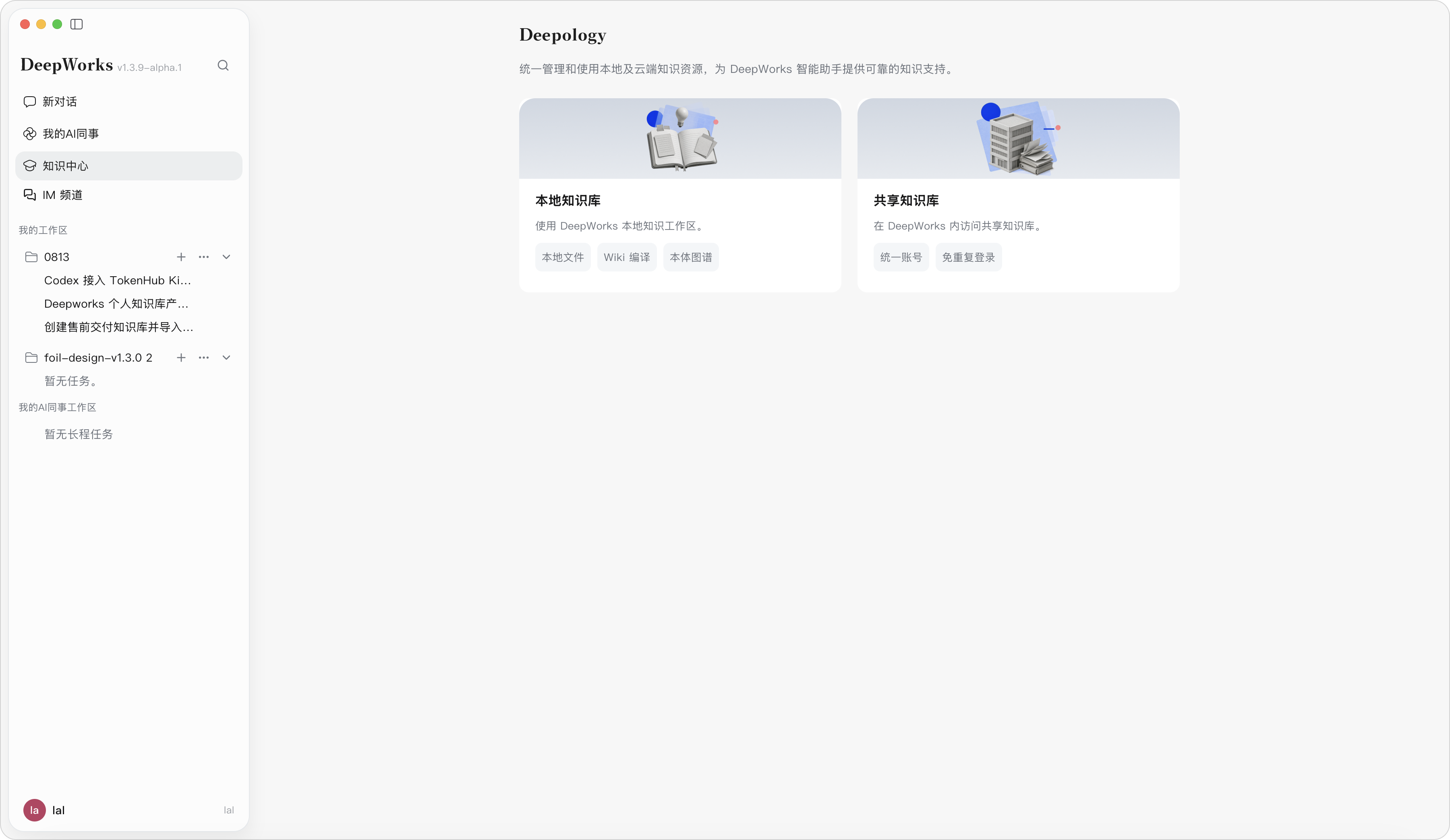
Steps: Open DeepWorks; click “Knowledge Center” in the app sidebar; on the selection page, click the “Local Knowledge Base” card to enter the Local Knowledge Base.
Create and Initialize a Knowledge Workspace
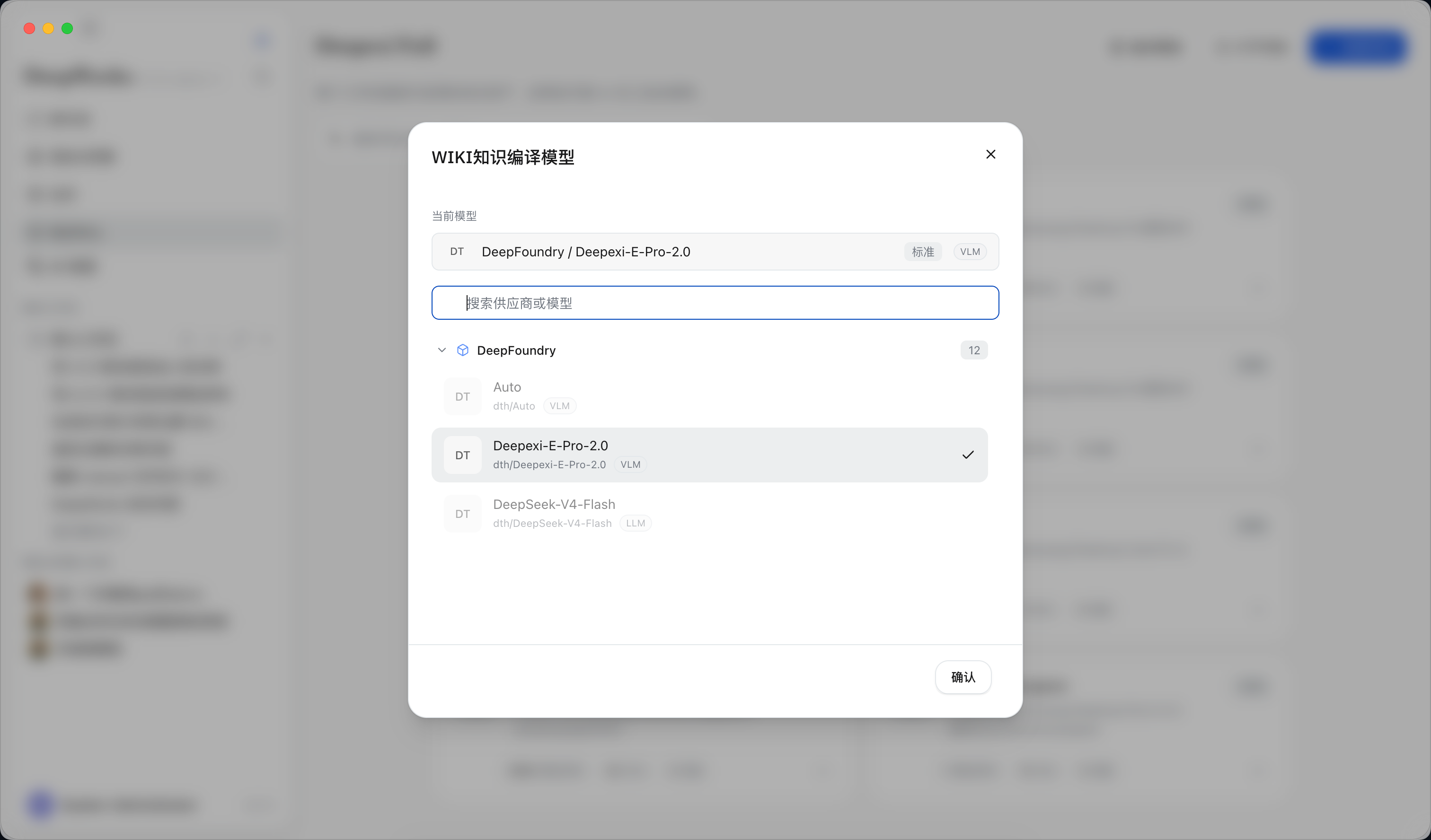
Configure the Compilation Model
Steps: In the upper-right corner of the “Knowledge Workspace Overview”, click “Compilation Model”. Result: The page opens the “Wiki Knowledge Compilation Model” dialog, showing the current model, a search box, the list of available models, and an “OK” button. Note: Currently only the Deepexi-E-Pro-2.0 model is supported. This model is used for compiling Raw and Wiki. After selecting a model and clicking “OK”, subsequent knowledge compilation will run with the new model.
Create a New Knowledge Workspace
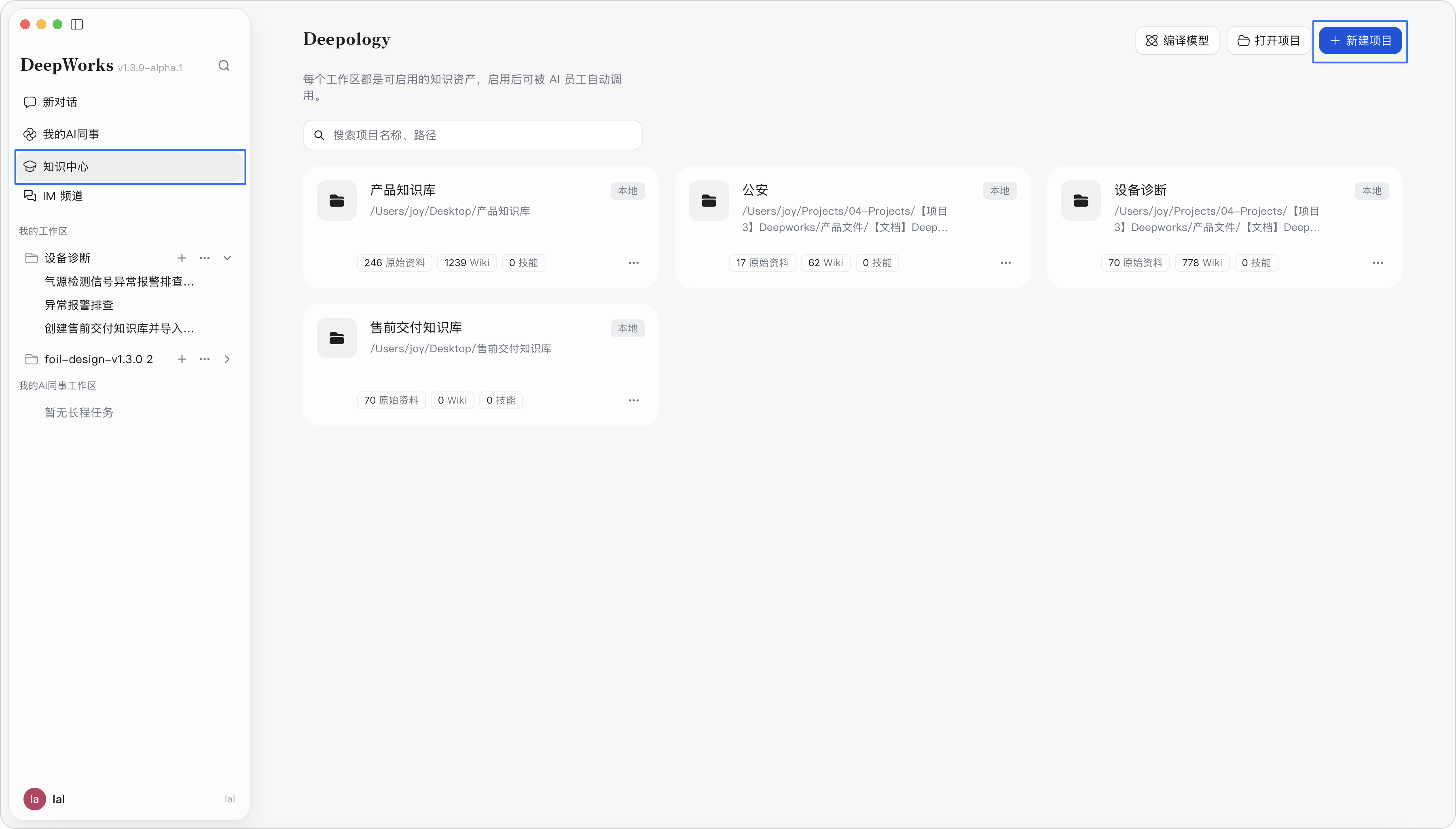
Steps: Click “New Project”; enter a project name; click “Select Parent Directory” and choose a local directory; keep or uncheck “Use Default Topic Domains” as needed; click Create. Result: You enter the “Knowledge Workspace Overview” page, where you can see existing Knowledge Workspaces. Each card shows the workspace name, path, enablement status, and the counts of Raw, Wiki, and Skill. Click a Knowledge Workspace card to enter the workspace;
| Note: The parent directory determines where the Knowledge Workspace is saved; the Knowledge Workspace template determines the project’s initial rules and knowledge structure. |
|---|
Get to Know the Workspace Interface
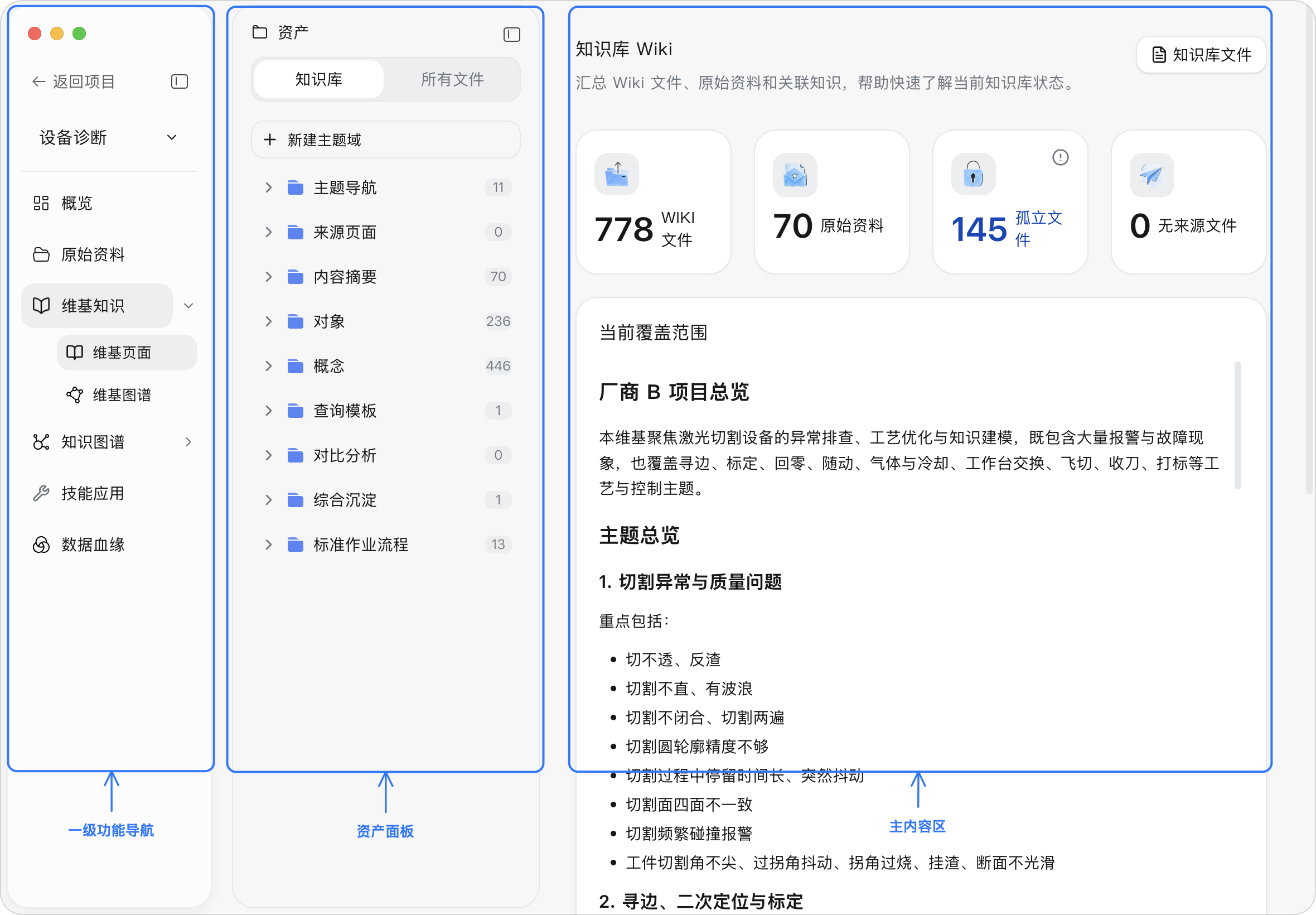
After entering the workspace, the left sidebar is the main navigation; the right side is the main content area.
Steps: Click a first-level function navigation item; when an expand arrow is present, click it to expand the second-level entries; the main content area switches to the corresponding function.
| First-level function navigation | Second-level function entries |
|---|---|
| Overview | Skill Applications |
| Source Materials | / |
| Wiki | Wiki Pages, Wiki Graph |
| Knowledge Graph | Ontology Design, Instance Data Extraction, Instance Data, Graph Preview |
| Data Lineage | / |
- When you enter “Source Materials”, the asset panel shows the source materials directory tree, with file counts displayed to the right of directories. Hovering over a file shows a tooltip with its original path.
- When you enter “Wiki”, the top of the asset panel has two switchers: “Knowledge Base” and “All Files”; “Knowledge Base” organizes the Wiki by topic domain and is the daily-use view; “All Files” shows the entire workspace file tree, suitable for troubleshooting directories and files. In “Knowledge Base” mode, you can:
| Action | Result |
|---|---|
| Click “New Topic Domain” | Opens the New Topic Domain dialog |
| Click a topic domain | Expands or collapses the Wiki pages under that topic domain |
| Click a Wiki page | Opens the corresponding Wiki entry |
| Click the more button to the right of a topic domain | Shows the “Edit” and “Delete” actions |
| Check the count to the right of a topic domain | Tells how many files are under that topic domain |
Workspace Overview
By default you land on the “Overview” page, where you can view Wiki knowledge, total document count, pending parsing/compilation, parsing/compilation failures, file type distribution, and recent updates. The page shows knowledge asset status for the current workspace, letting you quickly judge material scale and task health.
| Description: “Overview → Skill Applications” is used to centrally view and manage the Skill description files and reference configurations available to Agents in the personal Knowledge Workspace. Its product goal is to take knowledge from “searchable” one step further to “callable by Agents in context”. Steps: Enter “Skill Applications” and click refresh to view Skill files; expand directories and click SKILL.md or reference files to view their content. Result: The page shows the Skill configurations manageable in the current workspace. Clicking a file opens a preview where you can view the Skill’s applicable scope, invocation rules, and knowledge usage boundaries. Note: Business Skills are usually generated after Wiki, Ontology Design, and instance data extraction are completed. Actually invoking a Skill requires enabling the corresponding local Knowledge Workspace in an Agent conversation. For a Skill to take effect in an Agent conversation, the following are usually required: The Knowledge Workspace is enabled. Type @ in the conversation. Select “Local Knowledge Base”. Check the Knowledge Workspace to use. The Agent selects appropriate knowledge capabilities or Skills based on the question and the enabled knowledge. Note: The existence of a Skill file does not mean the Skill is in effect. Whether a Skill is invoked also depends on workspace enablement status, the Agent’s selection method, the question scenario, and the Skill’s own applicable scope. When invoking Skill Applications, the system recursively reads workspace files and filters the files under reference/ and the SKILL.md Skill file list Skill file details |
|---|
Source Material Import and Knowledge Compilation
Knowledge compilation is the process of gradually turning “raw files” into “knowledge assets that people can read and systems can call”. It has two main steps:
- From source materials to Knowledge Base Wiki The system first reads imported source materials such as policies, processes, FAQs, and manuals, extracts the topics, concepts, objects, processes, and key conclusions within them, and generates structured Wiki pages. The Wiki Knowledge Base is mainly intended for human reading, used to accumulate searchable, referenceable, and maintainable knowledge content.
- From Knowledge Base Wiki to the ontology foundation The system then extracts entities, relations, rules, skills, and query entries based on the generated Wiki content, forming the ontology foundation. The ontology foundation is mainly intended for Agent and system invocation, supporting subsequent Q&A, analysis, relation graphs, Data Lineage, and Schema graphs.
Import Source Materials
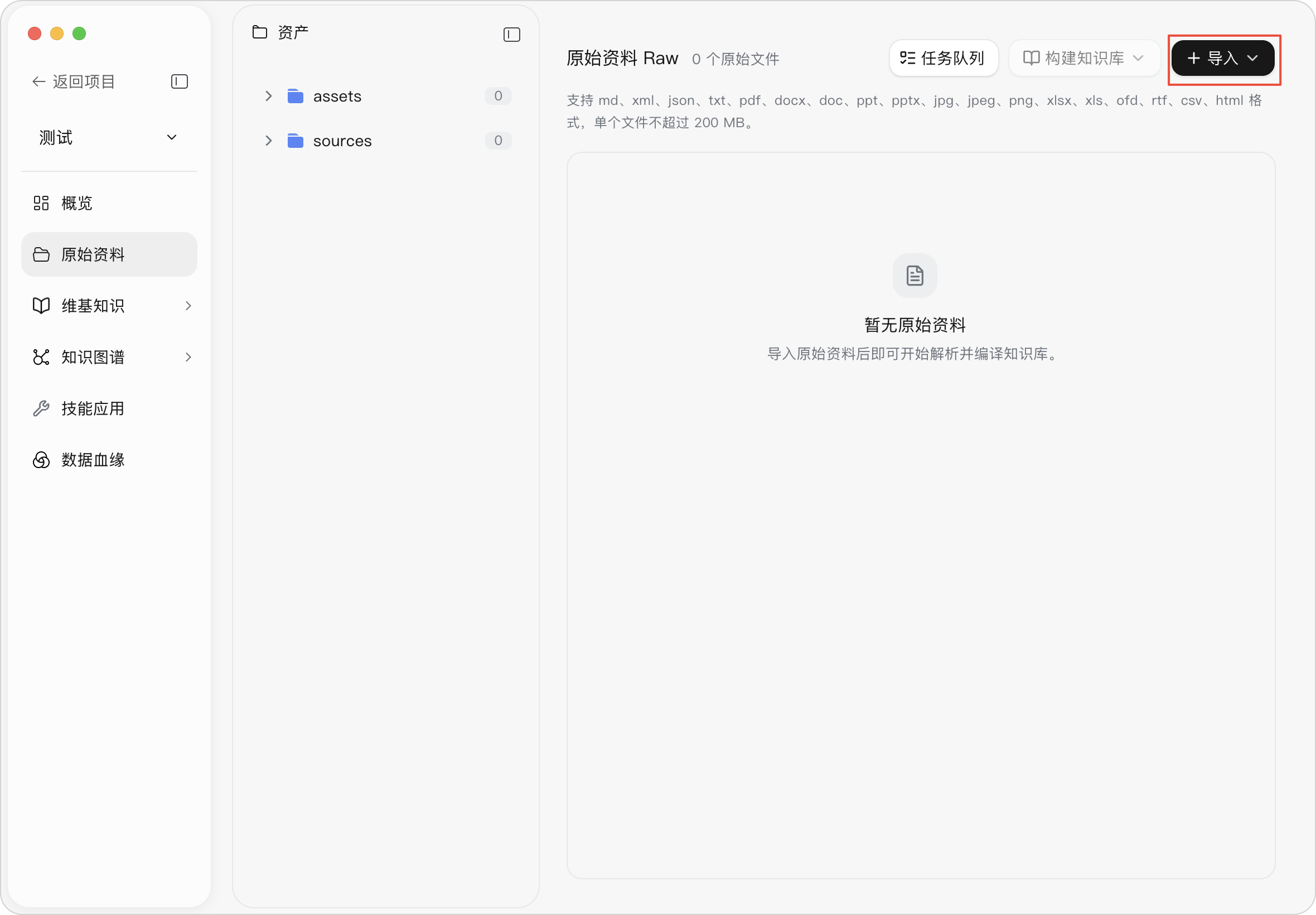
Steps: After opening a new project, click “Source Materials” on the left. Click “Import” in the upper-right corner and select the material source to import.
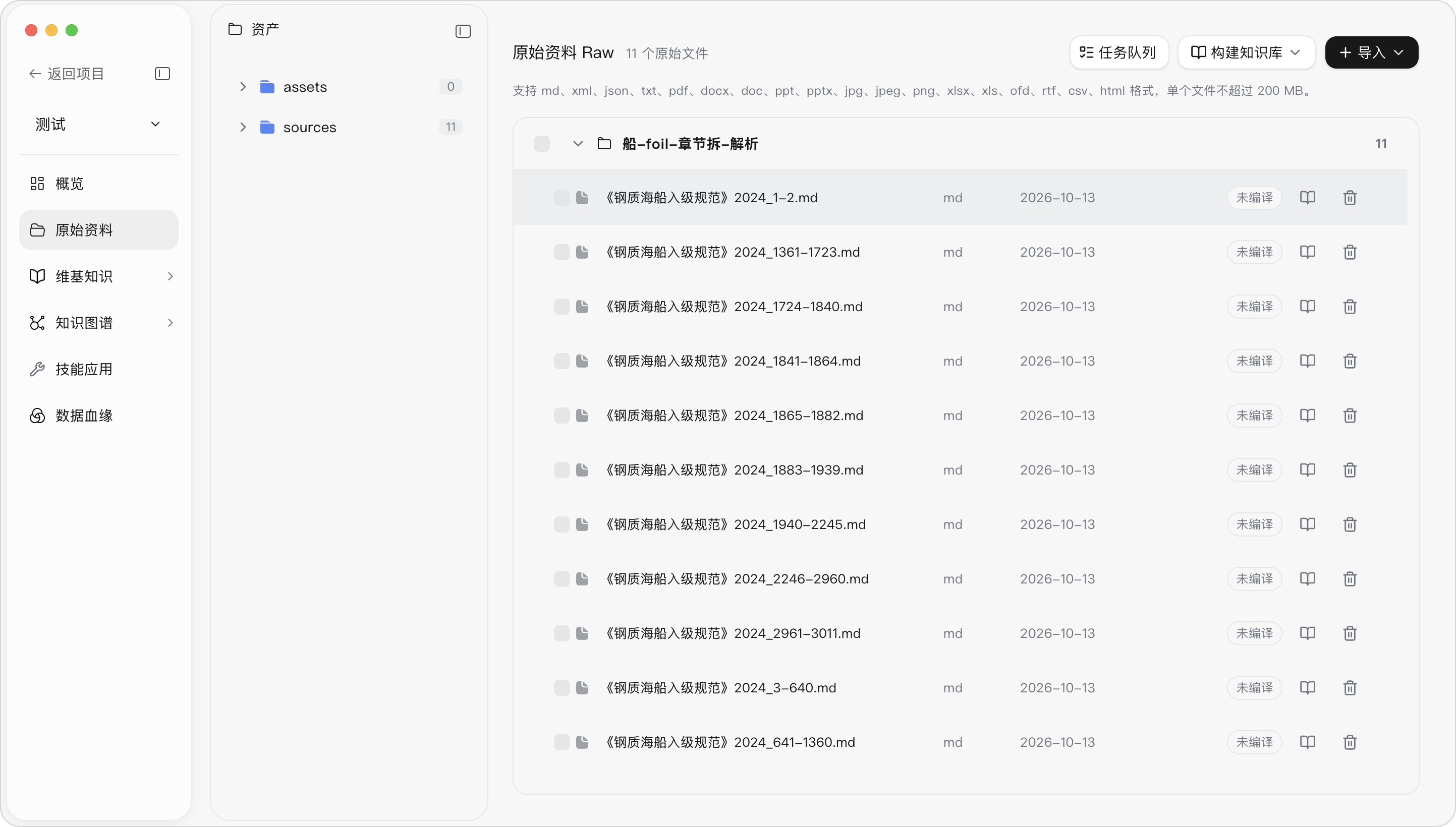
Result: After import, the list and asset directory are updated. The main content area shows the original file count, file format, update time, compilation status, compilation logs, failure reasons, and recompile and delete entries.
Note:
(1) Imported files support md, xml, json, txt, pdf, docx, doc, ppt, pptx, jpg, jpeg, png, xlsx, xls, ofd, rtf, csv, html formats; a single file must not exceed 200 MB.
(2) Importing materials alone does not make the Knowledge Base usable. After import, the materials must go through compilation before the system generates the Knowledge Base Wiki, ontology, relation graphs, and lineage chains.
Build Wiki Knowledge
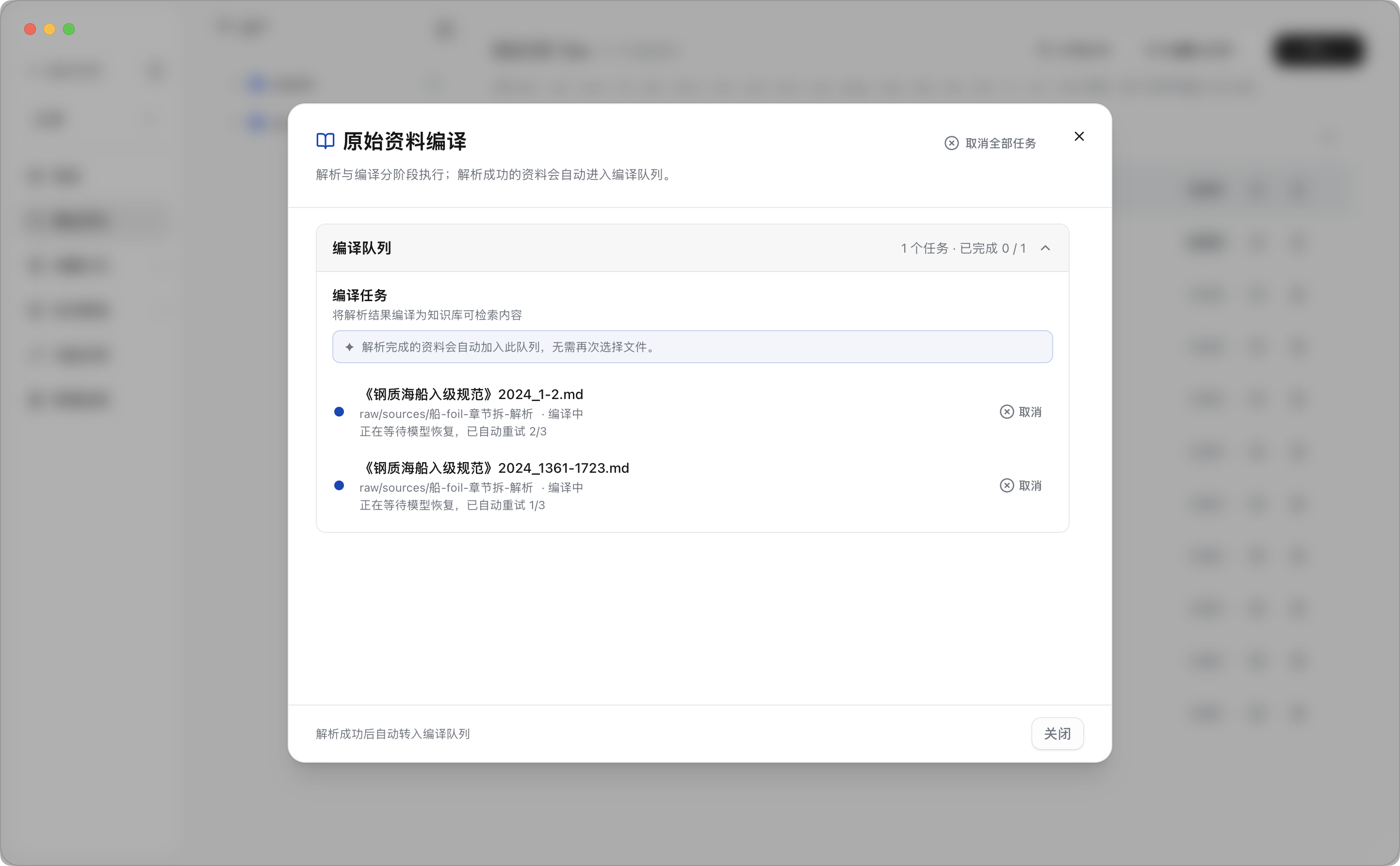
Steps: Select the materials to process and click “Build Knowledge Base”, or click the compile button of a single file; choose incremental build or full build as needed; click “Task Queue” to view execution status.
Result: Materials first enter the parsing stage; after successful parsing they automatically move into the compilation queue; the page shows the total task count, completed count, failure reasons, and log entries.
Note:
(1) Incremental build processes new, changed, or unfinished materials; full build reprocesses all materials, taking more time and consuming more model quota. Files that fail parsing do not enter compilation. (2) If the project does not yet have a usable model configuration, you need to configure the Wiki compilation model and model Key first.
(3) When the topic domains of Wiki knowledge are empty, source materials cannot be compiled into Wiki knowledge. Topic domains determine the classification, type, and output directory of Wiki pages; when material content does not fit any topic domain, no Wiki page is forcibly generated.
| Compile a single file into a Knowledge Base file |
|---|
| Batch compile into Knowledge Base files |
|---|
| Source material compilation queue - function entry |
|---|
Source material compilation queue - progress display
Handle Parsing and Compilation Failures
Steps: Find the failed file in the Raw list; click “View Failure Reason” or “View Compilation Log”; fix file, model, or permission issues; click re-parse or recompile.
Result: The failure reason and logs are shown on the current page, and the task re-enters the corresponding queue.
Note: Common failures include corrupted files, unsupported formats, empty content, model authentication failures, rate limiting, insufficient quota, output format mismatches, or unavailable local services.
| View failure reasons in the task queue | The list page shows detailed failure reasons |
|---|
View Processing Results: Wiki Knowledge
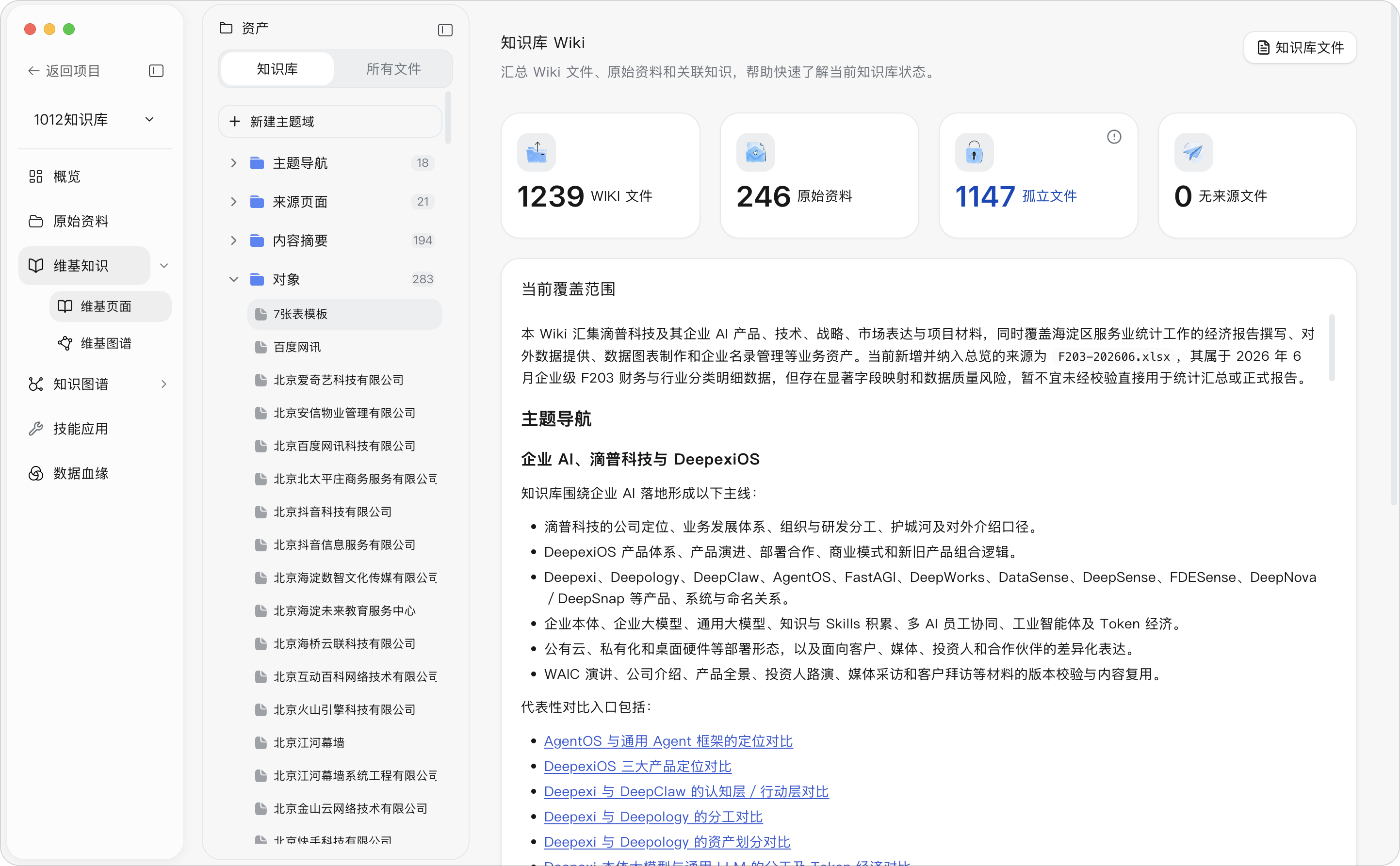
Steps: Click “Wiki → Wiki Pages”; keep the asset panel in the “Knowledge Base” view; click to view topic domains or Wiki types.
Result: If default topic domains were used when creating the Knowledge Workspace, the Knowledge Base in the panel shows categories and counts such as topic navigation, source pages, content summaries, objects, concepts, and query templates; the right side shows the corresponding page or overview. If default topic domains were not used when creating the Knowledge Workspace, the topic domains are empty and the user needs to create them.
Note: Topic domains determine the classification, type, and output directory of Wiki pages; when material content does not fit any topic domain, no Wiki page is forcibly generated. The topic domain type navigation comes from the pre-configuration made when creating the Knowledge Workspace; when the topic domains of Wiki knowledge are empty, source materials cannot be compiled into Wiki knowledge.
Steps: Select a category in the Wiki type navigation; click the target entry; view its summary, body, source files, related pages, and attributes.
Result: The page shows the entry’s complete content and source entries; clicking a source file or related page lets you continue tracing.
Note:
(1) Currently only inline preview of readable files such as Markdown, JSON, and text is supported.
(2) An empty source means the current data has no recorded upstream chain; this affects traceability, so sources should be supplemented before publishing or reuse.
View Wiki knowledge through the asset panel
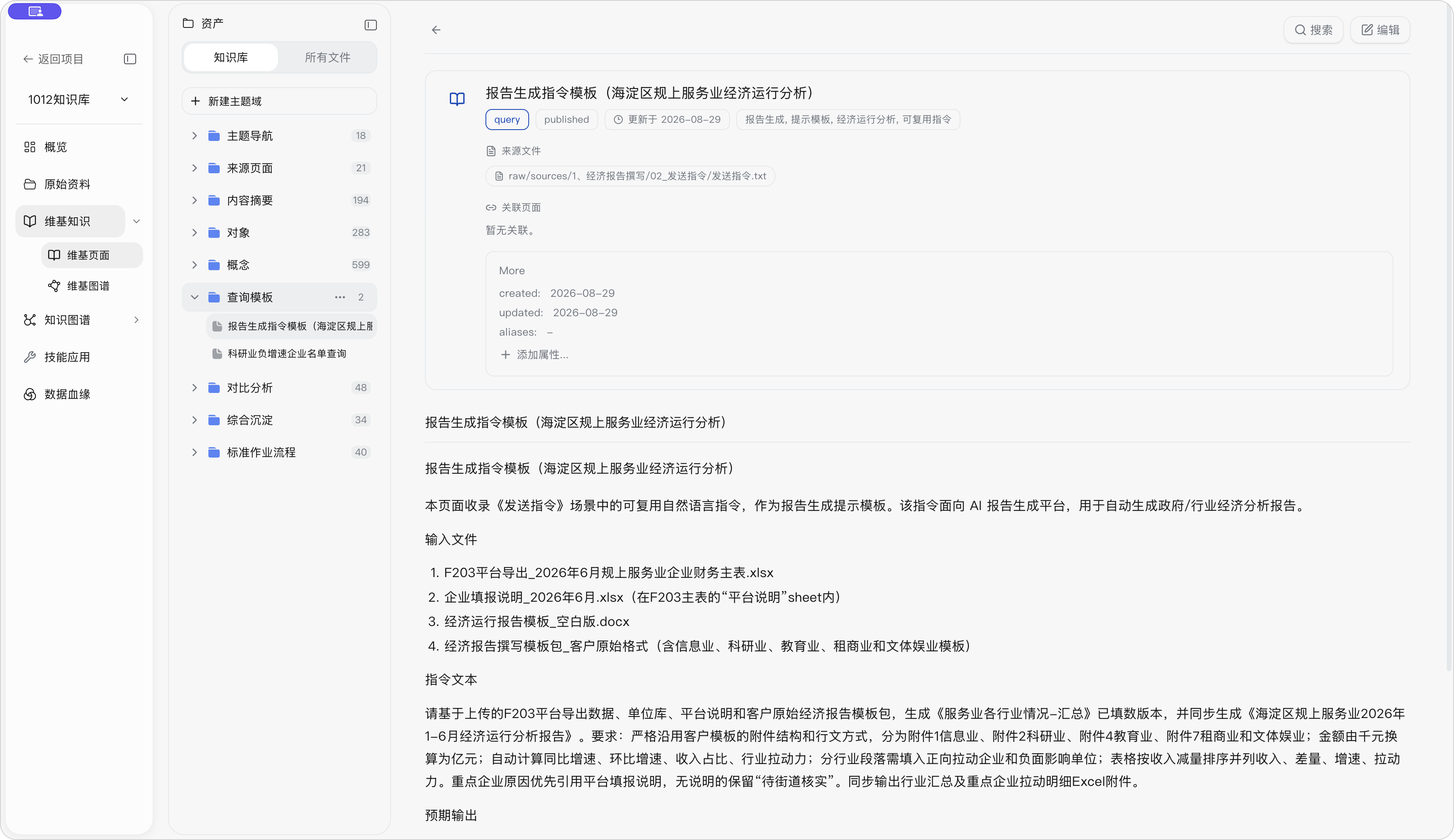
Wiki Knowledge Base Content Maintenance and Knowledge Governance
Edit and Maintain Wiki Entries
Steps: Open the target entry; click “Edit”; modify the name, topic domain, summary, body, tags, or related files; click Save.
Result: The entry content and update time are saved; internal entry links in the body are automatically extracted as related entries.
Note: The entry name is required and must be unique within the same topic domain. If saving fails, the edited content is retained; first resolve permission, connection, or storage issues.
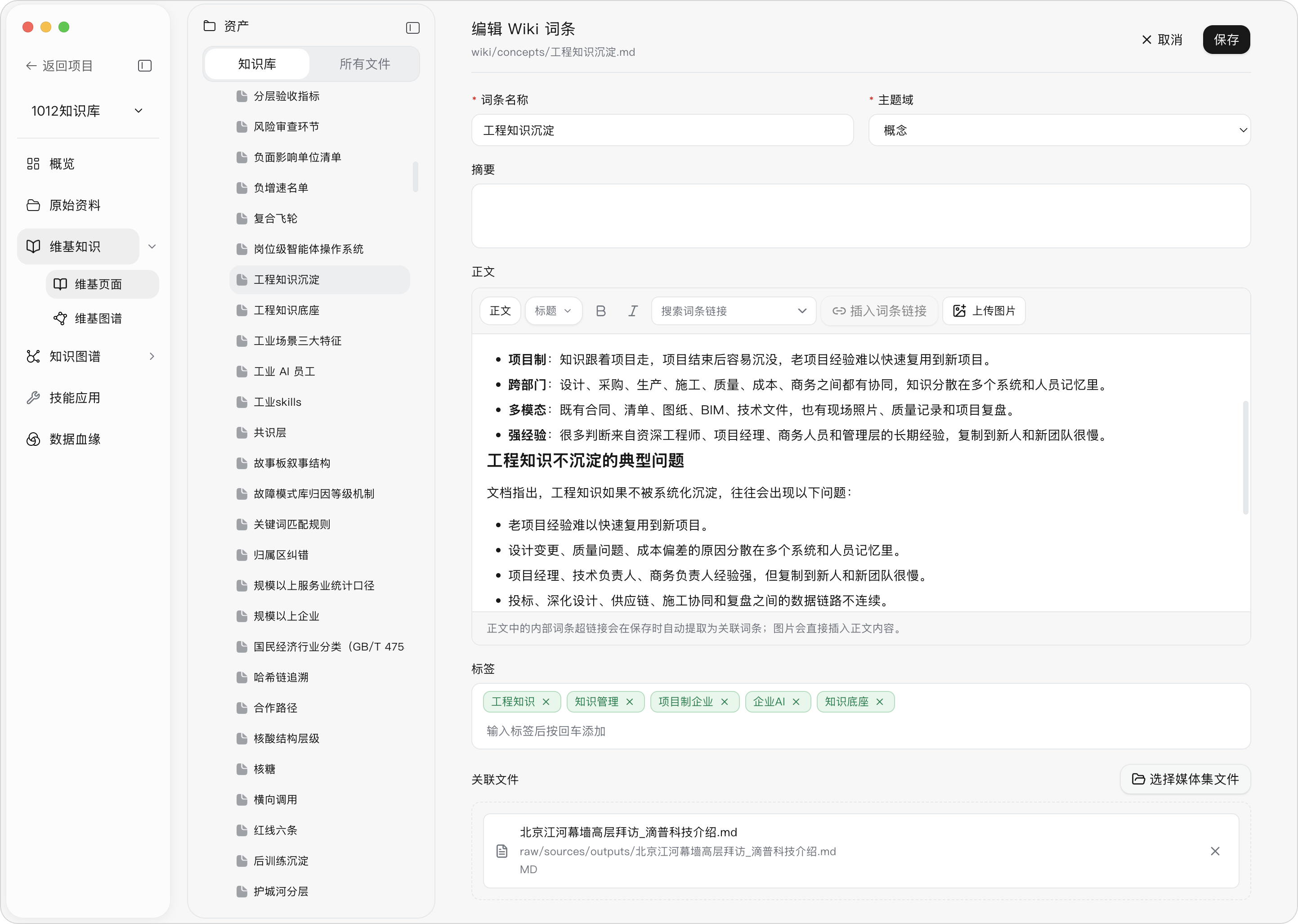
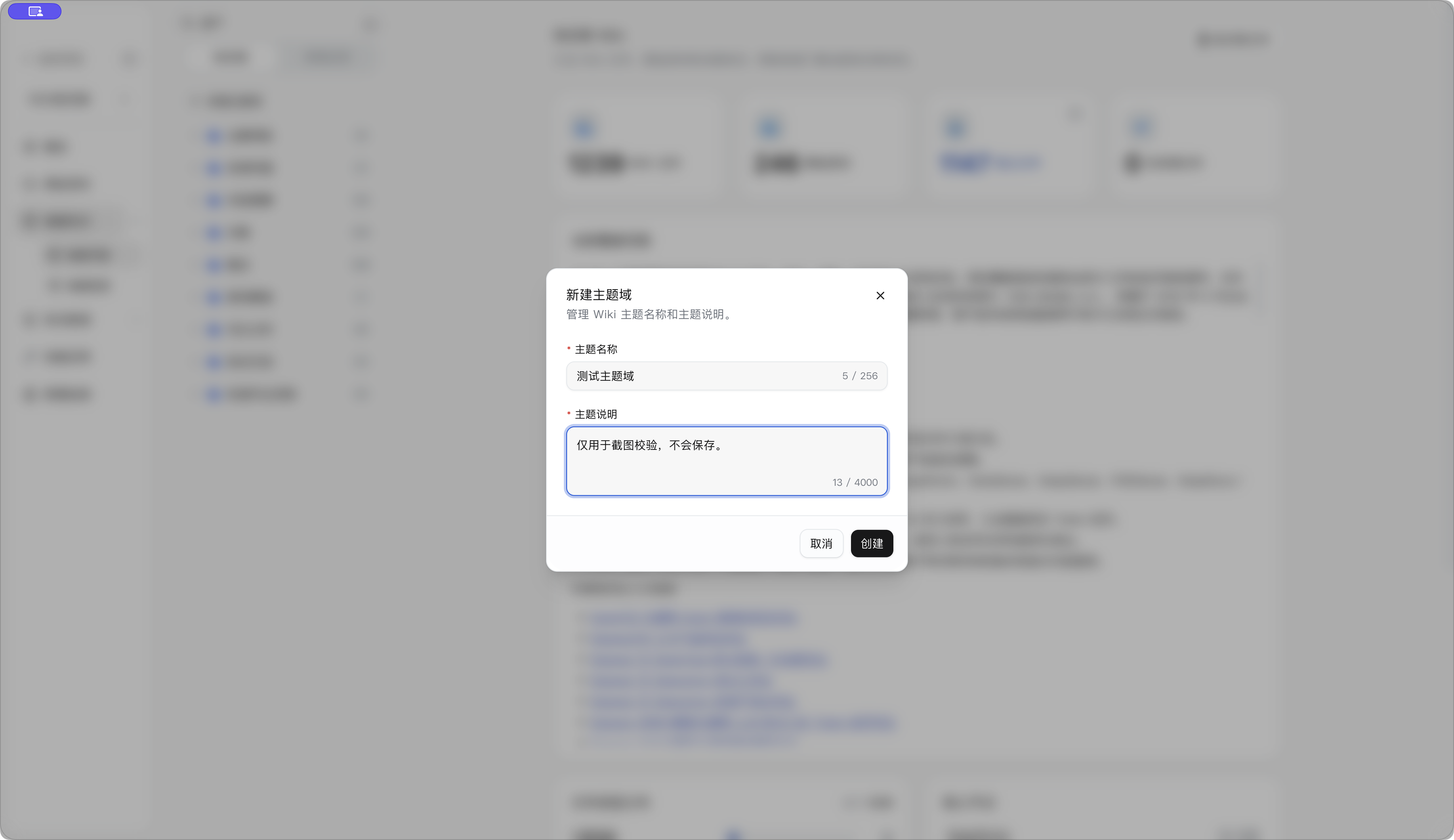
Topic Domain Management
Steps: Click “New Topic Domain” in the Wiki type navigation; fill in the topic name and description; after saving, select the topic domain for target entries; when adjustments are needed, click the topic domain’s more actions.
Result: The topic domain appears in the Wiki navigation, and entries can be organized under the new topic.
Note:
(1) The topic name and description are required; the name is limited to 256 characters and the description to 4,000 characters;
(2) Only when a topic domain is empty will its configuration and empty directory be deleted; existing entries or related files are not cascade-deleted;
(3) Topic domains cannot be modified during compilation.
Wiki Graph
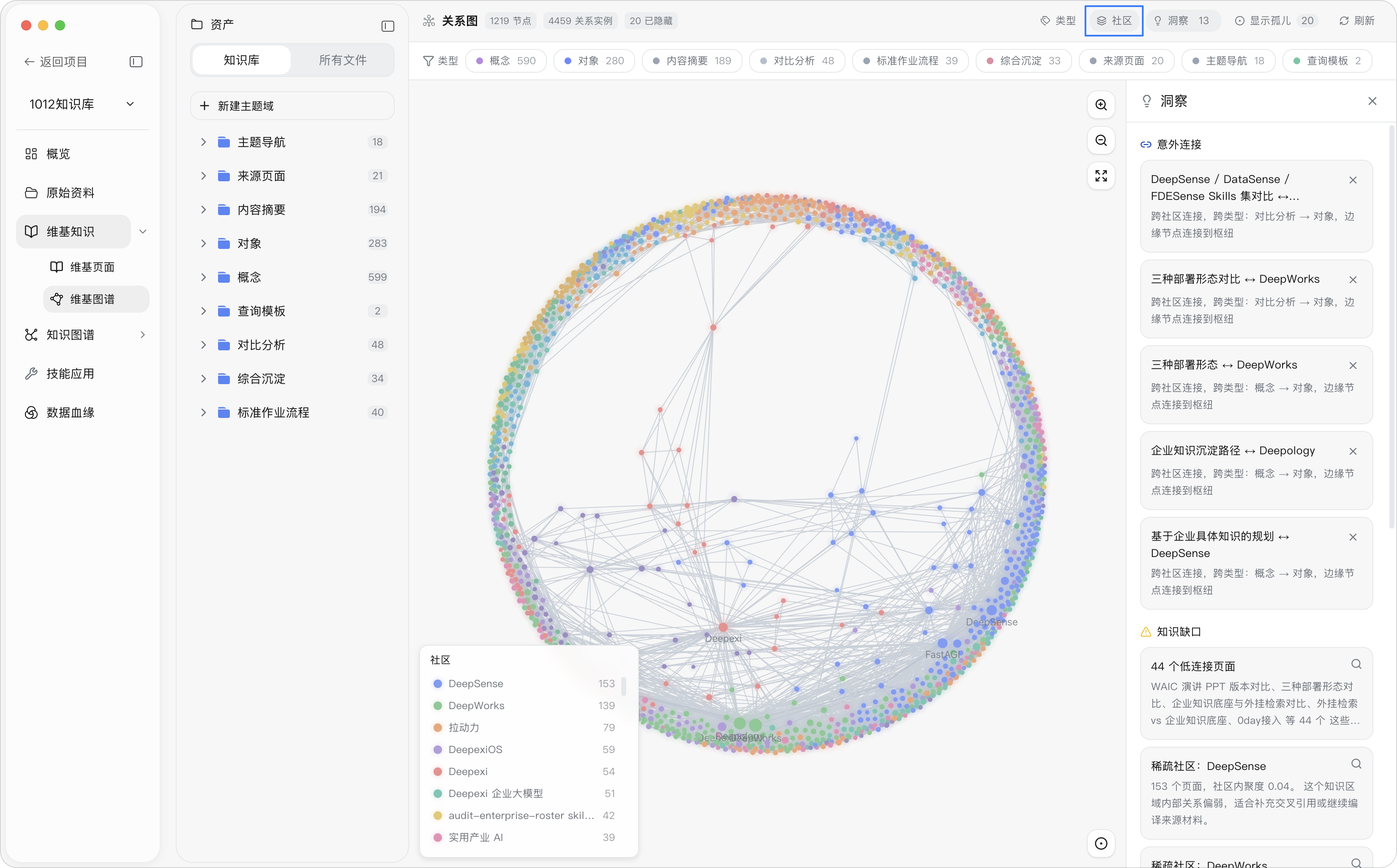
Description: The Wiki Graph organizes the generated Wiki pages into a visual knowledge network. With Wiki pages as nodes and the associations between pages as edges, it helps users view the organizational structure of personal knowledge, discover key pages and knowledge gaps, and jump from the graph directly back to specific Wiki content.
Steps: Click “Wiki → Wiki Graph”; filter by type, community, and orphan nodes; click a node to view details; use zoom in, zoom out, and fit to canvas.
Result: The page shows connections between Wiki pages, node type distribution, unexpected connections, and knowledge gaps.
Note: Successfully importing source materials does not generate a Wiki Graph; Wiki knowledge pages must be formed first. After modifying or compiling the Wiki, if the graph has not updated, click refresh.
| Graph element | Source | Description |
|---|---|---|
| Node | Wiki page | Each Wiki page is a node |
| Node type | The topic domain type of the Wiki page | For example, source summary, concept, entity, SOP, or custom topic domain types |
| Edge | Associations between Wiki pages | From the related field in page Frontmatter and Wiki links in the body |
| Node size | Number of connections | The more connections, the larger the node |
| Community | Algorithmic clustering | Knowledge communities divided according to page connection relationships |
“Type” mode is suitable for viewing the distribution of different page types, e.g., how many concepts, entities, SOPs, and source summaries there are.
“Community” mode is suitable for viewing areas where knowledge naturally clusters, e.g., several pages forming a block of knowledge through dense interlinking.
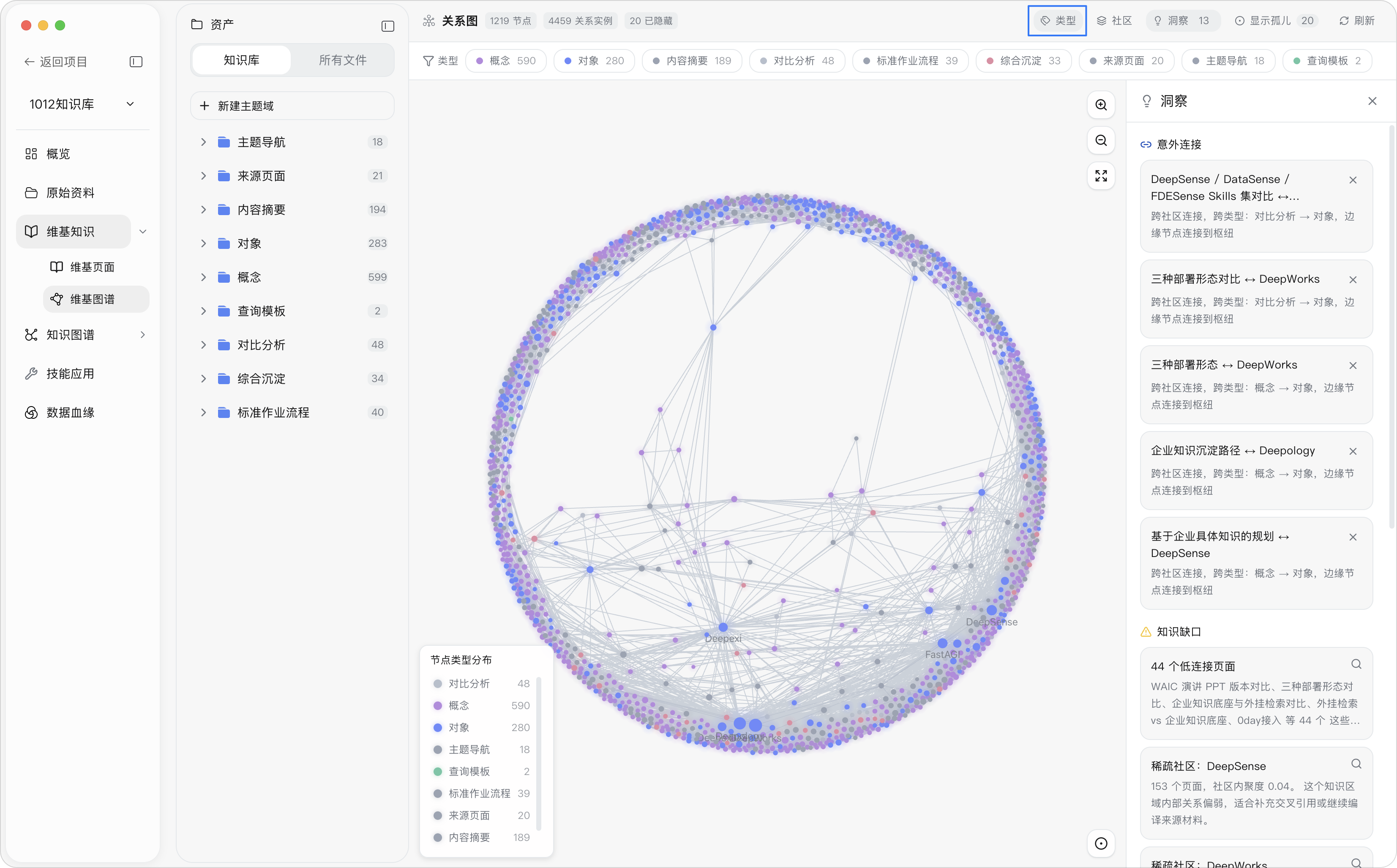
Insight Panel
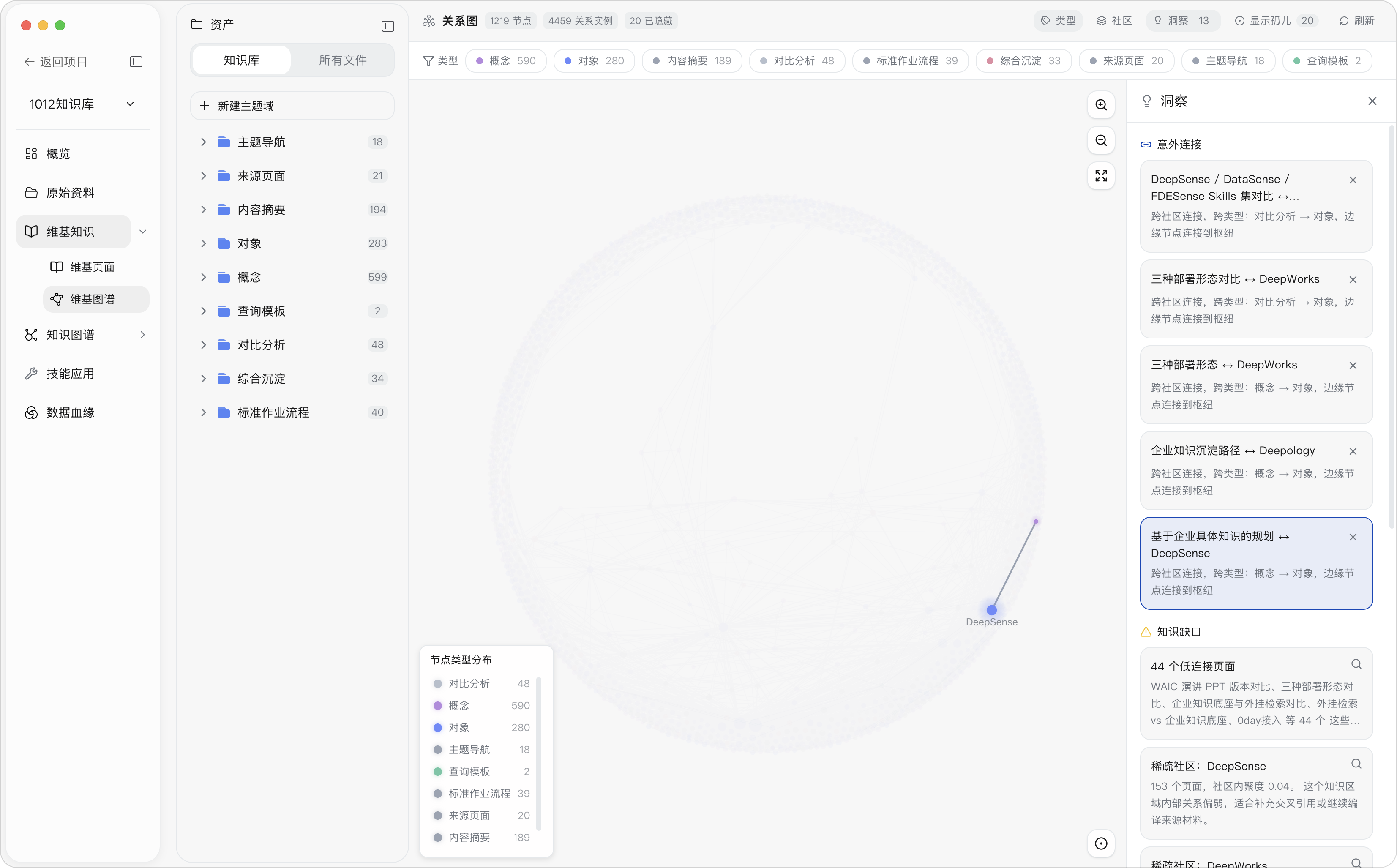
The Insight Panel helps users with knowledge governance and is divided into “Unexpected Connections” and “Knowledge Gaps”. When you click an insight card, the related nodes are highlighted on the canvas, making it easy to locate problematic pages.
Unexpected connections: The system flags cross-community and cross-type connections worth attention. These connections are not necessarily wrong, but are worth confirming: are they genuine knowledge intersections, or mis-associations?
| Flag | Description |
|---|---|
| Cross-community connection | Two pages originally belonging to different knowledge areas became associated |
| Cross-type connection | For example, a source summary connects to a concept, or an entity connects to a query |
| Edge node connected to a hub | A low-connection page links to an important hub page |
| Weak relation that became an edge | A weak association that has nonetheless formed a network relation |
| Community | Algorithmic clustering |
Knowledge gaps: The system flags
| Gap type | Description |
|---|---|
| Low-connection pages | Pages lacking associations that may become isolated knowledge |
| Sparse communities | A knowledge area with weak internal associations |
| Key bridges | Pages connecting multiple knowledge communities that should be maintained with priority |
Knowledge Graph — Ontology Modeling and Instance Extraction
The “Knowledge Graph” is the core module through which the Local Knowledge Base moves from human-readable Wiki to structured knowledge that systems can understand, query, and call. It addresses three questions:
- Which content should become objects?
- What relations should exist between objects?
- Were these objects and relations actually extracted correctly, and can they support queries, analysis, and Agent invocation? Wiki knowledge ↓ Ontology Design: define object types, relation types, and Schema ↓ Instance data extraction: extract objects and relations from the Wiki according to the Schema ↓ Instance data: browse, verify, and trace extraction results ↓ Graph Preview: check Knowledge Graph quality from both the Schema and instance perspectives
Ontology Design
Wiki knowledge: is unstructured natural language intended for human reading and comprehension; its semantic structure is not explicitly declared: the system lacks definitions of entity boundaries, attribute ownership, and relation types, and therefore cannot perform entity recognition, attribute merging, and relation extraction.
Ontology Design: Through explicit modeling, the above implicit business semantics are solidified into a unified object–attribute–relation pattern, giving the system consistent semantic understanding, retrieval, and reasoning capabilities.
For example, Wiki knowledge contains the following content:
A product consists of multiple modules. A customer uses a product. A fault affects a module. A document describes a process.
Ontology Design can define:
| Type | Examples |
|---|---|
| Object types | Product, module, customer, fault, process |
| Attributes | Product name, module number, fault severity, process status |
| Relation types | Product contains module, customer uses product, fault affects module |
Steps: Users can manually create object types and relation types, or use the “AI Generation” function to create or modify the Schema.
Note: Ontology Design is a prerequisite for instance extraction; extraction cannot be initiated when local object types are empty. Modifying the Schema generates a new Schema version, which takes effect from the next extraction; running extraction tasks continue using the version at launch. When a Schema already exists, using AI Generation will overwrite the current Schema; confirm before executing.
Object Type Configuration
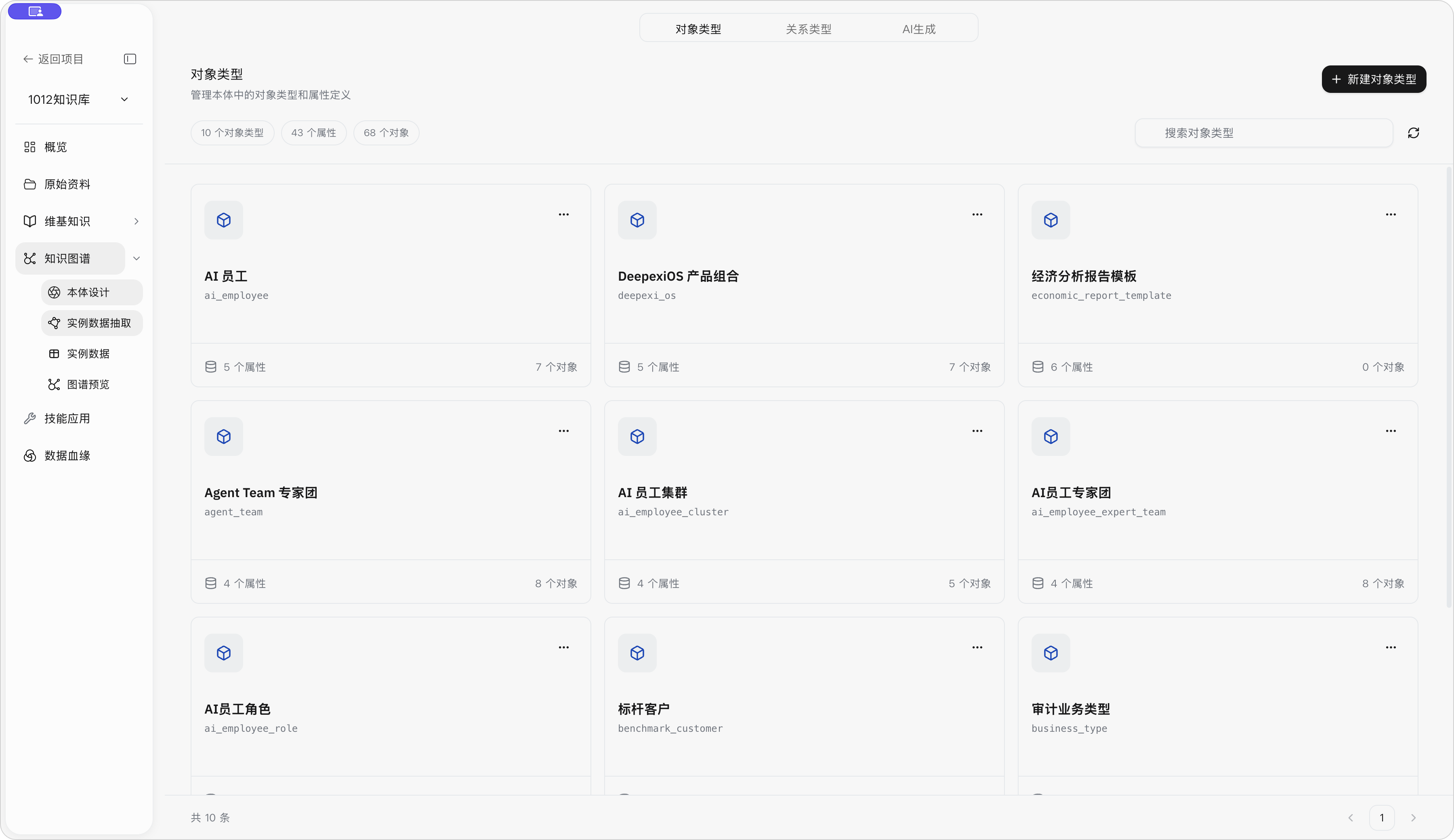
Description: Ontology Design is used to define the object types, relation types, and Ontology Design Schema of the Local Knowledge Base; it is the “knowledge structure design bench” before instance data extraction. The clearer the object type definitions, the more stable the extraction results.
Steps: Click “Knowledge Graph → Ontology Design”; confirm you are on the “Object Types” tab; search for or click the target type; create, edit, or delete types as needed.
Result: The page shows the total number of object types, total attributes, and total objects.
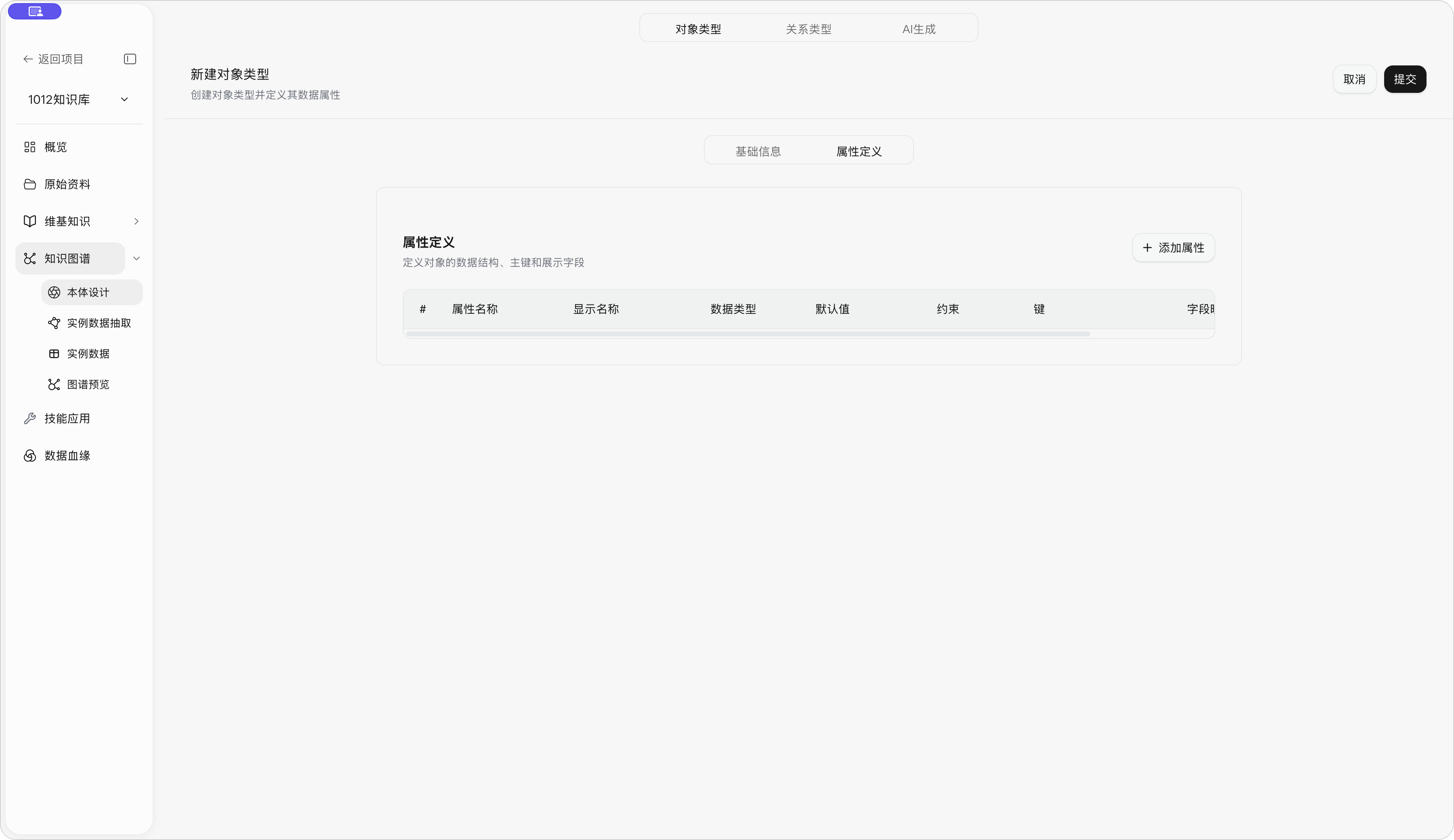
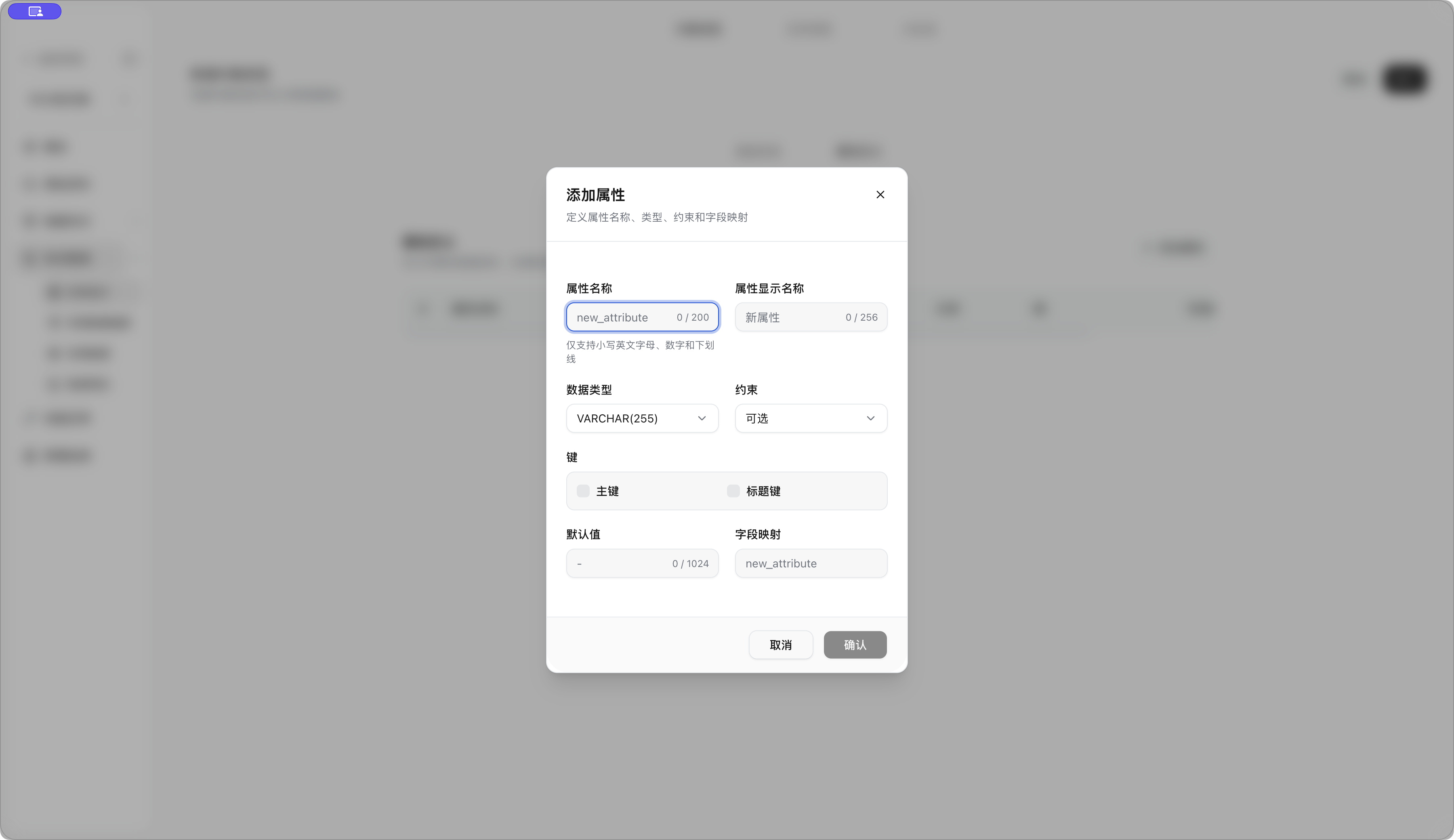
Note: Object names and attribute names only support lowercase English letters, digits, and underscores; at least one attribute, one primary key, and one unique title key are required; types referenced by relations, inheritance, or extraction configurations cannot be deleted directly.
| Sub-function | Description |
|---|---|
| Object types | Manage the “entity categories” and attribute structures in knowledge |
| Relation types | Manage the business relations that can be established between objects |
| AI Generation | Automatically generate candidate Schemas based on Wiki content and user goals |
Ontology Design object types
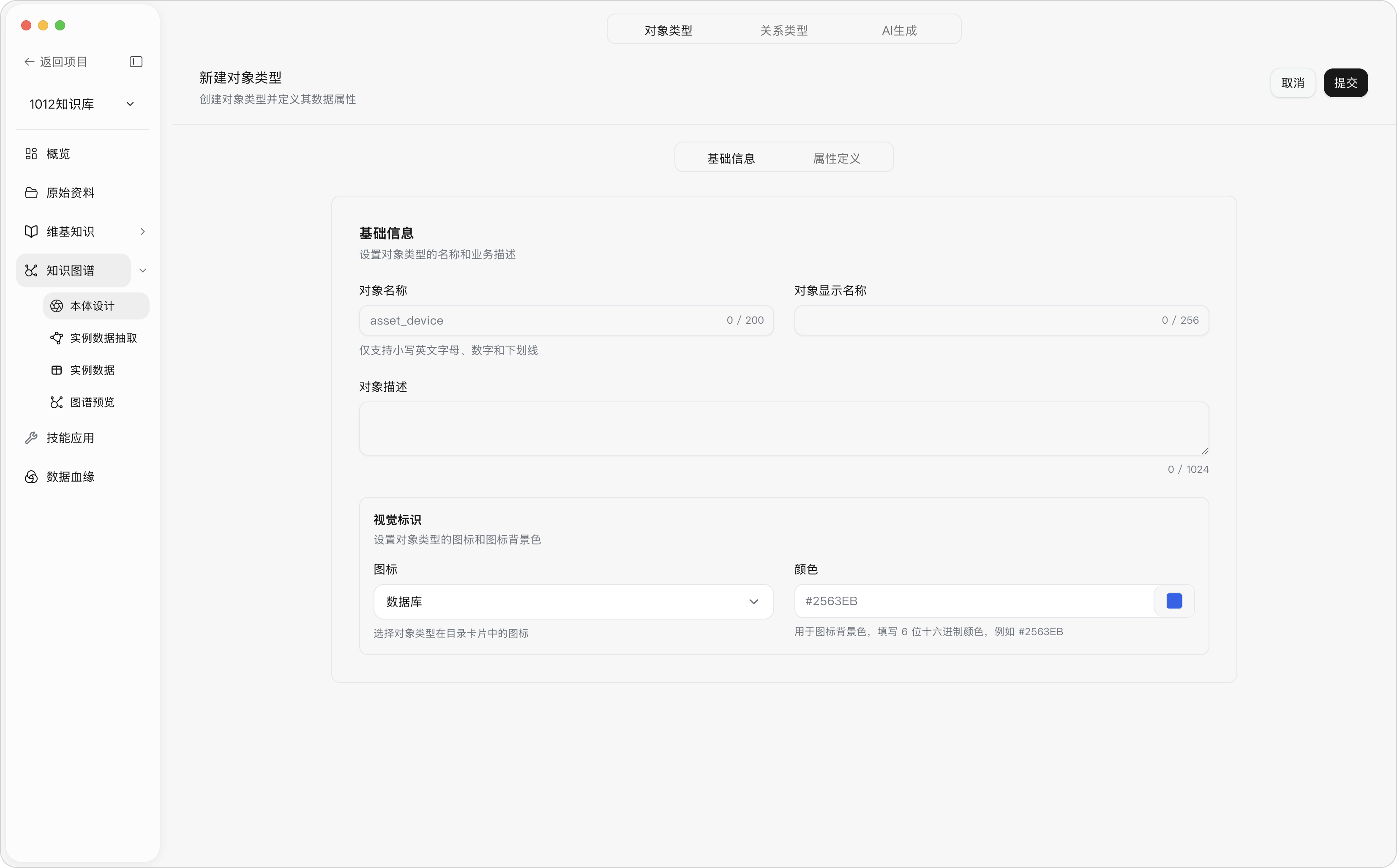
| Configuration | Description |
|---|---|
| Object name | A stable internal system name, usually English letters, digits, and underscores |
| Display name | The Chinese name shown in the interface |
| Description | Explains the business caliber of this object type |
| Attributes | The fields an object has, e.g., name, number, time, status |
| Primary key | Determines whether two object records are the same object |
| Title key | The field shown preferentially in lists and graphs |
| Field mapping | Determines from which Wiki directories or fields data is extracted |
New object type form
Object type attribute definition tab
Object type add-attribute form
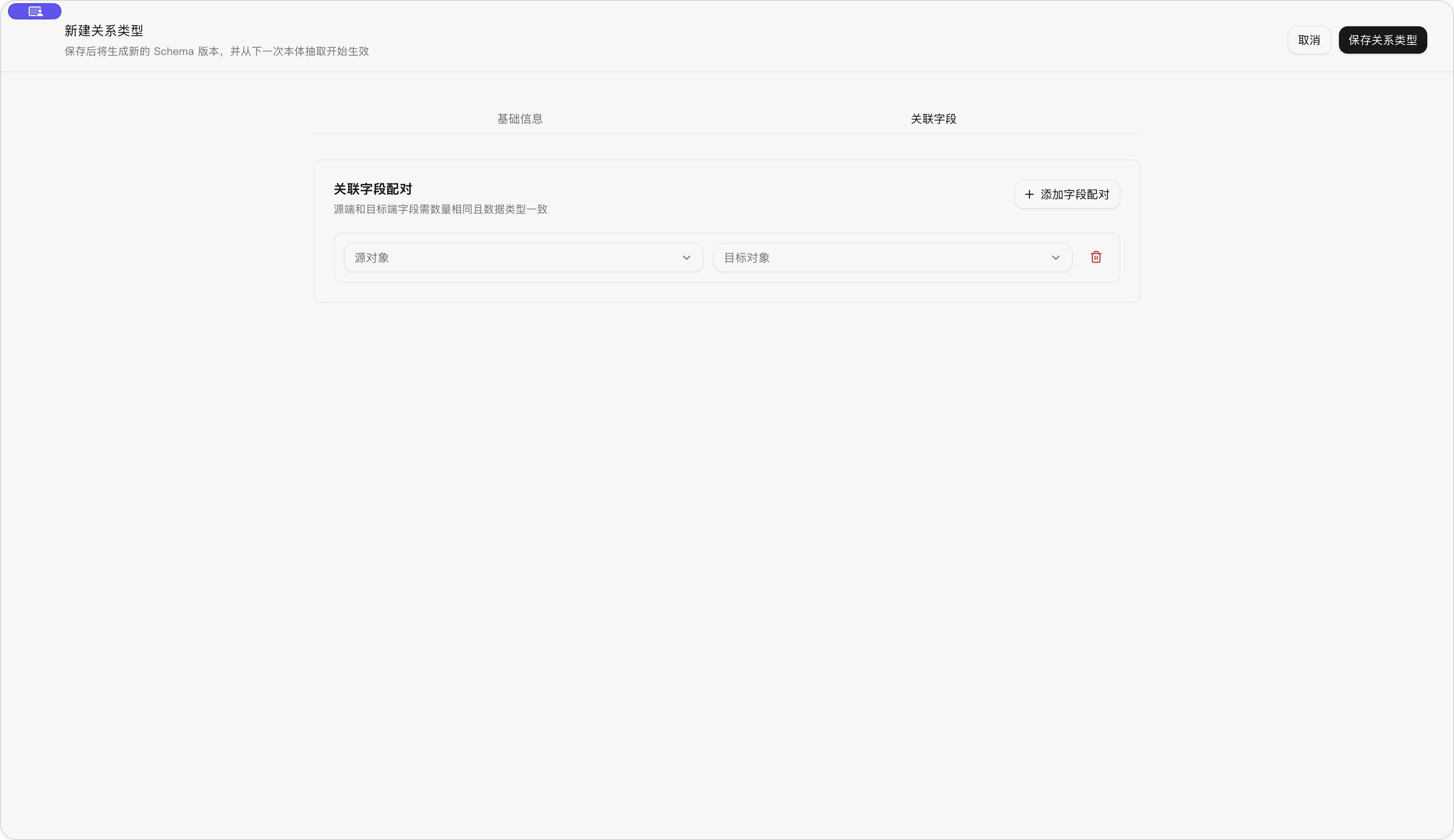
Relation Type Configuration
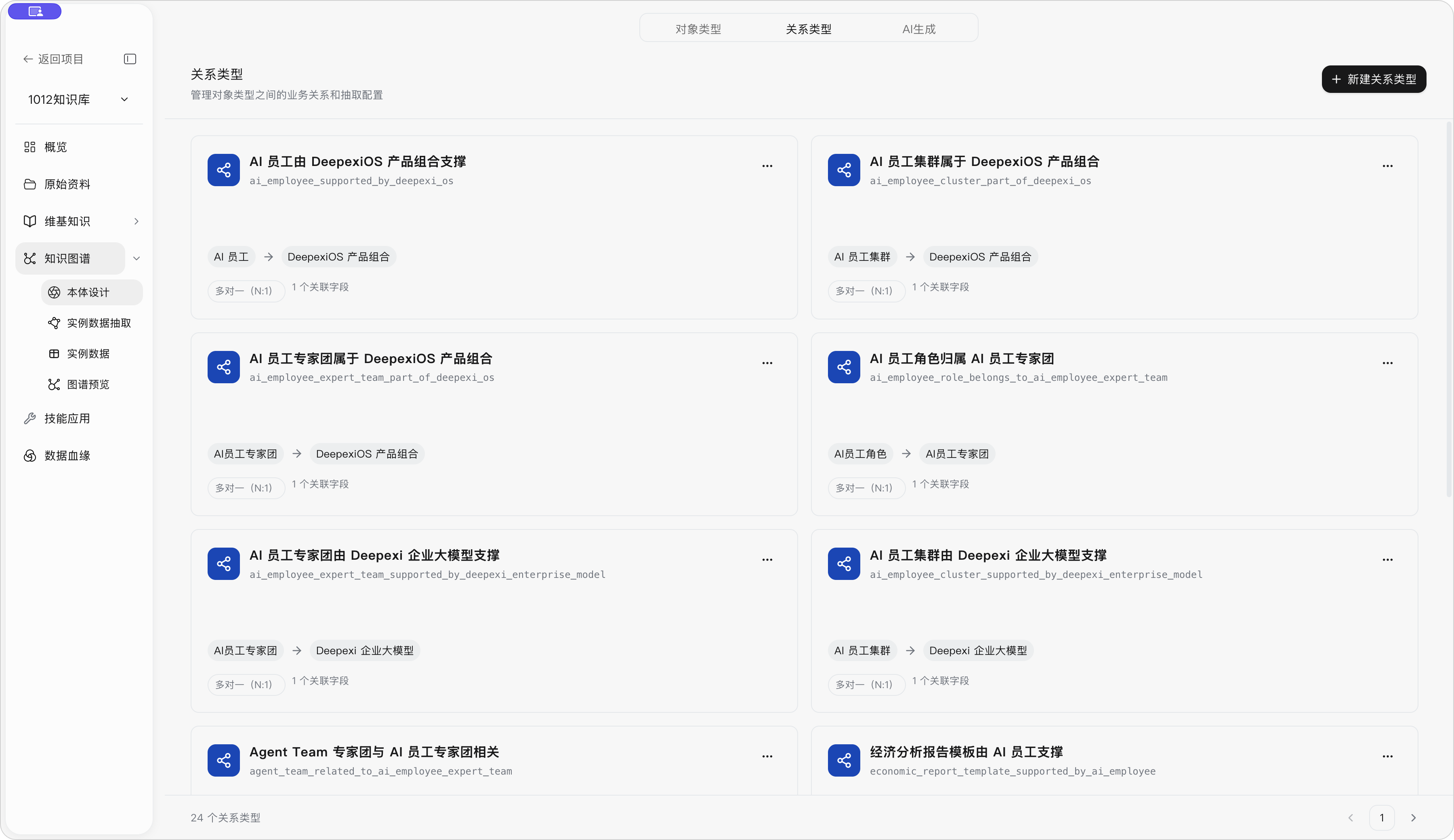
Description: Relation types determine whether the graph can express real business chains. For example, only when “customer uses product” and “product contains module” are defined can the system further infer “which modules a customer uses”.
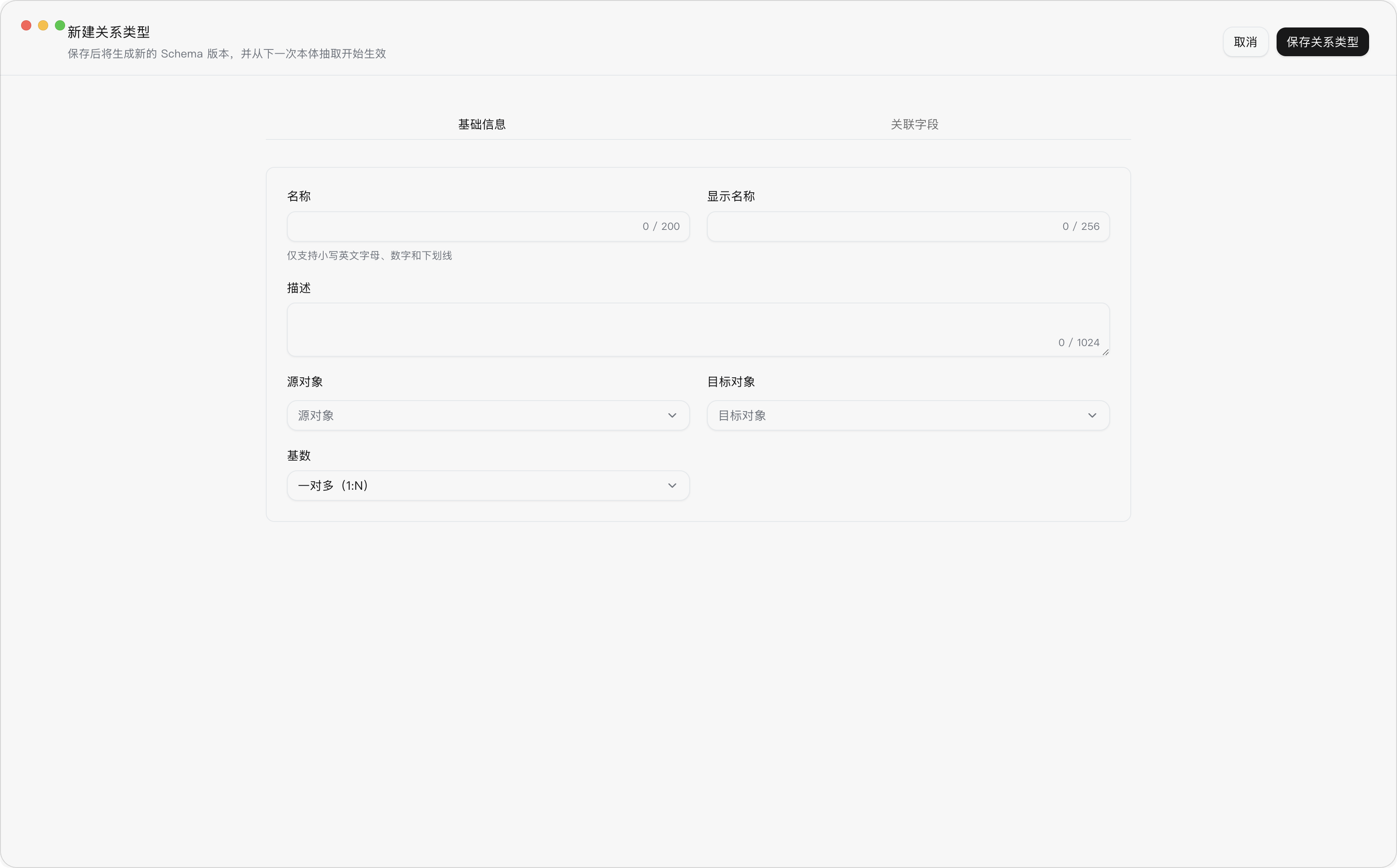
| Configuration | Description |
|---|---|
| Source object | The object from which the relation starts |
| Target object | The object to which the relation points |
| Cardinality | One-to-one, one-to-many, many-to-one, many-to-many |
| Association fields | The fields by which source and target objects are matched |
Relation type list
Relation type basic information
Relation type association fields
AI-Assisted Quick Schema Generation
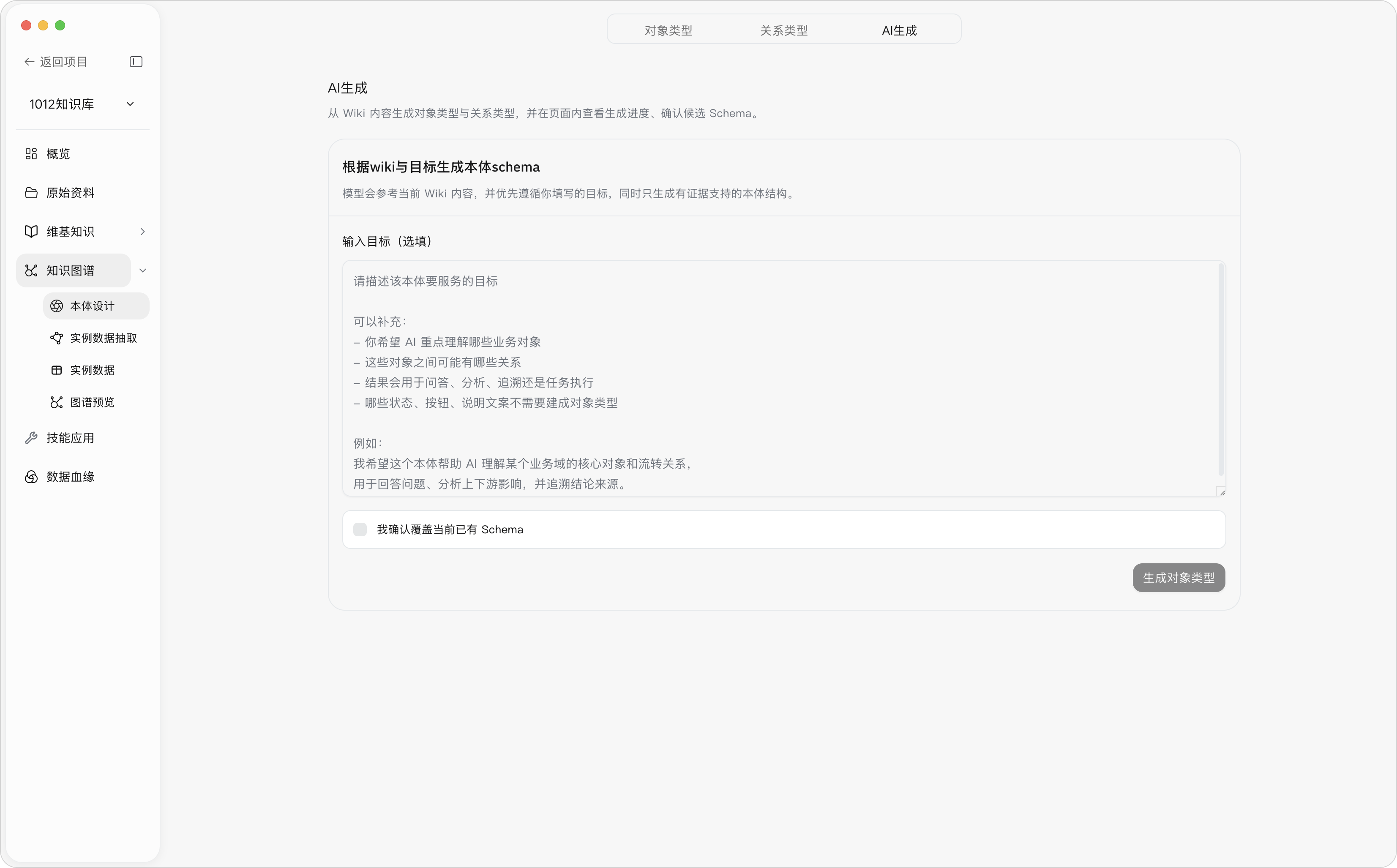
Description: AI Generation is used to cold-start the Ontology Design Schema.
Steps: Users can fill in a goal, for example:
I want this ontology to help the AI understand the relationships among projects, requirements, systems, and delivery documents, so it can answer questions about project background, system impact scope, and delivery traceability.
Result: The system generates candidate object types and relation types based on the goal and current Wiki content. During generation it shows progress, model analysis, and system validation results; after generation completes, the user needs to confirm the candidate Ontology Design Schema.
Note: If an Ontology Design Schema already exists, generating again will overwrite the current Ontology Design Schema, and ontology data will need to be re-extracted afterwards; the user needs to confirm the overwrite.
AI-generated Schema
Instance Data Extraction
Description: Instance data extraction converts the objects, attributes, and relations in Wiki knowledge pages into structured instance data according to the confirmed Ontology Design Schema. The Ontology Design Schema defines “how data should be organized”; instance data answers “what data actually exists”. Extraction is the necessary step from rule definition to business facts, and the prerequisite for the Knowledge Graph to gain retrieval and analysis capabilities.
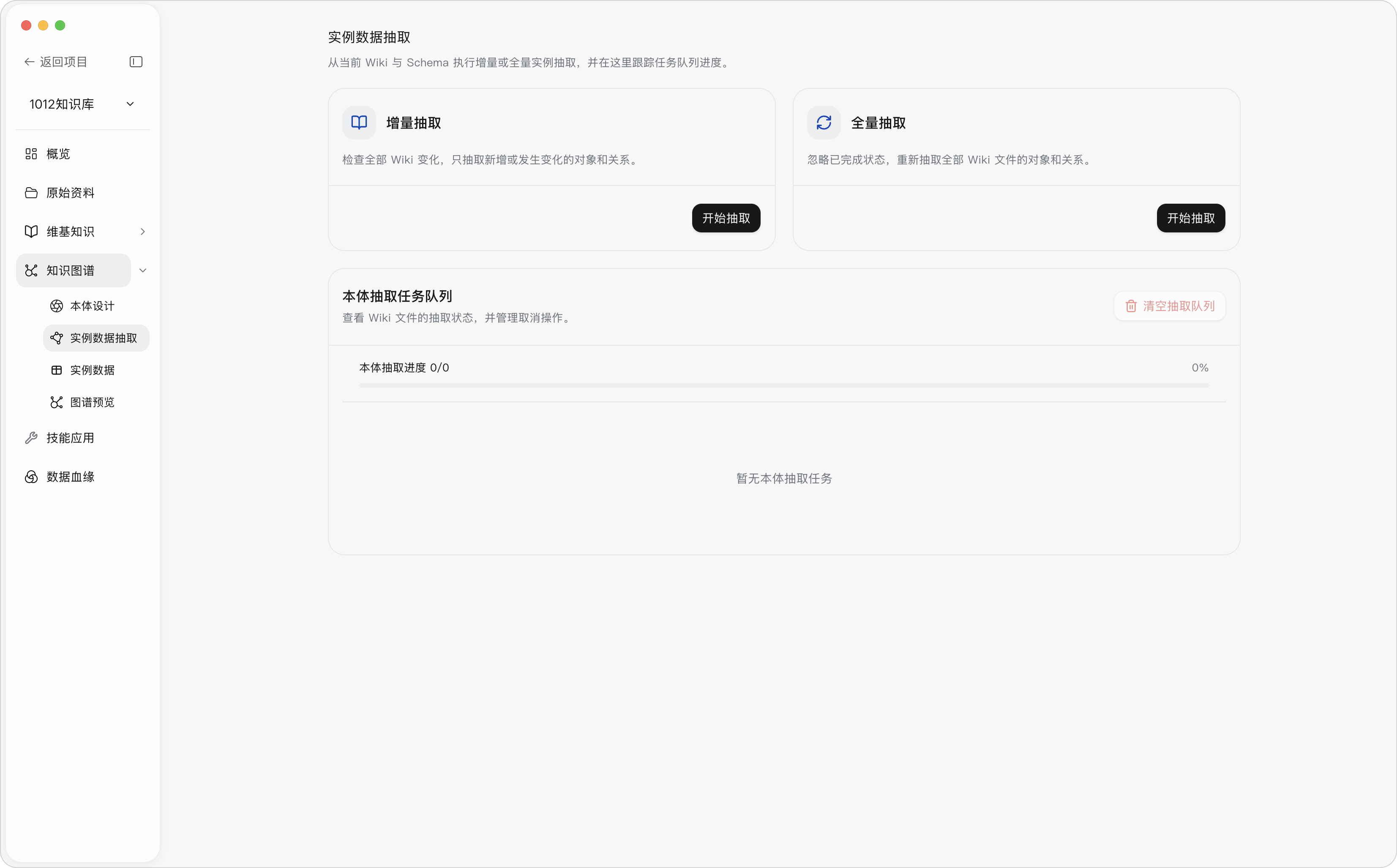
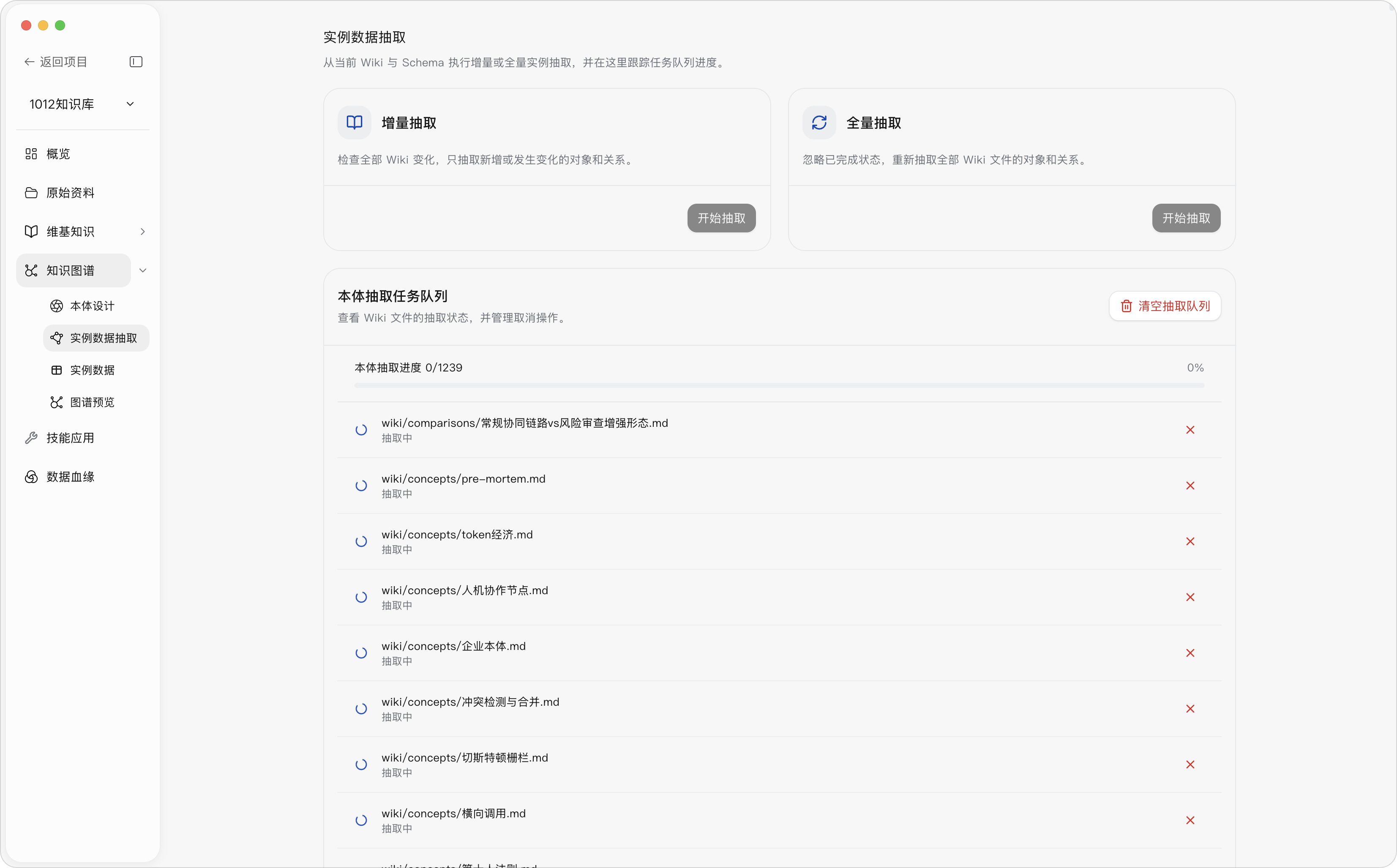
Steps: Go to “Knowledge Graph → Instance Data Extraction”, select “Incremental Extraction” or “Full Extraction”, click “Start Extraction”, and view progress in the queue below.
Result: The system processes Wiki pages according to the current Schema, generating or updating object instances and relation instances. The queue shows the extraction status of each Wiki file; after tasks complete, you can enter “Instance Data” to view the results.
Note: Object types must exist before initiating extraction; the system blocks extraction when local objects are empty. Tasks of the same scope cannot be initiated repeatedly while being processed. Incremental extraction only processes new or changed Wiki; full extraction reprocesses all Wiki, taking more time and consuming more model quota. Failed files can be retried; clearing the queue cancels unfinished tasks and removes queue records.
| Configuration | Description | Processing behavior |
|---|---|---|
| Incremental extraction | Daily maintenance | Compares changes across all Wiki knowledge, extracting only new or changed objects and relations |
| Full extraction | Major Schema adjustments, data anomalies, or result rebuilds | Ignores completed status and re-extracts objects and relations from all Wiki knowledge |
Extraction queue - progress display
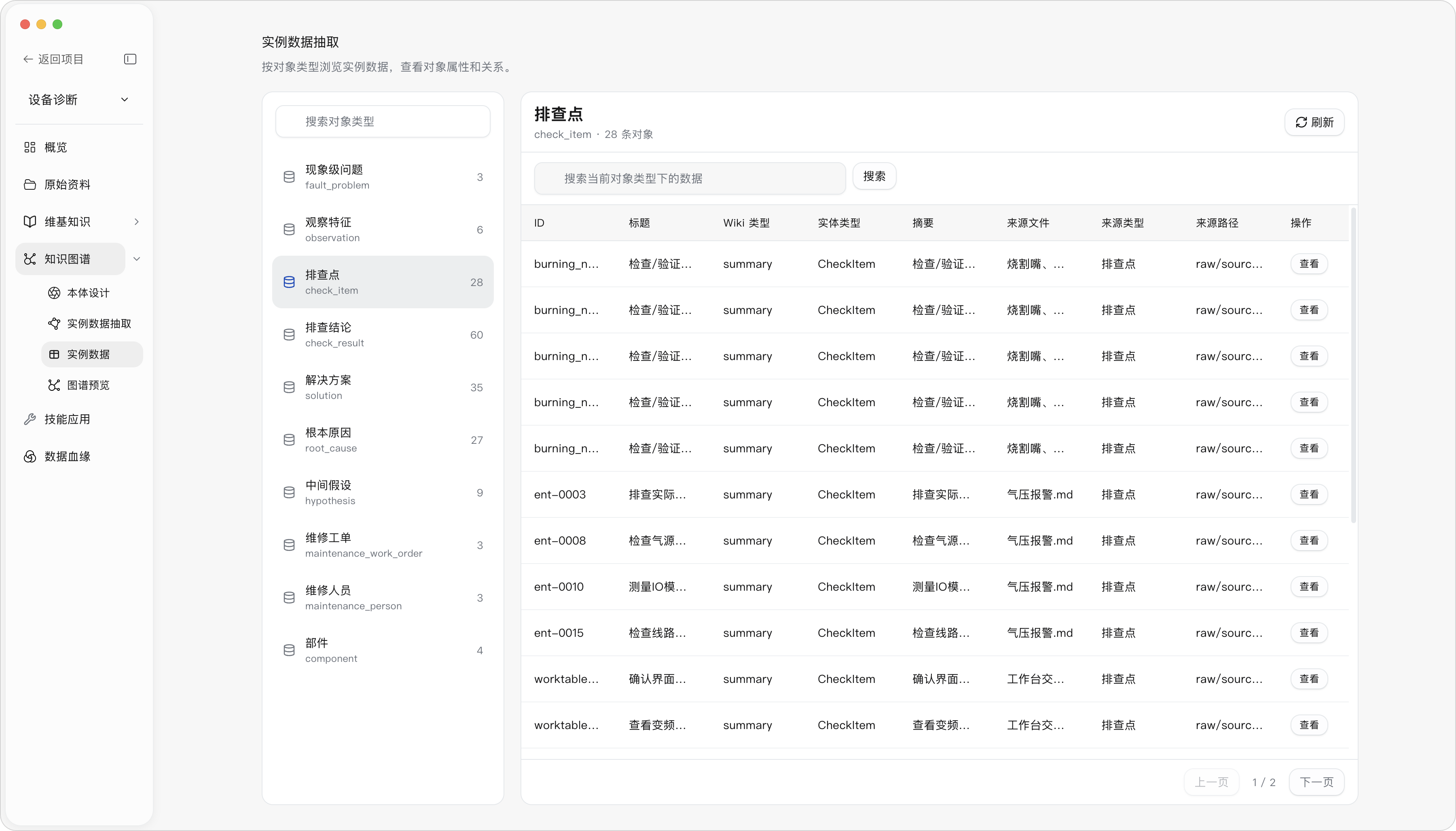
Instance Data
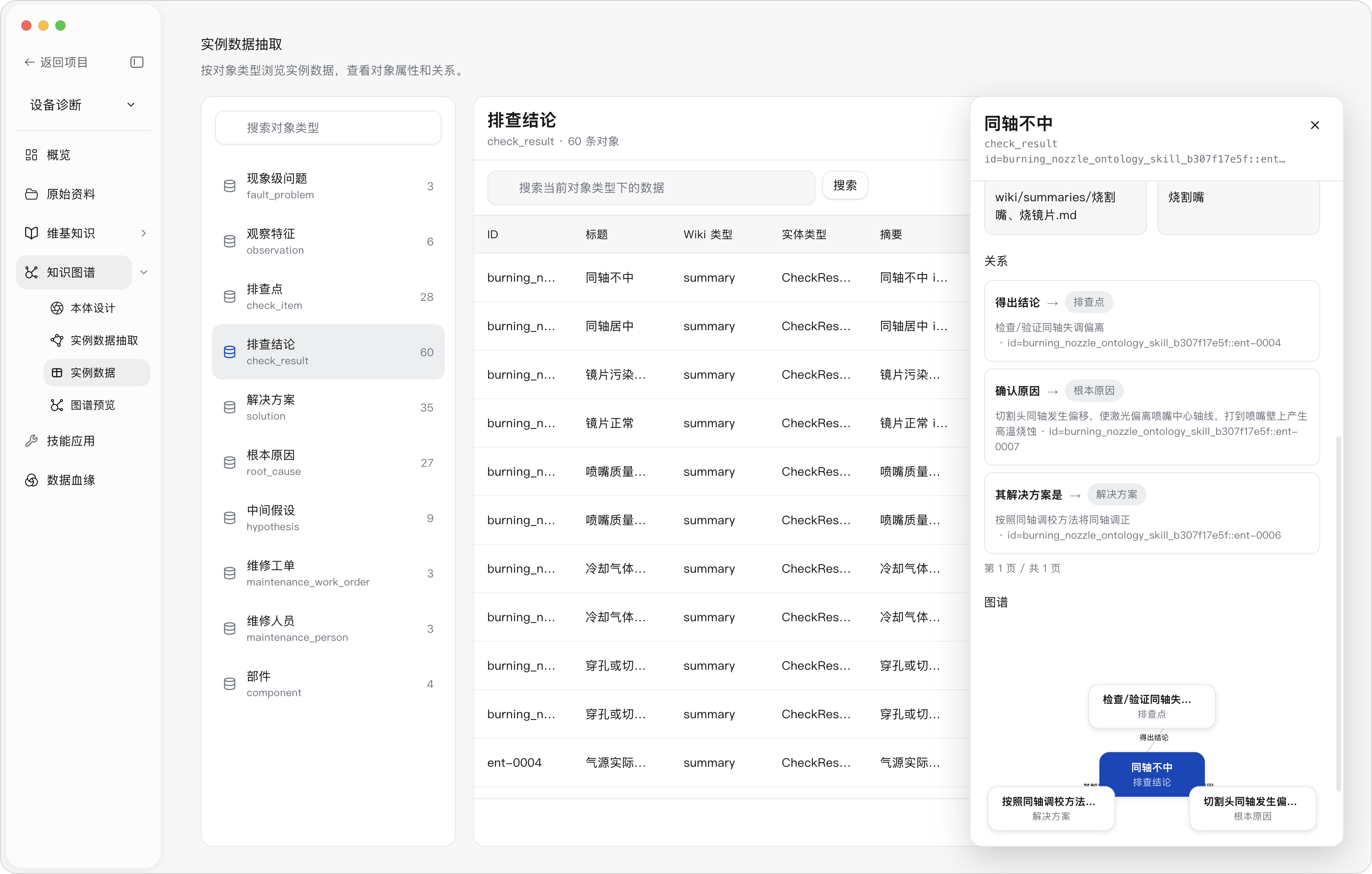
Description: Instance data is used to browse, search, verify, and trace extracted object instances and their relations by object type.
Steps: Go to “Knowledge Graph → Instance Data”, select an object type on the left, use search and pagination to locate objects, and click a data row or “View” to open details.
Result: The right side shows the instance list of the current object type; the detail panel shows object attributes, source pages, evidence, confidence, and related relations, letting you judge whether extraction results are accurate.
Note: Instance data depends on object types and instance extraction results. When object types are empty or extraction has not completed, the page shows no data. The current page is mainly for browsing and verifying instances; do not initiate extraction directly here; if results are incorrect, go back to the Wiki to fix content, go back to Ontology Design to adjust the Schema, or re-run instance extraction.
Graph Preview
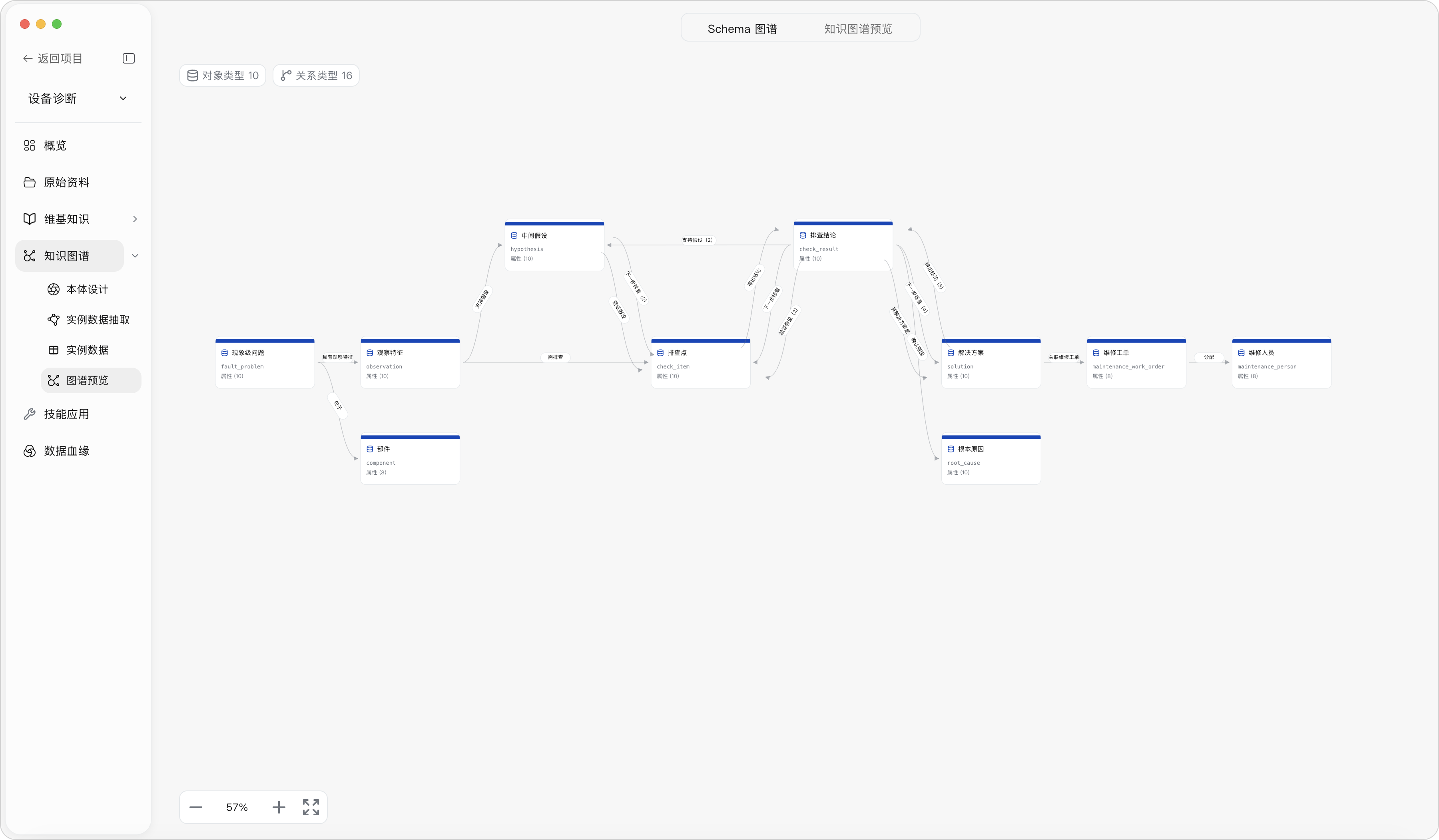
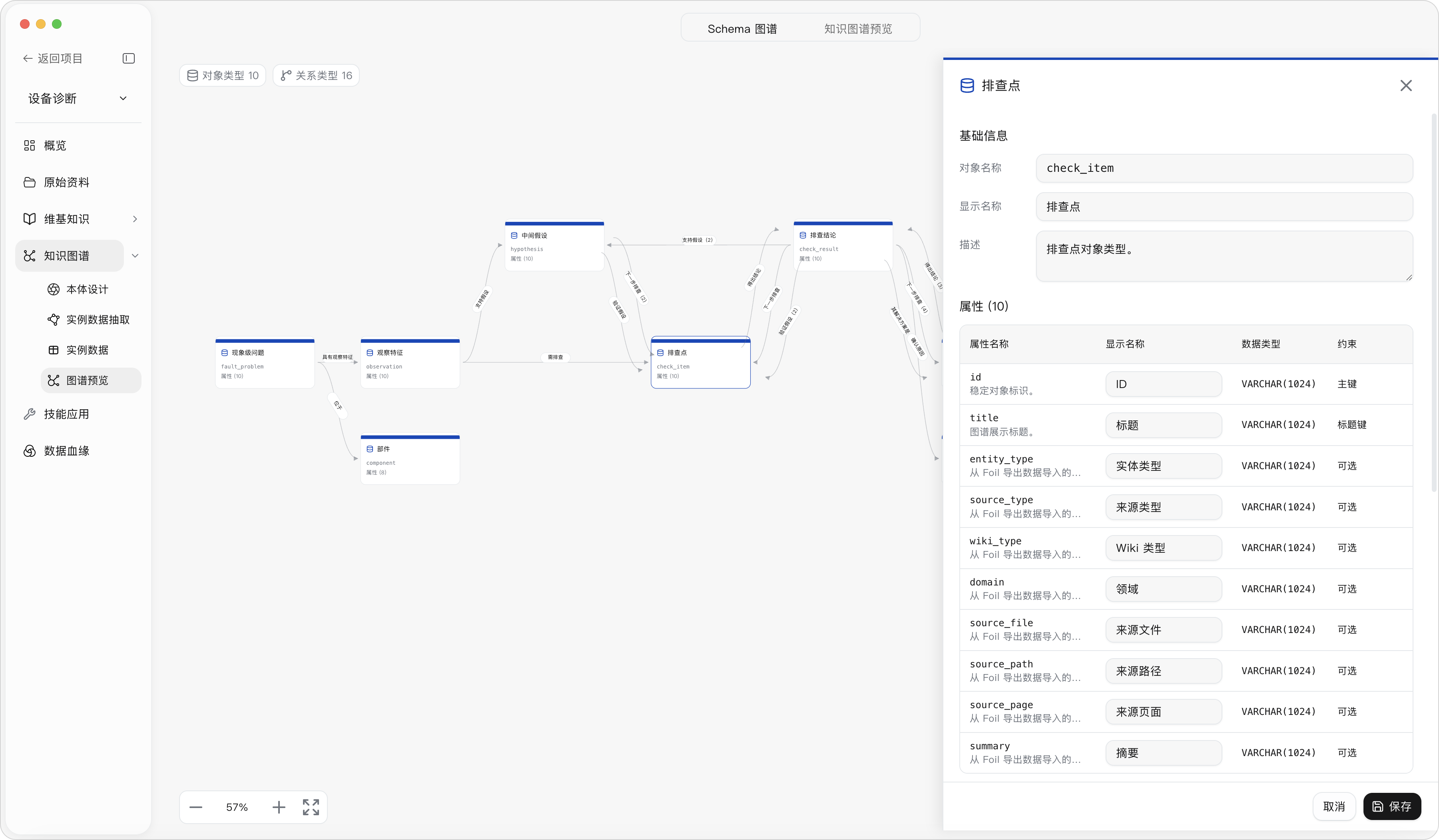
Schema Graph
Steps: Click “Graph Preview”; confirm you are on the “Schema Graph” tab; click an object type to view attributes and associations; use the zoom and reset buttons.
Result: The page displays object types, relation types, and structural definitions as a graph.
Note: An empty Schema Graph usually means Ontology Design has not been completed; the Schema Graph shows definitions, not instance counts; instance data should be viewed in “Instance Data” or the Knowledge Graph preview.
Schema Graph
Schema object type details
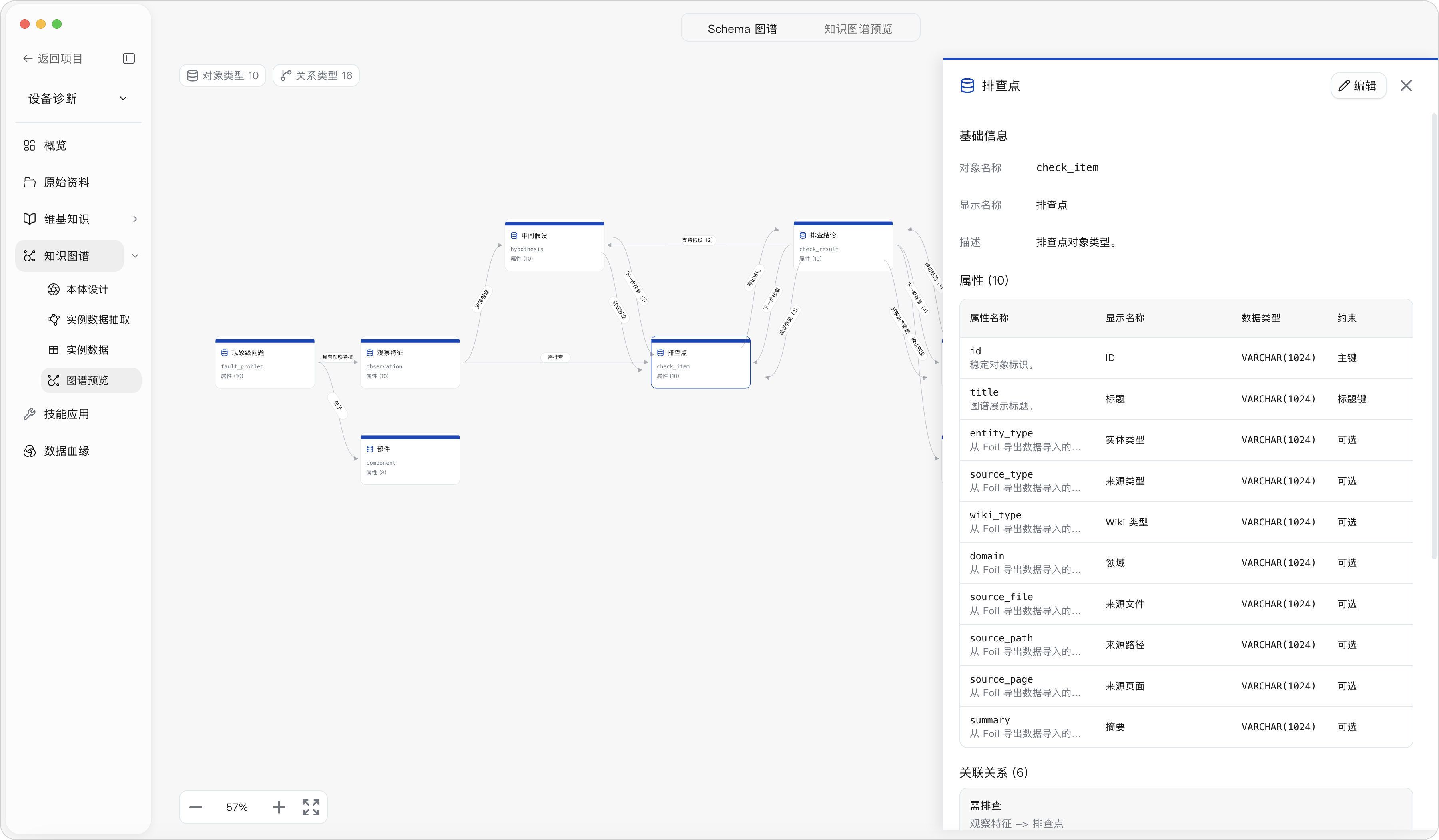
Schema object editing
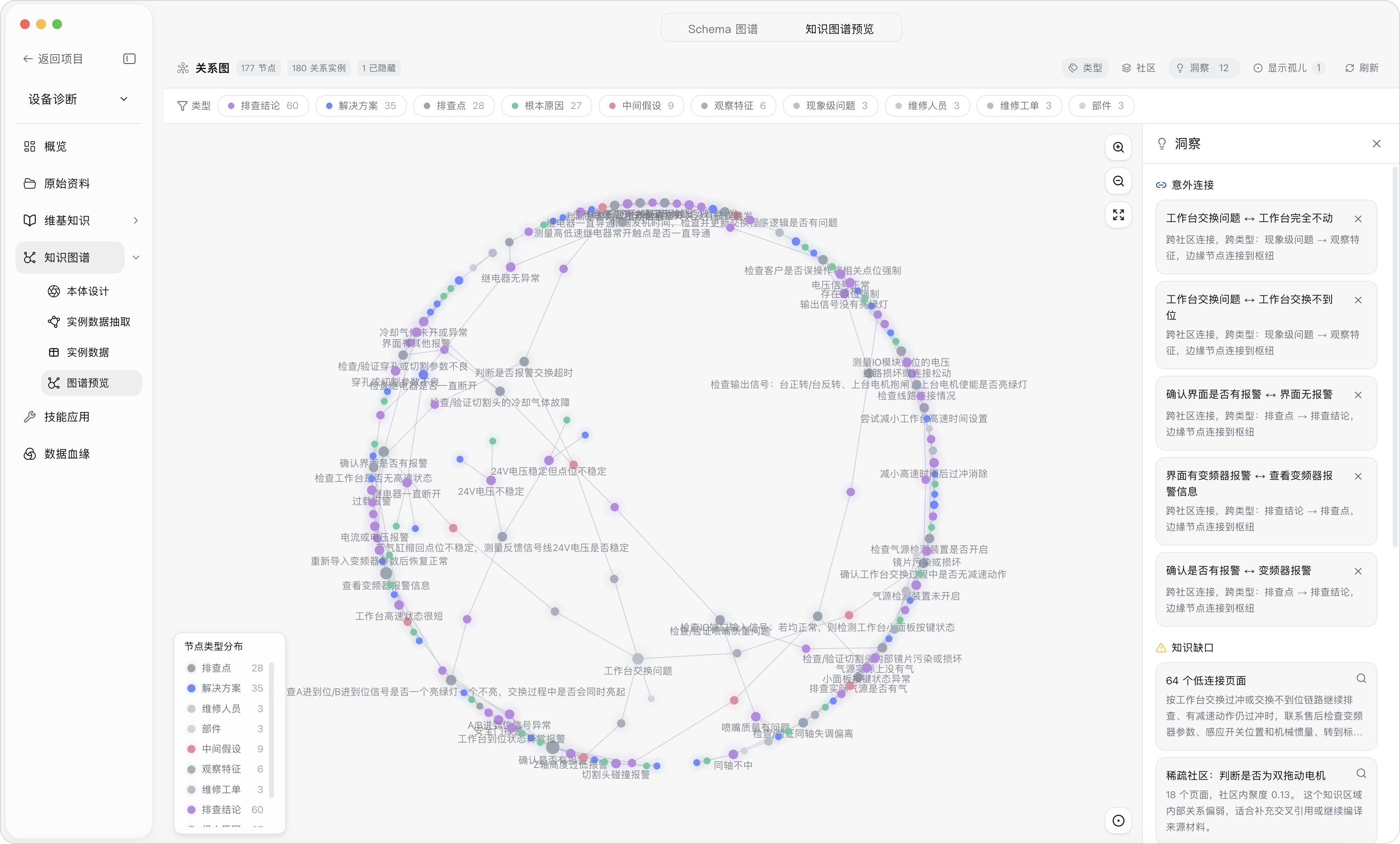
Knowledge Graph Preview
Steps: Switch to “Knowledge Graph Preview” in Graph Preview; filter by type, community, and orphan nodes; click a node or insight item to view details.
Result: The page shows ontology instance nodes, relations, type distribution, unexpected connections, and knowledge gaps.
For definitions of unexpected connections and knowledge gaps, see:
Note: Knowledge gaps are governance suggestions, not automatic repair conclusions. Before publishing or external use, the business owner should confirm the node and relation calibers.
Data Lineage
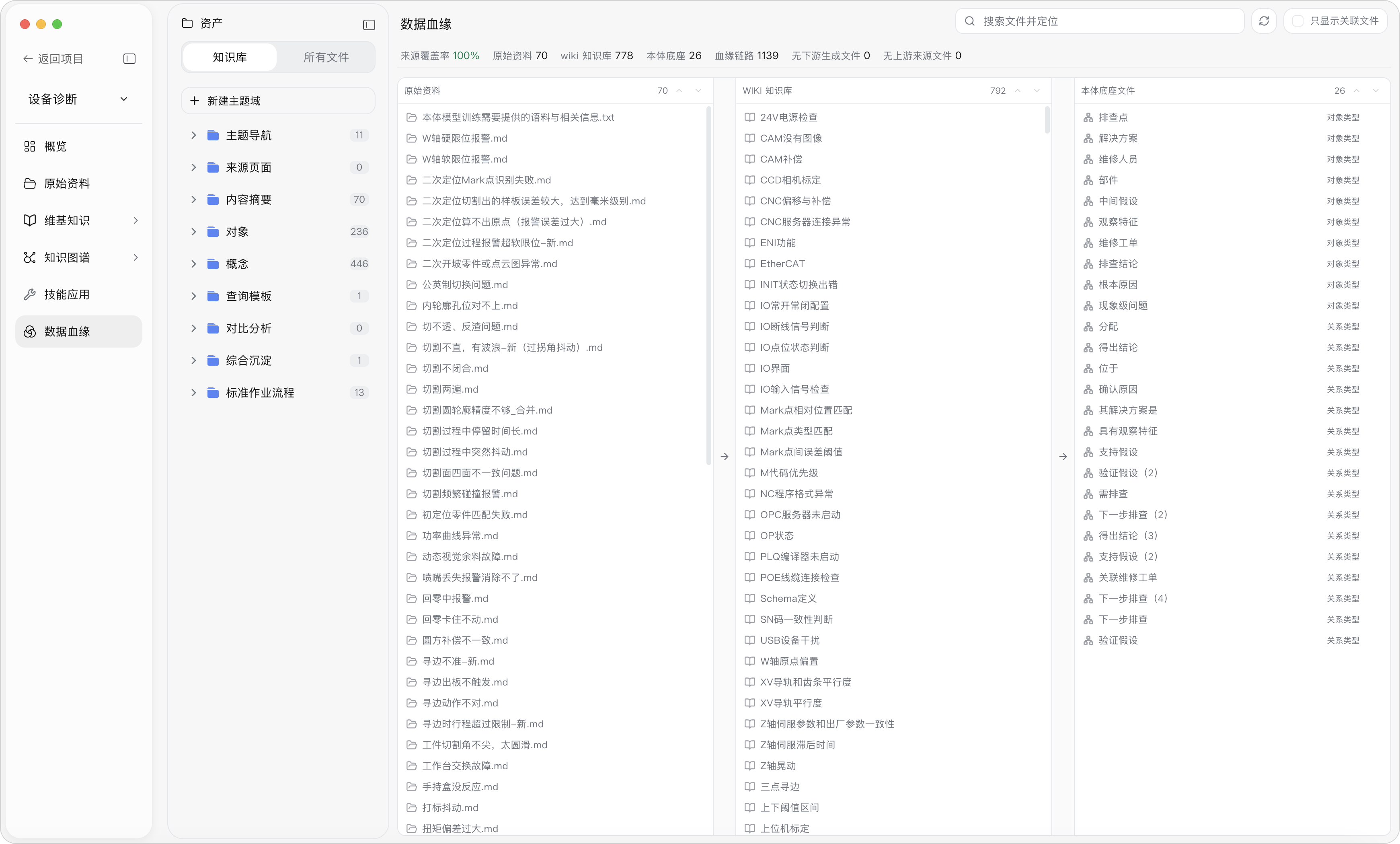
Description: “Data Lineage” shows the source and impact relationships among source materials, Wiki knowledge, and ontology artifacts in the knowledge production chain.
Steps: Enter “Data Lineage” to view source coverage, source material count, Wiki node count, and lineage chains; search for files or click nodes, and enable “Show only related files” when needed.
Result: The page shows three-column lineage relationships among source materials, Wiki knowledge, and ontology artifacts. After clicking a node, you can view its upstream sources, downstream artifacts, and file details, used to judge whether knowledge conclusions are traceable.
Note: Data Lineage depends on stages such as source material import, Wiki knowledge compilation, and ontology extraction. “No downstream generated files” means the source materials have not yet produced valid knowledge artifacts; “No upstream source files” means the Wiki lacks source evidence. Deleting Raw source materials does not automatically delete the generated Wiki; lineage marks the source materials as deleted.
Lineage overview
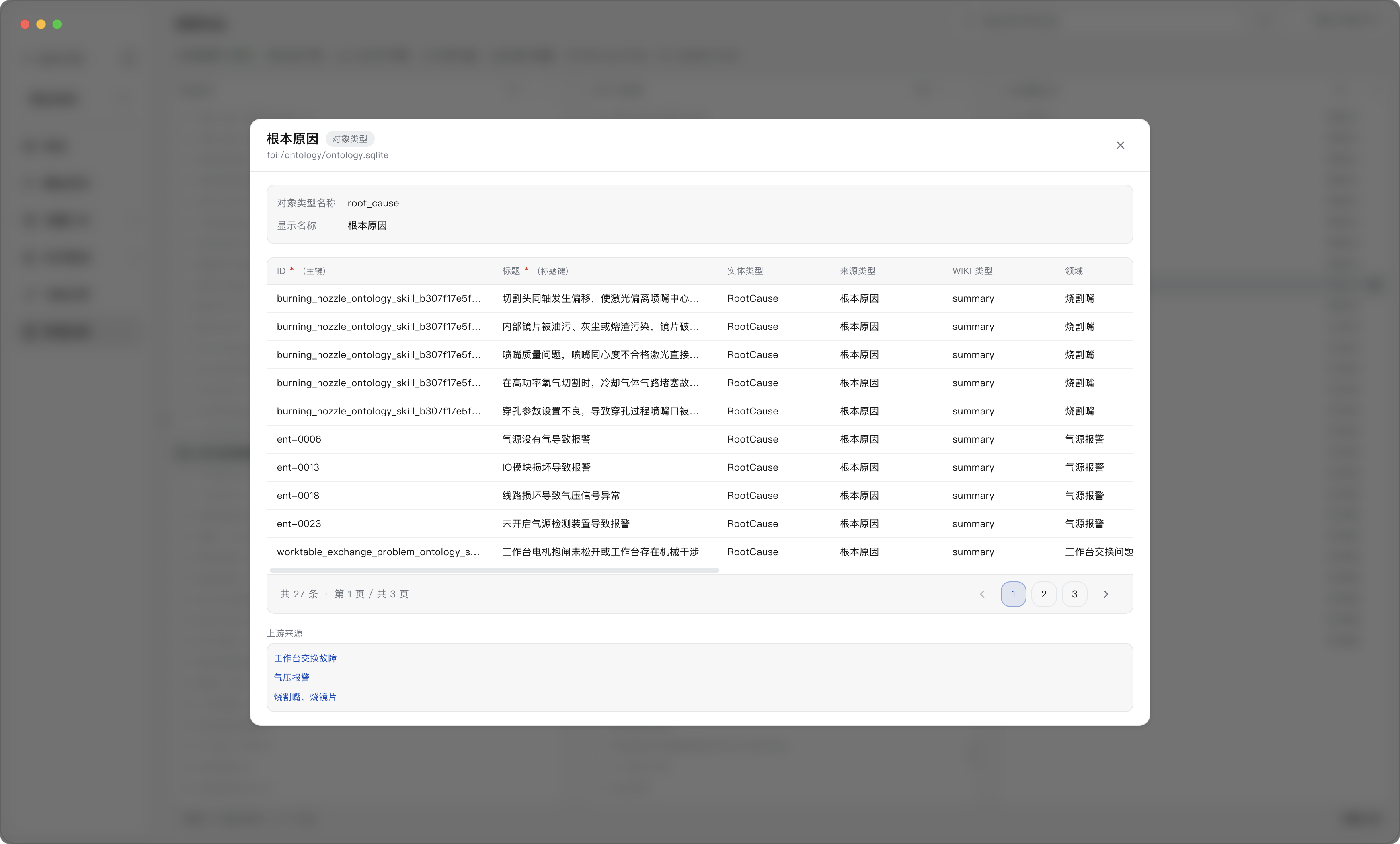
Wiki file detail panel
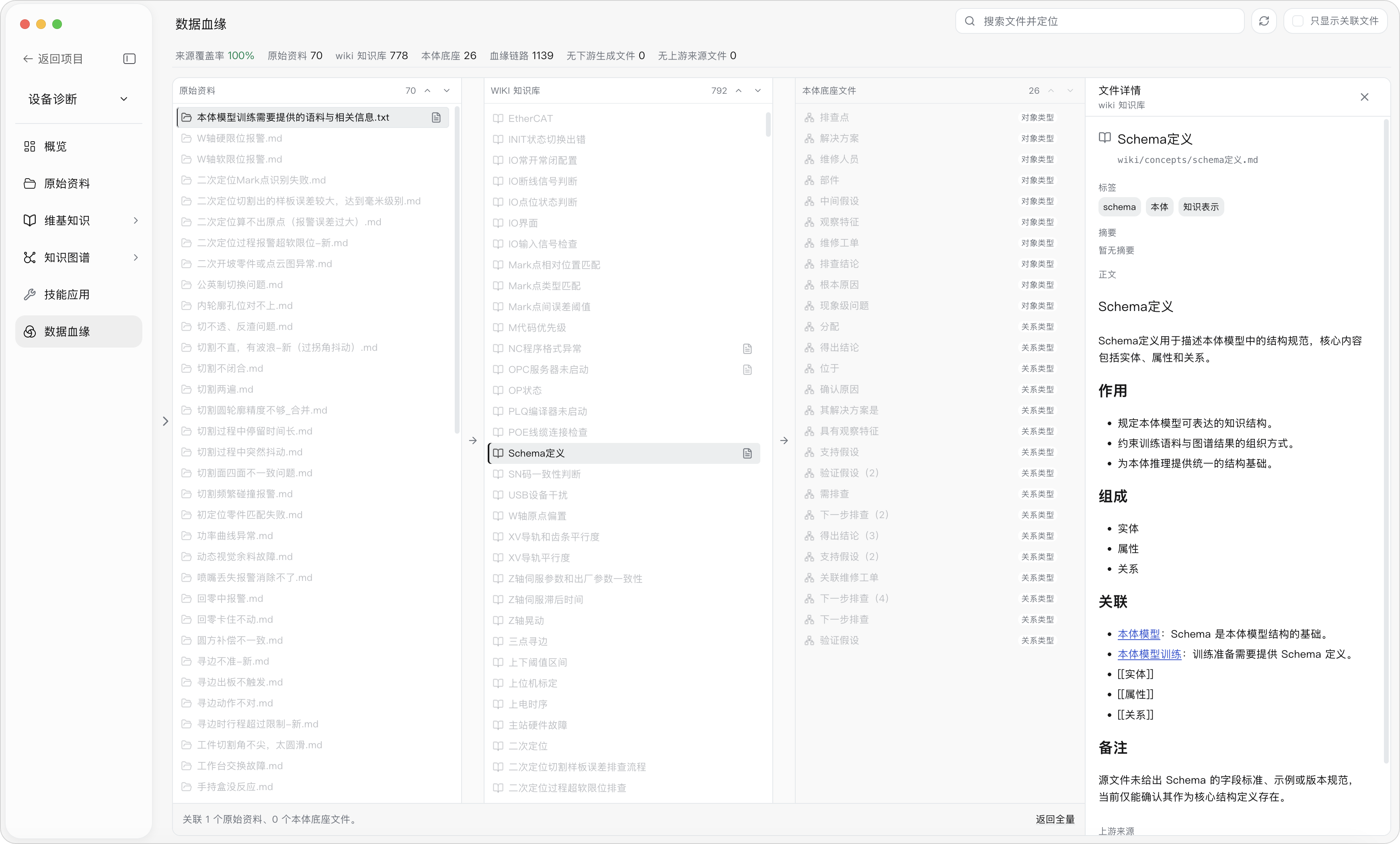
Ontology file detail panel
Invoking a Knowledge Workspace in an Agent Conversation
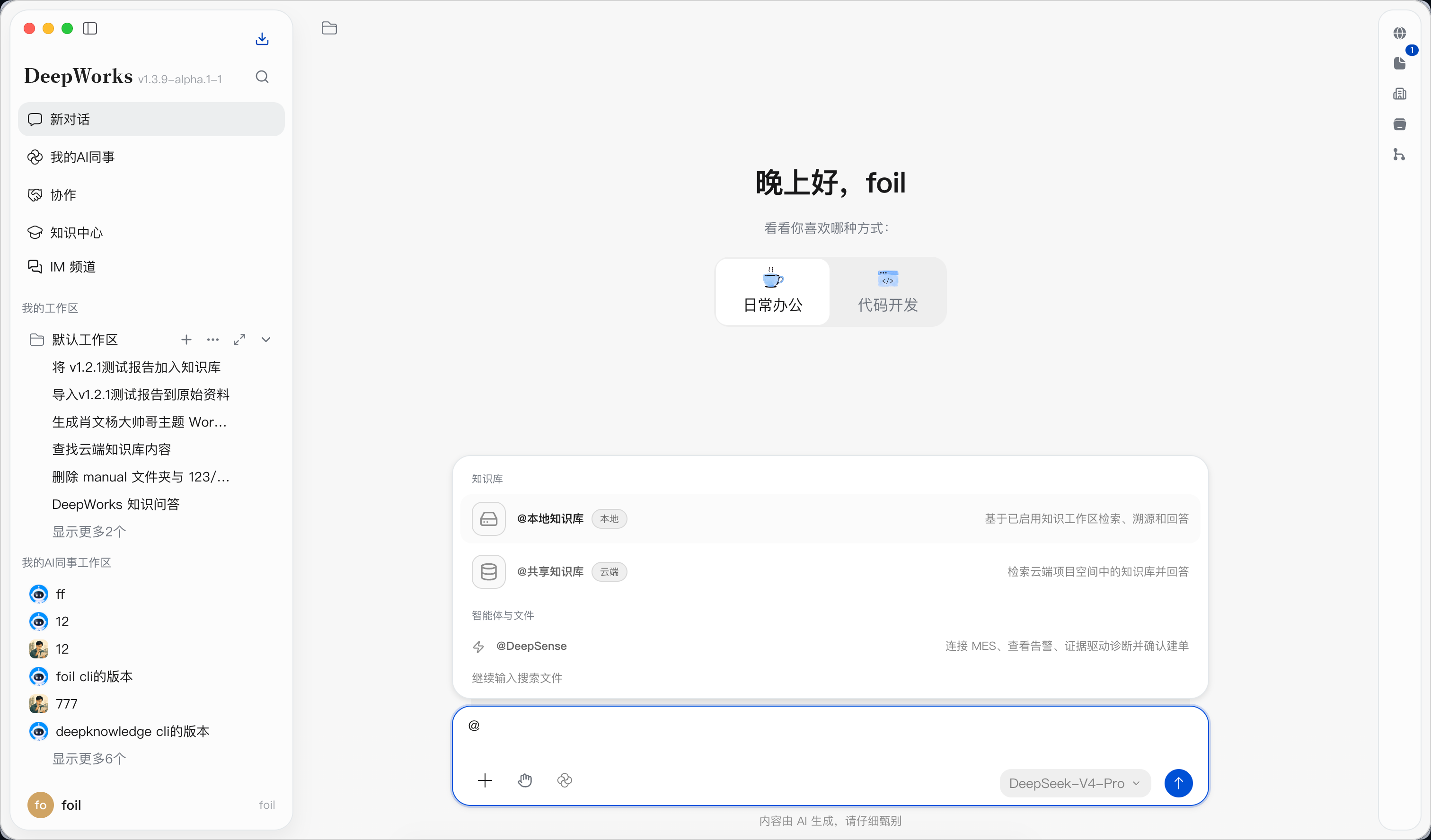
Steps: Click in the DeepWorks chat input box; type @; select “Local Knowledge Base” in the candidate menu. Result: Knowledge base candidates appear above the input box; the Local Knowledge Base is marked as local, with a note that retrieval, traceability, and answers will be based on enabled Knowledge Workspaces. Note: You should select “Local Knowledge Base”; selecting “Enterprise Knowledge Base” switches to the cloud Project Space.
Chat input box @ knowledge candidate menu
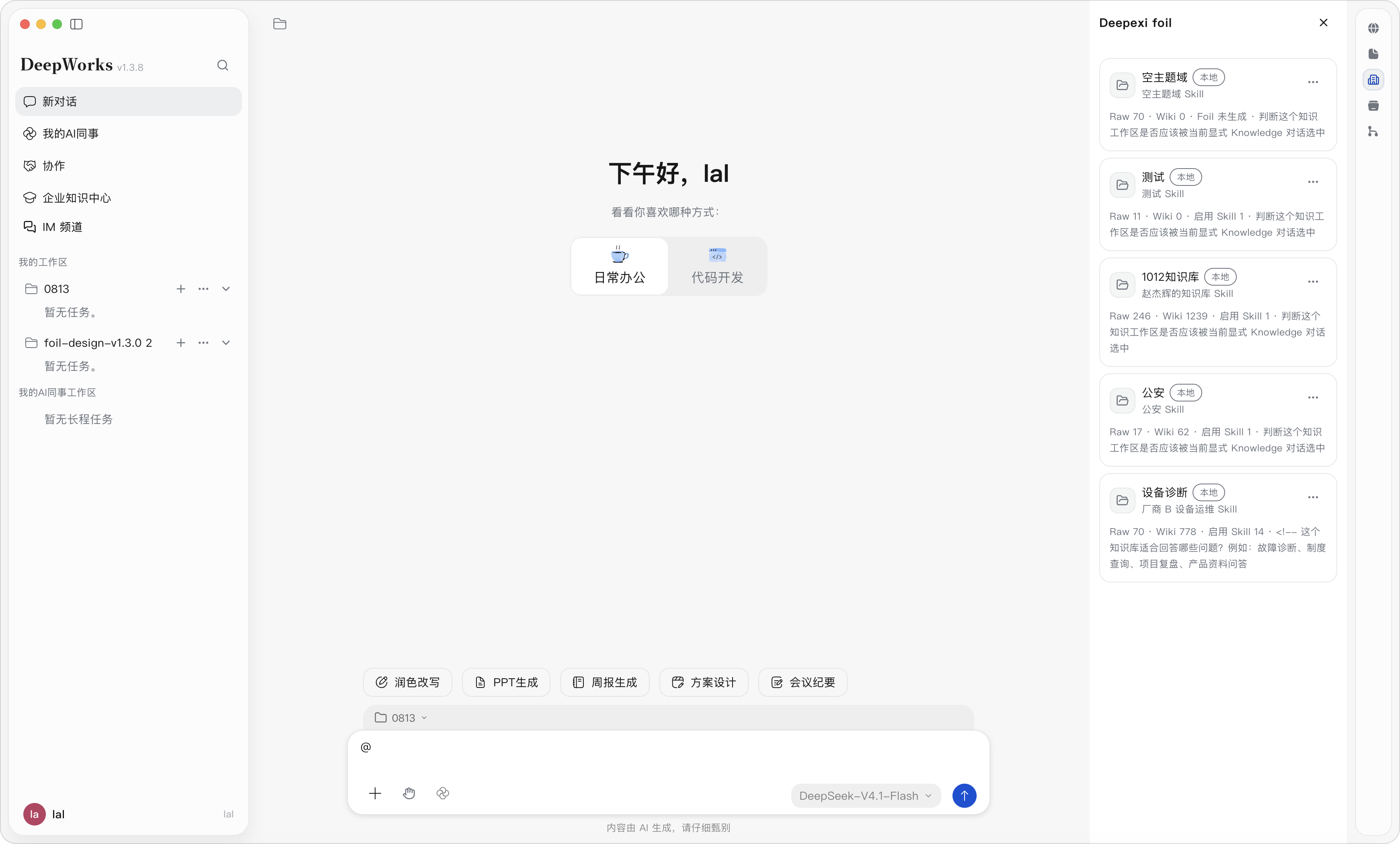
| Steps: In the Local Knowledge Base selector, check one or more Knowledge Workspaces; click Confirm to use. Result: The chat input box inserts a Local Knowledge Base reference, and subsequent questions are retrieved against the selected workspaces. Note: When the selection becomes invalid, a workspace is disabled, or a directory is unavailable, you need to re-select. Do not check all irrelevant workspaces just to improve hit rates. Select knowledge base Steps: Confirm that the input box shows the target Local Knowledge Base tag; continue typing your business question; after sending, view the reference sources in the answer; click a source to go back to the Wiki or Raw file. Result: The Agent retrieves according to the explicitly selected knowledge scope and ties conclusions to traceable sources. Note: Knowledge scope, account permissions, and workspace enablement status affect results. Answers still require business confirmation; do not directly trust answers when sources are missing or knowledge is outdated. |
|---|
Conversation knowledge panel disable menu
Typical Scenarios of Agent Invocation
Users invoke Local Knowledge Base capabilities in Agent conversations through natural language to complete the production, maintenance, and use of knowledge:
Create / Initialize a Knowledge Base
Scenario goal: Establish a knowledge accumulation space for a new business, clarifying knowledge boundaries, material scope, and usage.
Recommended prompt
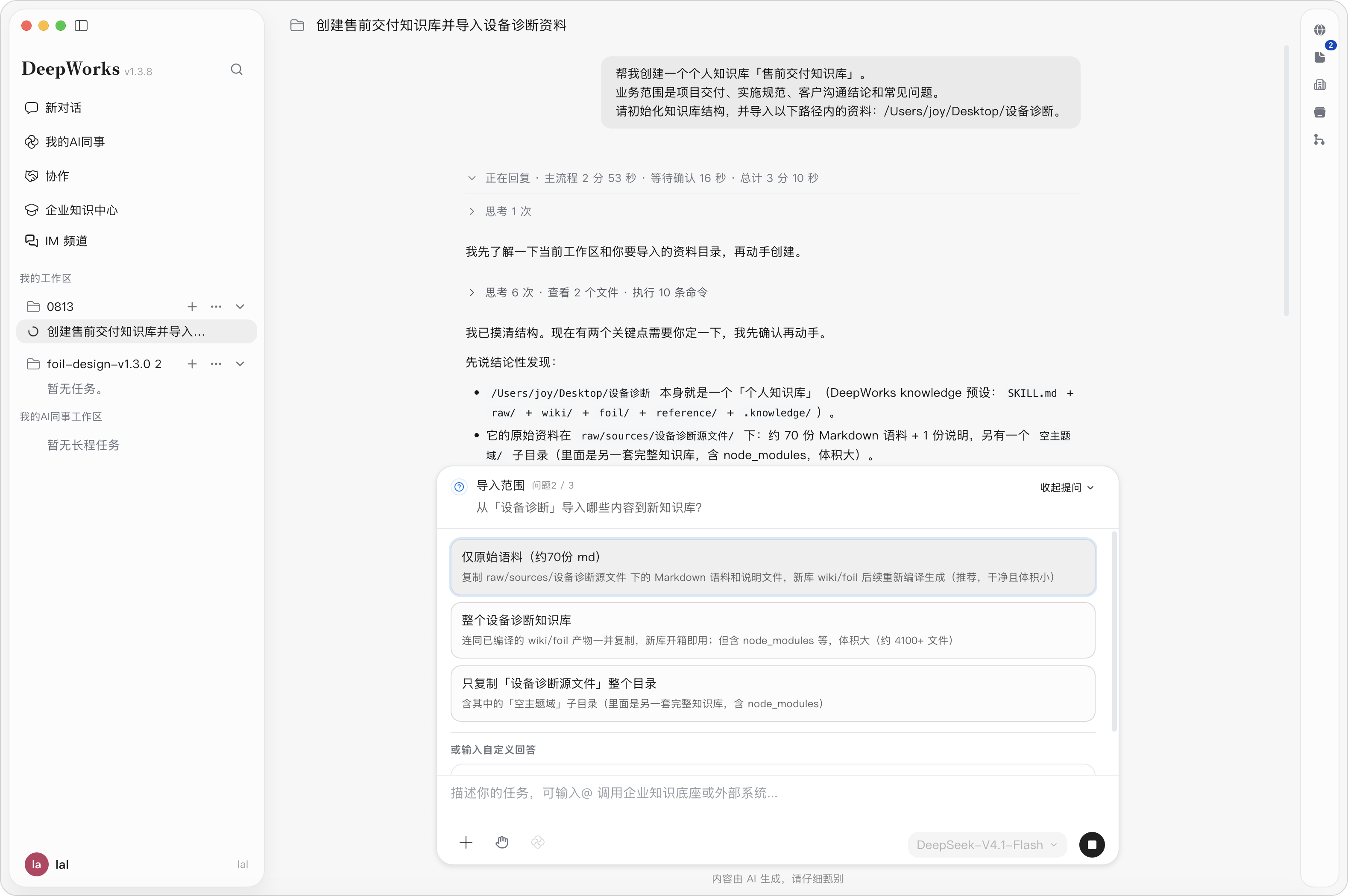
Help me create a local knowledge base called “Pre-sales Delivery Knowledge Base”. The business scope is project delivery, implementation standards, customer communication conclusions, and FAQs. Please initialize the knowledge base structure and import the materials in the following paths: {}
Expected outcome
- A new knowledge base / workspace.
- A clear business scope.
- Initialization of directories or capabilities such as Raw, Wiki, graph, and Skills.
- Suggestions for subsequent material imports.
Import Source Materials
Scenario goal: Bring local folders, documents, FAQs, experience conclusions, or existing Wiki into the knowledge base.
Recommended prompt
@Knowledge Center Add /Users/joy/Documents/Delivery Materials to the knowledge space. Please check the material structure first, then import these files. After import, tell me how many new source materials were added.
Expected outcome
- List of new source materials.
- Raw file paths.
- Import status.
- Hints for subsequent compilation. Note: For batch imports, it is best to have the Agent check the folder structure first; execute the import after confirming everything is correct.
Compile Knowledge
Scenario goal: Process source materials into callable knowledge assets such as Wiki, graphs, Skills, and lineage.
Recommended prompt
@Knowledge Center Compile the “Delivery Materials” just imported. Please generate Wiki pages, entity relations, skill projections, and Data Lineage. When done, tell me the number of new pages, items pending review, and the compilation results.
Incremental compilation:
@Knowledge Center Incrementally compile the current knowledge base, processing only changed materials. Please skip unchanged content and explain which materials were compiled and which were skipped.
Expected outcome
- Compilation task status.
- New or updated Wiki pages.
- Entity, relation, skill, or lineage results.
- Items pending review, conflicts, or failure reasons. Note: Full recompilation has a large impact; it is recommended to explicitly ask the Agent to count the affected scope first, then confirm execution.
Check Knowledge Quality
Scenario goal: Discover conflicts, missing pages, low-quality content, uncompiled materials, and Q&A gaps.
Recommended prompt
@Knowledge Center Check the governance status of the current knowledge base. Please list:
- Materials not compiled or that failed compilation;
- Wiki pending review;
- Entity and relation conflicts;
- Current Q&A gaps;
- Suggested next actions.
Expected outcome
- Knowledge base scale and enablement status.
- Number of unprocessed materials.
- Review, Check, and Gap summaries.
- Suggested next fixes.
Invoke Knowledge to Answer Questions
Scenario goal: Have the Agent answer business questions based on the enabled knowledge base, rather than improvising from a general model.
Recommended prompt
@Knowledge Center Answer based on the current knowledge base: When a service fails to start at a customer site, what are the standard troubleshooting steps? Please give causes and steps by priority, and attach knowledge sources. If the knowledge base evidence is insufficient, please clearly say “insufficient evidence” and do not make things up.
You can also look up standards or SOPs:
@Knowledge Center Based on the implementation standards in the knowledge base, organize a pre-launch checklist. Requirements:
- Group by check stage;
- State the check action for each item;
- Mark whether it is mandatory;
- Attach sources.
Expected outcome
- Steps or conclusions.
- Knowledge sources.
- If evidence is insufficient, gaps are flagged.
Deposit New Knowledge / Fill Gaps
Scenario goal: Flow new conclusions from conversations, customer experience, and problem-handling results back into the knowledge base, preventing knowledge from staying only in chats.
Recommended prompt
@Knowledge Center Deposit the service-startup-failure handling plan just summarized into the knowledge base. Please generate a new knowledge record titled “Standard Troubleshooting Process for Service Startup Failures”. The content should include symptoms, possible causes, troubleshooting steps, handling methods, and applicable environments.
You can also govern first, then deposit:
@Knowledge Center The problem just now exposed a knowledge gap. Please create a Gap; the missing content is “DNS resolution check process after cross-cloud migration”. The affected scenario is access failure after customer migration; it is recommended to supplement the corresponding SOP later.
Expected outcome
- New Raw records or Gap records.
- Clear title, content, and applicable scenarios.
- Suggestions for subsequent compilation or manual review.
Appendix: Image-to-Section Mapping
| Image file | Section |
|---|---|
| /images/manuals/knowledge/local/local-kb-entry-1.png | Local Knowledge Base Entry |
| /images/manuals/knowledge/local/compile-model-1.png | Configure the Compilation Model |
| /images/manuals/knowledge/local/create-workspace-1.png | Create a New Knowledge Workspace |
| /images/manuals/knowledge/local/workspace-ui-1.png | Get to Know the Workspace Interface |
| /images/manuals/knowledge/local/import-files-1.png | Import Source Materials |
| /images/manuals/knowledge/local/import-files-2.png | Import Source Materials |
| /images/manuals/knowledge/local/build-wiki-1.png | Build Wiki Knowledge |
| /images/manuals/knowledge/local/wiki-result-1.png | View Processing Results: Wiki Knowledge |
| /images/manuals/knowledge/local/wiki-result-2.png | View Processing Results: Wiki Knowledge |
| /images/manuals/knowledge/local/edit-entry-1.png | Edit and Maintain Wiki Entries |
| /images/manuals/knowledge/local/topic-management-1.png | Topic Domain Management |
| /images/manuals/knowledge/local/wiki-graph-1.png | Wiki Graph |
| /images/manuals/knowledge/local/wiki-graph-2.png | Wiki Graph |
| /images/manuals/knowledge/local/insight-panel-1.png | Insight Panel |
| /images/manuals/knowledge/local/object-type-config-1.png | Object Type Configuration |
| /images/manuals/knowledge/local/object-type-config-2.png | Object Type Configuration |
| /images/manuals/knowledge/local/object-type-config-3.png | Object Type Configuration |
| /images/manuals/knowledge/local/object-type-config-4.png | Object Type Configuration |
| /images/manuals/knowledge/local/relation-type-config-1.png | Relation Type Configuration |
| /images/manuals/knowledge/local/relation-type-config-2.png | Relation Type Configuration |
| /images/manuals/knowledge/local/relation-type-config-3.png | Relation Type Configuration |
| /images/manuals/knowledge/local/ai-schema-generation-1.png | AI-Assisted Quick Schema Generation |
| /images/manuals/knowledge/local/instance-extraction-1.png | Instance Data Extraction |
| /images/manuals/knowledge/local/instance-extraction-2.png | Instance Data Extraction |
| /images/manuals/knowledge/local/instance-data-1.png | Instance Data |
| /images/manuals/knowledge/local/instance-data-2.png | Instance Data |
| /images/manuals/knowledge/local/schema-graph-1.png | Schema Graph |
| /images/manuals/knowledge/local/schema-graph-2.png | Schema Graph |
| /images/manuals/knowledge/local/schema-graph-3.png | Schema Graph |
| /images/manuals/knowledge/local/knowledge-graph-preview-1.png | Knowledge Graph Preview |
| /images/manuals/knowledge/local/data-lineage-1.png | Data Lineage |
| /images/manuals/knowledge/local/data-lineage-2.png | Data Lineage |
| /images/manuals/knowledge/local/data-lineage-3.png | Data Lineage |
| /images/manuals/knowledge/local/agent-chat-1.png | Invoking a Knowledge Workspace in an Agent Conversation |
| /images/manuals/knowledge/local/agent-chat-2.png | Invoking a Knowledge Workspace in an Agent Conversation |
| /images/manuals/knowledge/local/agent-create-kb-1.png | Create / Initialize a Knowledge Base |